
Why Is My Microphone Picking Up Computer Audio? Fix Game Sound, YouTube and Echo
If people in voice chat can hear your game, YouTube videos, music or even their own voices coming back through your microphone, the mic itself may not be the real problem. Audio can leak acoustically from headphones, cross over inside an analog headset connection, or be routed digitally into the wrong input by Windows, communication software or virtual audio tools.
Key takeaways
- First determine whether the microphone is physically hearing the computer or whether system audio is being routed directly into the input.
- Computer audio that continues after a hardware microphone mute strongly suggests a routing or input-selection issue.
- Headphones can leak enough sound for a sensitive microphone to capture them, especially at high volume.
- A local recording is one of the fastest ways to separate hardware and OS problems from Discord or game-chat settings.
- Hearing game audio and hearing your own voice echoed back can look similar to the listener but have different causes.
Symptoms and where to investigate first
| Symptom | First place to check |
|---|---|
| Game audio sounds extremely clean | Stereo Mix, loopback, virtual devices and app input |
| Leak decreases with headphone volume | Acoustic or analog crosstalk |
| PC audio continues through hardware mute | Digital routing or wrong input device |
| Only one application has the problem | That application's input and monitoring settings |
| Only the 3.5 mm connection is affected | Cable, splitter, jack and analog audio path |
| Caller hears their own delayed voice | Speaker echo or a monitoring/routing loop |
Find out whether the leak is acoustic or digital
The single most useful distinction
There are two fundamentally different ways computer audio can end up in voice chat. The microphone capsule may genuinely capture sound coming from speakers or leaking out of headphones. Alternatively, the audio can bypass the microphone completely and be sent to the application through a loopback input, virtual device or incorrect recording source. Both situations make your friends hear the PC, but they require different fixes.
Start a video or music track with easily recognizable audio and use the physical mute switch on your microphone or headset. Do not rely only on Discord's mute button because that operates after the audio has already entered the application. Watch the input meter in the operating system or a separate recording program. If it continues reacting to the computer audio while the microphone hardware is muted, investigate input selection and routing.
If the leak disappears when the microphone is physically muted, reduce headphone or speaker volume substantially and repeat the test. A large reduction in the unwanted signal points toward acoustic leakage. With a desktop microphone, moving it closer to your mouth and reducing input gain can make a dramatic difference because your voice becomes much stronger relative to everything else in the room.
Finally, create a short local recording with the exact microphone input you intend to use. If the game or video is present in that recording, the problem exists before the communication app. If the local file is clean but the unwanted audio appears only in one voice-chat program, focus on that program's device selection, monitoring and processing.
- Use the microphone's hardware mute.
- Repeat the test at a much lower headphone volume.
- Record the input locally outside voice chat.
- Compare at least two applications.
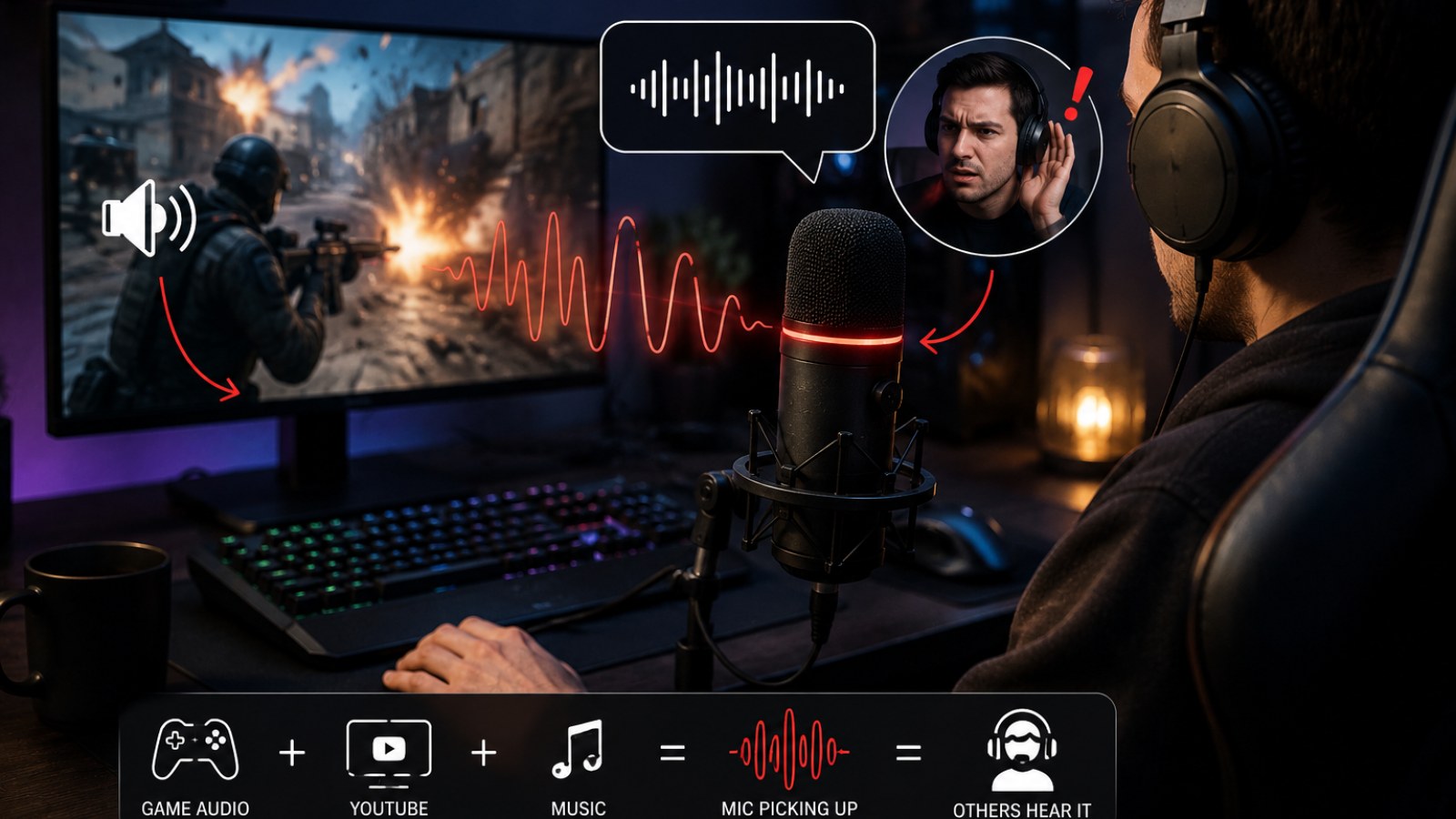
Your headphones may be louder outside the earcups than you think
Why headphones do not automatically eliminate bleed
Wearing headphones does not guarantee isolation. Drivers create acoustic energy on both sides of the earcup, and some of it escapes through pads, vents and the enclosure. Open-back headphones deliberately allow substantial sound to pass through, but even closed-back gaming headsets can become audible to a nearby microphone when playback volume is high.
Microphone placement matters just as much. A boom mic positioned close to the mouth can run at lower gain than a desktop microphone sitting half a meter away. When you compensate for distance by increasing gain, the microphone also becomes more sensitive to keyboard noise, room reflections, fans and headphone leakage. The result can sound as though the PC audio is somehow being injected electronically even when the cause is simply acoustic.
A better approach is to improve the signal at the source. Bring the microphone closer, point it correctly, lower the gain and use a reasonable headphone level. Noise suppression and noise gates can then provide additional cleanup. Asking aggressive software processing to remove a loud game soundtrack from a weak voice signal is far less reliable.
Speakers make the situation more obvious because the microphone is expected to hear them. If speakers are necessary, enable the communication application's echo-cancellation feature where available and keep playback at a sensible level. Echo cancellation can help, but it cannot compensate perfectly for every room, microphone position and volume.
- Move the microphone closer to your mouth before raising gain.
- Test with headphone volume reduced by 30-50%.
- Keep the microphone away from earcups and speakers.
- Use echo cancellation when voice chatting through speakers.
Check Stereo Mix, loopback inputs and the selected recording device
When the PC audio sounds suspiciously clean
If friends hear your game almost as cleanly as if you were streaming it, inspect the digital audio path. Some sound drivers expose a recording source that represents whatever the computer is playing. Depending on the hardware and software, it may be called Stereo Mix, What U Hear, loopback or something else. Virtual audio applications can create similar inputs. Selecting one of these instead of the physical microphone sends computer playback directly into voice chat.
Check the operating system's default input and then check the communication application's input separately. Avoid leaving the application on Default while troubleshooting, particularly if your system contains a webcam microphone, USB headset, audio interface, monitor audio devices and virtual cables. Select the intended microphone explicitly by name.
Also inspect recording-device properties for monitoring or listening features. These functions are useful when intentionally routing signals, but complicated configurations can create unexpected paths or feedback loops. Do not toggle every setting at once. Change one option, repeat the same test and note what changes.
Unknown virtual devices should not be deleted blindly. They may belong to streaming software, an audio interface, headset software or another application you still use. First prove the problem by selecting the physical microphone directly. Then disable suspicious inputs temporarily if necessary to identify which component is carrying the unwanted audio.
- Select the physical microphone explicitly instead of Default.
- Check for Stereo Mix, loopback and virtual audio inputs.
- Inspect monitoring and listening options.
- Temporarily disable questionable sources instead of immediately uninstalling them.
Discord, game chat and streaming software can route audio differently
What to do when only one application is affected
A clean local microphone recording changes the investigation. If Windows records only your voice but Discord, a game or another communication client sends game audio, inspect that application's own input settings. Programs can remember an old device even after the system default changes, and connecting a new headset or interface can alter device order.
Streaming and voice-processing tools add another layer. Virtual audio cables are designed to move audio between programs. A streamer may intentionally combine a microphone, game and music into one bus. If that bus is accidentally selected as the microphone in a communication client, everyone in the call receives the entire mix.
Monitoring can also create echo. Imagine a caller's voice entering your PC, being included in a monitored mix and then returning through the input selected in the same call. The other person hears a delayed copy of themselves. This is a routing loop rather than a microphone that is simply too sensitive.
For troubleshooting, simplify aggressively. Close streaming software, virtual mixers, voice changers and unnecessary audio utilities. Set the physical microphone directly in the communication app and test again. If the problem disappears, reopen the additional programs one at a time until the unwanted route returns.
- Verify the input device inside every affected application.
- Temporarily close streaming software and virtual mixers.
- Disable unnecessary source monitoring.
- Reintroduce audio tools one at a time.
A 3.5 mm headset can suffer from electrical crosstalk
Cables, splitters and analog ports matter
Not all bleed travels through the air or through software. In an analog headset, headphone output and microphone input signals run close together through cables, connectors and the computer's audio circuitry. A damaged cable, poor splitter, loose connector or insufficient channel separation can allow some playback signal to appear on the microphone path.
A useful clue is a leak that changes strongly with output volume but remains even when physically shielding the microphone capsule. Perform a cross-test: connect the same headset to another compatible device, then try a different headset on the original computer. This shows whether the symptom follows the headset or stays with the PC and its port.
Connector compatibility is also important. Headsets using one four-pole plug need a compatible combo jack or the correct headset splitter when the computer provides separate headphone and microphone sockets. An inappropriate adapter or problematic connector can produce strange behavior. If the desktop has both front and rear audio ports, compare them.
If a USB microphone works cleanly while the analog headset input consistently carries playback audio, the analog path deserves closer attention. That does not automatically mean the motherboard is defective. The case's front-panel cable, splitter, headset lead or connector may be responsible.
- Test the headset on another compatible device.
- Try another microphone or headset on the same PC port.
- Compare front and rear analog audio sockets.
- Verify that the headset splitter or adapter is appropriate.
A practical troubleshooting sequence that avoids guesswork
Change one variable at a time
Begin with a minimal setup: one communication application, one physical microphone and headphones at moderate volume. Explicitly select the microphone. Play a recognizable audio track without speaking and watch the input meter. Lower headphone volume substantially. If the unwanted input falls with it, acoustic or analog crosstalk becomes more likely.
Next, engage the microphone's hardware mute. If computer audio is still being detected, confirm that the meter belongs to the correct input. Select the physical microphone manually and temporarily disable loopback-style or unused virtual recording sources. Make a local recording to establish whether the operating-system input itself is contaminated.
If the local recording is clean, move to the affected application. Re-select the input device, inspect monitoring and temporarily disable additional processing. Users with virtual routing should bypass it and connect the physical microphone directly to the app. Repeat the same test clip after every change so the comparison remains meaningful.
Finally, swap hardware elements one by one: USB port, analog jack, cable, splitter or headset. The goal is not to buy replacement hardware immediately but to discover which part the symptom follows. A structured test usually identifies the category of fault far faster than randomly changing audio enhancements.
- 1. Select the microphone explicitly.
- 2. Test at lower playback volume.
- 3. Engage hardware mute.
- 4. Create a local recording.
- 5. Remove virtual routing temporarily.
- 6. Swap one hardware component and retest.
Do not replace the microphone simply because other people can hear your PC. Determine the signal path first. Hardware mute, a lower headphone volume, a local recording and explicit input selection can quickly distinguish acoustic leakage from analog crosstalk and digital routing. Once you know which category you are dealing with, the fix becomes much more targeted.
FAQ
Why can my friends hear YouTube even though I use headphones?
Your headphones may be leaking sound into the microphone, or the PC audio may be entering voice chat digitally through Stereo Mix, loopback or a virtual device. Lower the headphone volume and test the microphone's hardware mute to distinguish the two.
Why do people on Discord hear themselves through my mic?
Their voice may be coming from your speakers or leaking headphones and being captured again, or it may be returning through a monitoring or routing loop. Persistent echo with the microphone hardware-muted points toward routing.
Should I disable Stereo Mix?
If you do not use it, it generally should not be selected as your voice-chat input. Stereo Mix itself is not a fault; choosing it unintentionally is the problem.
Will noise suppression stop game audio from leaking into my mic?
It may reduce quieter background sound, but it is not a substitute for correct microphone placement and routing. Fix the source of a strong game-audio signal first.
ACC64 editorial article prepared from the cited materials and approved before publication.