
GAMEPAD
Prepare your controller for the GTA 6 release
Before heading to Vice City, check the sticks, drift, buttons, triggers and connection.
Read the guide →Choose a tester or describe the problem — ACC64 will take you straight to the right tool.
Choose the problem and go straight to the right tester — no extra steps.
ACC64 helps you check a mouse, keyboard, headphones, microphone, webcam, monitor, gamepad, steering wheel, touchscreen, MIDI devices, battery status, connected devices, system information and your internet connection. It also includes Game FPS Test and an FPS game library to quickly estimate how a game may run on your PC.
Pick a tester and you immediately see the device response or the information exposed by the browser. Tests run locally in the browser, so recordings, camera video and input data stay on your device. Treat the results as practical diagnostics before gaming, a call, buying new hardware or continuing deeper troubleshooting.
Practical guides for solving specific hardware problems.
Before heading to Vice City, check the sticks, drift, buttons, triggers and connection.
Read the guide →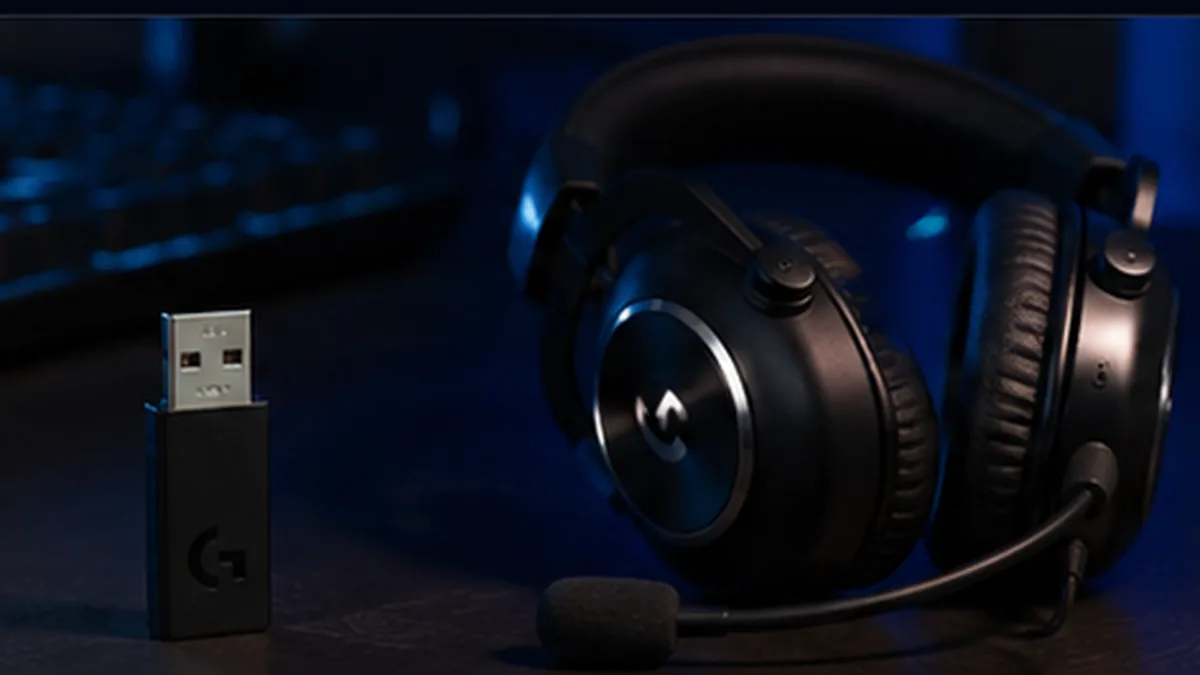
What to do when a new LIGHTSPEED receiver does not connect to the headset automatically.
Read the guide →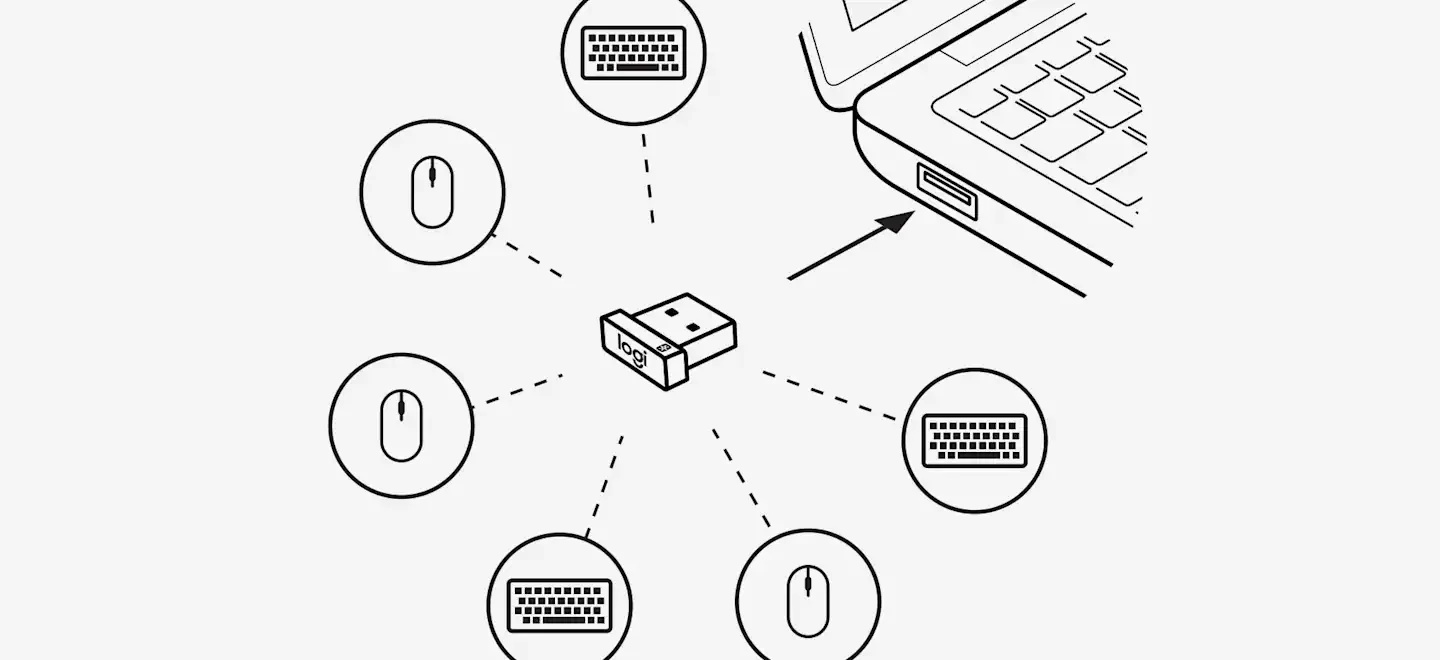
How to identify a compatible receiver and safely reconnect your device.
Read the guide →ACC64 helps you diagnose hardware problems step by step. A symptom does not always reveal the cause: the issue may be the device, USB or Bluetooth connection, system settings, a driver, or a specific game or app.
First check whether the problem also occurs outside the app where you noticed it. If double clicks, stick movement or a missing microphone signal also appear in an independent browser test, you can narrow down the cause. Reconnect the device, try another USB port, or check the wireless connection and battery.
A single unusual reading does not necessarily mean a fault. Repeated double clicks may indicate a mouse-switch problem, constant stick deflection may suggest stick drift, and a missing audio channel can come from either the headphones or balance settings. For internet connections, watch both speed and ping stability. Repeatable results are the most useful.
If the device works correctly in the test but fails in a specific app, check that app's settings, permissions and drivers. Make sure the system and the app use the same input or output device. With controllers, API support, button mapping or manufacturer software may also matter.
An abnormal result in an independent test is a clue, not always a final diagnosis. Repeat the test after reconnecting the device and, if possible, using another port or computer. If the same symptom appears in several environments, a hardware problem becomes more likely.
A browser has limited hardware access and cannot inspect every electronic component, mechanical condition or driver parameter. Online tests are useful for initial troubleshooting, but unstable operation, physical damage or a problem reproduced on multiple devices may require deeper diagnostics or service.
No. The testers work in a modern browser. Access to the microphone or camera only requires the permission shown by your browser.
No. Video, audio and input data used by the hardware testers remain locally on your device.
First check the USB or Bluetooth connection, refresh the page and accept the required permissions. Some device names and parameters may be hidden by the browser.
Yes. Some testers also work on phones and tablets, although available features depend on the device, operating system, browser and supported interfaces.
No. An online test shows only the data and responses the browser can read. It can reveal many common problems, but it does not replace driver diagnostics, hardware measurements or a physical inspection of the device.
Check channels, frequency range and playback stability.
Check the signal level and background noise, record a sample, then play it back.
After the test you will see a simple assessment of background noise and voice level.
Levels are shown in dBFS, not sound-pressure decibels. SNR compares the opening moment of silence with the speech that follows, so start the test somewhere quiet.
Click Start Test and speak normally. The test continues until you click Stop Test.
Click normally. The tester looks for a very fast unintended second signal typical of a faulty switch.
Click Start, wait until the area turns green, then click it as quickly as possible. This tests reflexes and click reaction, not mouse hardware latency.
Scroll for as long as you like in either direction. Statistics update live and the tester detects suspicious wheel bounce.
If your mouse has a tilt wheel or a separate side scroll wheel, use it in this area.
The browser detects horizontal scroll events here. Support depends on the mouse, driver and operating system.
Move the mouse smoothly in the main test area.
This is not a direct USB reading. It shows how often the browser receives mouse movement, so the system and current computer load can change the result.
If the same button sends a second signal within 80 ms or less, it will be counted as a suspected double click and the corresponding part of the mouse diagram will turn red.
A normal intentional double-click slower than 80 ms does not trigger the alarm. Test with single clicks — if DOUBLE CLICKS increases despite single presses, the switch may be bouncing.
Pressed keys light up blue. After release they remain marked as tested.
Hold several keys at once. If a key you are physically holding does not light up on the keyboard above, the device may have a rollover or ghosting limitation.
Check live video, smoothness, resolution and camera sharpness.
The page will ask your browser for camera access. Video stays on this device.
After permission is granted, we will try to automatically select the microphone belonging to the same camera.
Click Start Test and speak normally — the graph reacts to live audio.
FPS is measured from frames actually displayed. The value may briefly change after starting or switching cameras.
Complete test of buttons, sticks, triggers, D-pad, drift and vibration.
If the controller was previously allowed by the browser, it will also be detected automatically when you reconnect it.
Calibration: default center position.
Release the sticks. If drift remains high without touching them, the stick may be worn or need calibration.
This is the update rate seen by the browser, not the controller’s exact USB polling rate.
See the hardware your browser can detect on this computer — in one place.
ACC64 only shows hardware exposed to the website by your browser. This is not a full Windows Device Manager. The same physical device can appear in more than one category.
Counts refer to entries visible to the browser, not the complete system hardware list.
An exact display count requires Window Management API support and permission. Mirrored/duplicated displays may appear as a single display. Dimensions are reported in CSS pixels, so OS scaling can make them differ from the panel’s native resolution.
The USB list includes attached devices previously authorized for this site and a device selected with the button above.
Displays, accessible USB/HID devices, gamepads, MIDI, and audio/video devices — within the limits exposed by the browser.
A website cannot show the complete OS Device Manager, drivers, or every mouse and keyboard. It also cannot reliably tell HDMI from DisplayPort or USB-C.
Data is read locally in the browser. ACC64 does not send commands to USB devices during this scan.
The ACC64 connected devices tester helps you see which hardware your browser can detect without installing extra software. In one place you can collect information about displays, USB and HID devices, controllers, audio and video hardware, and MIDI devices. It is a quick way to confirm whether the browser can see a connected device before you continue troubleshooting the operating system, driver, cable, port, or the hardware itself.
After you grant permission, a compatible USB device may expose its product name, manufacturer, Vendor ID, Product ID, USB protocol version, configurations, interfaces, and sometimes a serial number. The test does not measure the real transfer speed of a USB port and it is not a replacement for Windows Device Manager. If a device is missing, it does not automatically mean that it is faulty — browsers hide some hardware or require explicit permission.
In supported browsers ACC64 can read the display list exposed by the Window Management API. This makes it possible to count available screens, identify the primary screen, and show logical dimensions. Mirrored or duplicated displays may appear as one logical screen. A website cannot reliably tell whether a monitor is physically connected through HDMI, DisplayPort, or USB-C.
The scan can also collect devices exposed through the Gamepad API, WebHID, MediaDevices, and Web MIDI. This can include gamepads and some controllers, microphones, audio outputs, cameras, MIDI interfaces, and MIDI controllers. Some device names only become available after the relevant permission has been granted. That is a browser privacy rule, not a failure of the tester.
A browser has much less hardware access than the operating system. It cannot read the full driver list, every PCIe device, all mice and keyboards, or hardware hidden by browser security policies. ACC64 therefore shows devices that web APIs make available to the page. If something is missing, check the connection, USB port, browser permissions, and the operating system's device manager.
No. It can show devices that the browser is allowed to access or that you have explicitly authorized. Some system devices are intentionally hidden.
Not directly. The page can inspect available displays and logical screen information, but it cannot reliably read the physical connector type or the HDMI cable version.
If the displays are set to mirror or duplicate the image, the browser may treat them as one logical screen. A complete display list also requires support for the relevant API and user permission.
The tester reads and presents these device details locally in the browser. Access to selected hardware categories is controlled by permission prompts shown by the browser.
Check battery level, charging state and changes over time — no software installation required.
Live reading is active. Values depend on what the operating system and browser expose.
Start the test and keep using the device in a similar way. For a discharge test, unplug the charger; for a charging test, keep the device connected.
Waiting for the battery level to change…
Charge level, charging state and — when the system provides them — time to full charge or estimated discharge time.
Capacity in mAh/Wh, cycle count, temperature, cell wear and true Battery Health %. A normal website cannot access those values.
Battery data is read locally in your browser. ACC64 does not upload the session history.
The test is most useful when it runs for 20–30 minutes or longer under similar usage. Very short tests may show no change because browsers often report battery level in steps.
No. Browsers do not expose design capacity and current full-charge capacity, so a Battery Health % would be a guess.
Battery Status API is not available in every browser. Chromium-based browsers such as Chrome and Edge currently provide the best support.
Yes in supported browsers such as Chrome on Android. Safari on iPhone and iPad does not expose the Battery Status API.
The Battery Status API also uses 100% and “plugged in” as default values when the browser cannot report detailed battery data or when no battery is present. ACC64 marks this reading as limited; unplugging power helps confirm whether the data is real.
Check steering, pedals, buttons, axis range, centering, and signal stability.
Different wheels expose inputs on different axes. The tester watches axis movement automatically; if throttle, brake, or clutch is mapped incorrectly, select the correct axes manually.
ACC64 reads every controller exposed by the Gamepad API. Pedals or a shifter may appear as separate devices. Pedal mapping can use any axis or analog button from the whole rig; +/− also supports pedals sharing one axis.
Last 10 seconds. The graph can reveal signal jumps, jitter, and irregular axis movement.
Shifter positions are often exposed as regular buttons. Without a model-specific profile, ACC64 does not guess gear numbers.
This result is a diagnostic assessment based on signals exposed through the Gamepad API. It does not verify mechanical condition, Force Feedback strength, or internal electronics that the browser cannot access.
Connect a MIDI controller and inspect exactly the messages the device actually sends to the browser.
The tester uses the Web MIDI API. Device detection starts automatically when you open the MIDI tester. If permission is required, the browser will ask for it.
—Pads use a fixed MPC-style layout: higher notes are shown on the upper row and lower notes on the bottom row. The same Note number always maps to the same position.
Use pad mode when your controller sends pads as Note 36–47. If the keyboard uses the same range, switch to keyboard mode.A physically played note highlights the matching key. Highlight intensity is based on the received velocity.
The first 8 different Control Change messages are mapped automatically. Knobs and faders that send CC will show their 0–127 value here.
The output is used only when you click an on-screen key. The tester never sends data automatically.
ACC64 does not calculate artificial scores or parameters that the device does not transmit. Only messages received through the Web MIDI API and the values contained in those messages are shown.
Move your fingers across the whole surface to test multi-touch and dead zones.
If the line always breaks in the same place, that area may not register touch correctly.
See browser, display and hardware information exposed to the site by your device.
Check whether your computer can maintain performance during a longer load.
The test loads the processor in your browser for about 75 seconds and tracks how compute speed changes over time.
When the test finishes, you will see whether performance stayed stable under sustained load.
ACC64 does not read CPU temperature in °C. The test detects performance loss and can only indicate possible thermal/power throttling.
The name comes from a browser interface and may describe a compatibility layer, virtual machine or another GPU. It does not confirm the physical model.
Approximate comparison of the detected model with popular graphics cards. This is not a benchmark run on this computer.
The position is an approximate ACC64 classification, not a benchmark result. It does not account for a specific game, drivers, power limits or temperatures.
The farther right a point is, the higher the GPU’s approximate performance class. This is a reference comparison, not an FPS benchmark result.
Each row groups GPUs from one manufacturer, making it easier to compare them with competing models.
Each point represents one GPU model in the ACC64 database. Hover over a point to see the card name.
If the browser provides an exact model, ACC64 highlights it on the chart. If only a generic name or GPU family is available, ACC64 leaves the position unassigned rather than guessing.
The chart is for quick orientation. Real performance also depends on the game or application, drivers, CPU, memory, power limits and temperatures.
Check dead pixels, banding, backlight uniformity and the estimated refresh rate.
Show a solid color fullscreen and look for pixels that do not change color or remain dark.
The gradient should look smooth. Visible bands instead of a smooth transition may indicate banding.
In a dark room, display a black screen. Bright patches near the edges may indicate uneven backlighting.
A gray background helps reveal brighter, darker or tinted areas of the panel.
Each rectangle should be distinguishable from the next. This test helps reveal light or dark levels that blend together.
Alternating black and white fields should remain crisp, without colored fringes or blur.
Watch the moving object. Sharper edges during motion mean less visible display blur.
Measurement starts when you open this test. Keep this tab active for a moment.
This is an estimate based on frames shown by the browser. Power saving, an inactive tab or a system under load can make the reading lower.
Clean the screen, use the native resolution and view the test from a normal distance. For backlight bleed, darken the room. ESC exits fullscreen testing.
Measure ping, jitter, download and upload speed.
For a more reliable result, pause downloads and streaming, and close other apps that are using a lot of bandwidth.
Packet loss is estimated from HTTP requests, not ICMP packets. A temporarily busy server or browser can also raise the result.
A series of short probes measures latency, its variation and the percentage of probes that did not return before the timeout. Browsers do not expose raw ICMP, so packet loss is estimated at the HTTP connection level.
ACC64 downloads a temporary data stream and calculates actual throughput.
The browser sends generated test data. The server counts it and immediately discards it.
Speed Test uses high-capacity Cloudflare infrastructure by default so the result is not capped by ACC64 hosting. The ACC64 server remains a fallback.