
PC turns on but there is no display: common causes and fixes
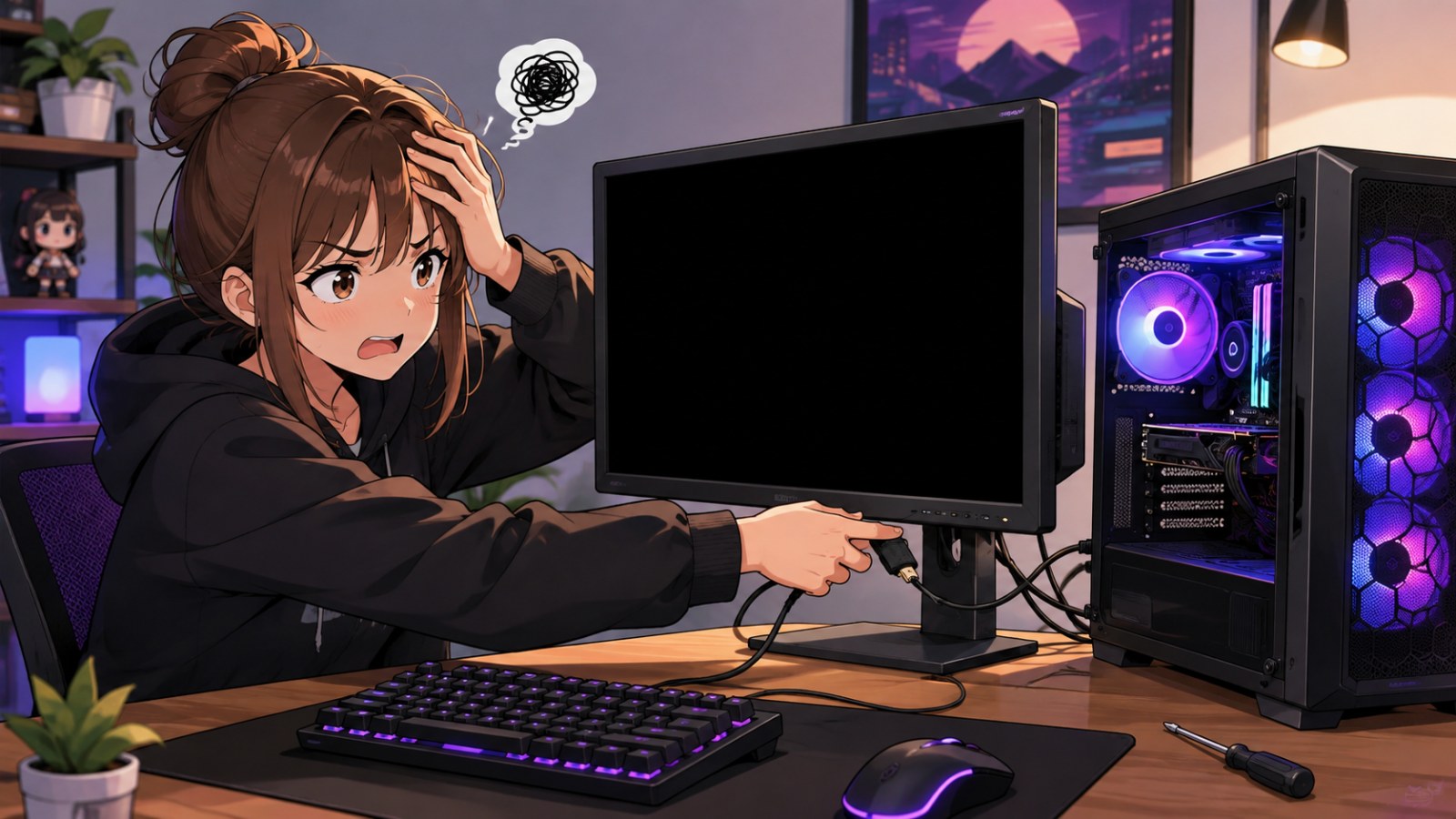
The fans spin, LEDs light up and the computer appears to start, yet the monitor stays black or reports no signal. That does not automatically mean the graphics card has failed. A bad cable, wrong monitor input, incorrectly connected display, RAM issue or a failed POST can all produce almost the same symptom.
Key takeaways
- Rule out the monitor, input selection and video cable before opening the PC.
- With a discrete graphics card, the display normally needs to be connected to the GPU rather than the motherboard.
- If you never see a BIOS or motherboard logo, hardware and POST issues deserve priority over Windows troubleshooting.
- Reseating RAM and the graphics card can solve problems caused by a poor connection.
- Clearing CMOS is useful after unstable or incorrect BIOS settings.
No-display troubleshooting at a glance
| Symptom | Likely area to investigate | First check |
|---|---|---|
| Monitor says No Signal | Cable, input selection or GPU output | Correct HDMI/DP input and another cable |
| No BIOS or manufacturer logo | POST, RAM, GPU or motherboard | RAM and diagnostic LEDs |
| BIOS is visible, then the screen goes black | Operating system or graphics driver | Windows recovery and GPU driver |
| No display after changing BIOS settings | Firmware configuration | Clear CMOS using the board manual |
Start outside the PC: monitor, input and video cable
A no-signal message is valuable diagnostic information
Before removing a side panel, verify that the display itself is powered and set to the input actually being used. A monitor left on DisplayPort will not automatically show a signal arriving through HDMI on every configuration, and the reverse can also happen. If a dock, KVM switch, HDMI switch, adapter or extension cable is in the path, remove it temporarily and connect the computer directly to the monitor. This eliminates several failure points at once and gives you a much cleaner test.
Disconnect and reconnect the cable at both ends, then try another known-good HDMI or DisplayPort cable if one is available. Testing another input on the same display is useful too. For the strongest cross-check, connect the PC to another monitor or television, or connect the original monitor to another source. If the monitor can display its own on-screen menu and shows a no-signal warning when the video cable is removed, the panel and basic monitor electronics are at least alive, so attention can move toward the signal path and PC.
- Select the HDMI or DisplayPort input manually.
- Remove adapters, docks and switches for the test.
- Try a second video cable.
- Test another display if possible.
- Confirm the cable is connected to the correct port on the PC.
Check whether the monitor is connected to the GPU or motherboard
Two groups of video ports do not necessarily provide the same output
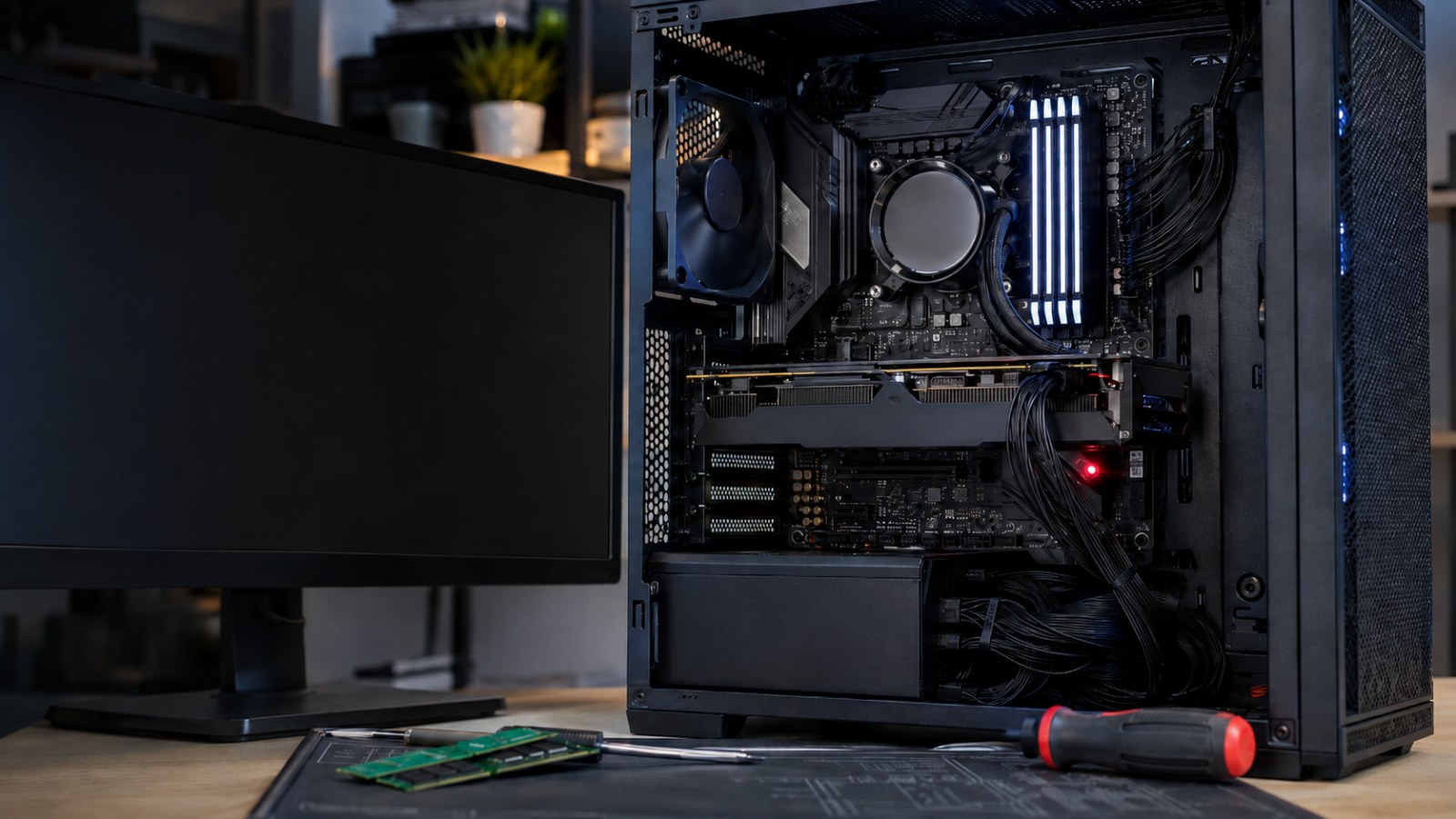
A desktop with a dedicated graphics card often has video connectors in two separate areas. Motherboard HDMI or DisplayPort ports sit near the USB and network connectors, while the graphics card outputs are positioned lower in the case. If the system is intended to run from the discrete GPU, plugging the monitor into the motherboard can leave you with no image. Motherboard video outputs require a processor with supported integrated graphics and a platform configuration that allows those outputs to operate.
If the cable is already connected to the graphics card, shut down the computer, switch off and disconnect power, then inspect the card. A system that was transported or recently worked on can have a GPU that is not fully seated in the PCIe slot. Check its supplementary power connectors as well; any connector required by the card should be fully inserted. When the CPU includes integrated graphics, removing the discrete card and testing the motherboard output can help isolate the GPU. Do not expect this test to work with a processor that lacks an iGPU.
- Use the discrete GPU outputs when a dedicated graphics card is installed.
- Reseat the graphics card if you are comfortable working inside the PC.
- Verify all required GPU power connectors.
- Only use motherboard video for testing when the processor supports integrated graphics.
Fans spinning does not mean the PC completed POST
RAM, power connections and motherboard diagnostics matter
A computer can power fans, RGB lighting and drives while still failing very early in startup. If there is never a manufacturer logo or BIOS screen, examine the components required for POST. With the PC fully powered down and disconnected, reseat the memory modules. If multiple DIMMs are installed, try booting with one module at a time in the slot recommended by the motherboard manual. This can reveal a poorly seated DIMM, a bad module or a problem that appears only with a particular memory configuration.
Also inspect the motherboard's main ATX power connector and the CPU EPS power connection. Many boards provide diagnostic LEDs labelled CPU, DRAM, VGA and BOOT. A light that remains on can indicate which stage of initialization is failing. Other boards use a numeric POST display or beep codes. Those indications are useful, but their exact meaning should always be checked against the manual for the specific motherboard rather than assuming every manufacturer uses identical codes.
- Test one RAM module at a time.
- Reseat memory firmly in the recommended slot.
- Check motherboard and CPU power connections.
- Watch CPU, DRAM, VGA and BOOT diagnostic LEDs.
- Look up POST codes in the motherboard manual.
When to clear CMOS and when Windows may actually be responsible
The point at which the screen goes black changes the diagnosis
If the problem started after changing memory settings, overclocking, display-related firmware options or another BIOS setting, returning the firmware to defaults is a sensible troubleshooting step. Use the board's documented Clear CMOS method, which may involve a dedicated button, specific pins or temporarily removing the CMOS battery while all power is disconnected. Follow the motherboard manual rather than shorting unknown pins. After a reset, the first boot can take noticeably longer on some systems because the platform may retrain memory and reinitialize hardware.
Windows becomes a more plausible cause when you can see the BIOS or boot logo and the screen turns black only when the operating system takes over. If Windows appears to be running, Win+Ctrl+Shift+B can request a graphics driver reset. Recovery options or Safe Mode can then be used to repair or reinstall the GPU driver when appropriate. By contrast, if there is no video from the instant the power button is pressed and the machine never visibly completes POST, reinstalling Windows is unlikely to be a useful first move.
- Clear CMOS after a suspect BIOS configuration change.
- Use the exact procedure documented for your motherboard.
- If video disappears only as Windows loads, investigate the graphics driver.
- Win+Ctrl+Shift+B can reinitialize the graphics stack in a responsive Windows session.
- Prioritize hardware when there is no BIOS or POST image at all.
A PC that powers on with no display should be diagnosed from the outside inward. Prove that the monitor and cable work, confirm you are using the correct graphics output, then inspect the GPU, RAM, power connections and POST indicators. Windows troubleshooting belongs later in the process unless the machine clearly shows firmware output before the screen turns black. This order saves time and reduces the risk of replacing a perfectly good component.
FAQ
Why does my PC turn on but the monitor says no signal?
Possible causes include the wrong monitor input, a bad cable, the display being connected to the wrong video output, a graphics card problem or a POST failure caused by hardware such as RAM.
Can RAM cause a PC to turn on with no display?
Yes. A poorly seated or faulty memory module can prevent POST from completing before any video output appears. Reseating RAM and testing one module at a time is a useful diagnostic step.
Should HDMI be connected to the motherboard or graphics card?
With a discrete graphics card, the monitor is normally connected to that card. Motherboard video outputs depend on the processor having supported integrated graphics.
Does clearing CMOS delete files?
No. Clearing CMOS resets BIOS or UEFI settings; it does not erase documents or other files on your storage drives. Custom firmware settings may need to be configured again.
ACC64 editorial article prepared from the cited materials and approved before publication.