
Game FPS Test – estimate how many FPS your PC can deliver
Wondering whether a game will run smoothly before you buy or install it? ACC64 Game FPS Test lets you choose a title, verify your CPU, GPU and RAM, select a resolution and graphics preset, and then view an estimated performance profile rather than relying on system requirements alone.
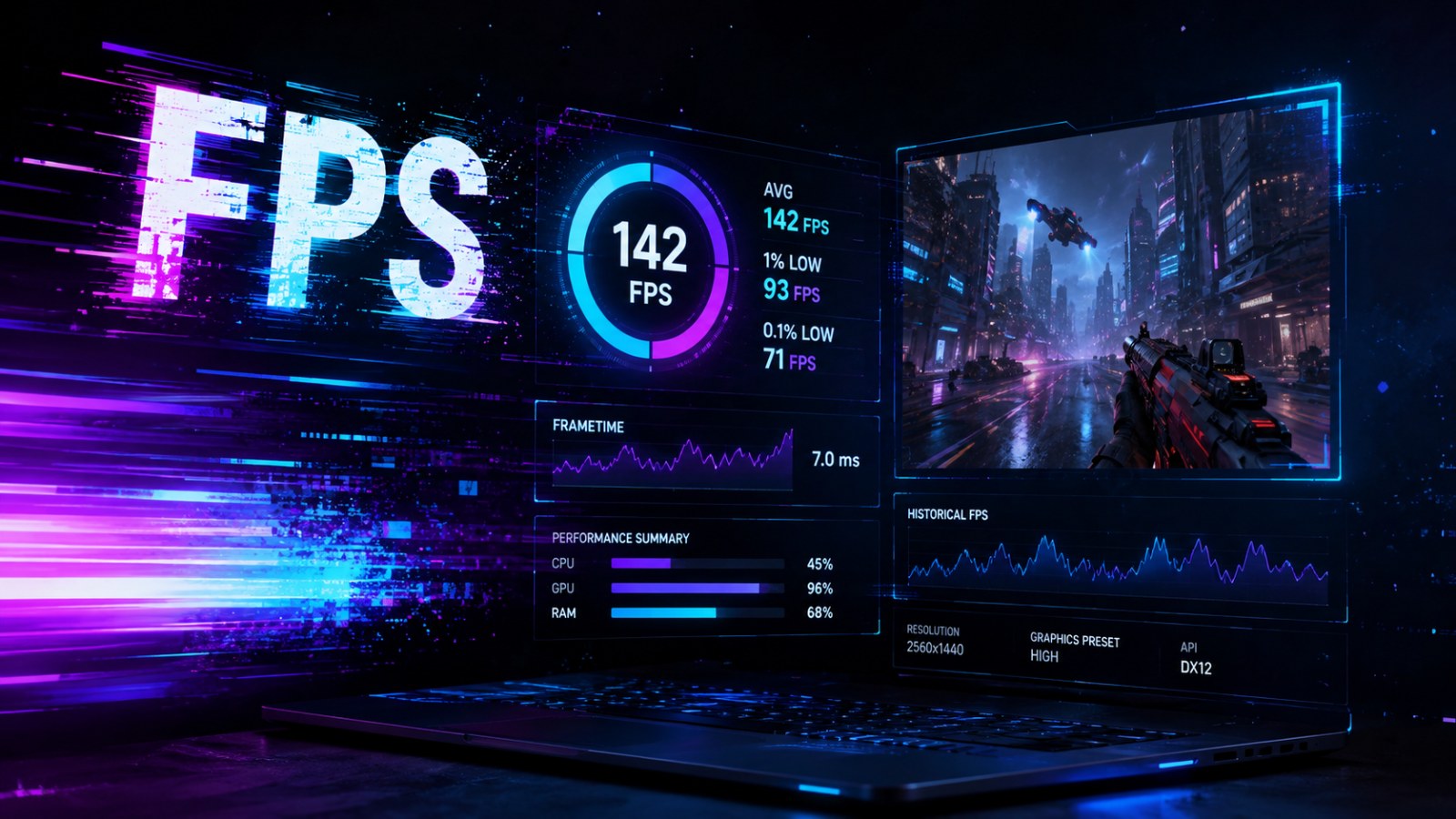
Key takeaways
- Estimate gaming performance at 1080p, 1440p and 4K.
- Use detected hardware information or correct your CPU, GPU and RAM manually.
- Review estimated FPS together with 1% low, frame time and a possible performance limitation.
- Compare graphics presets and look for settings better suited to your target frame rate.
- The result is an estimate, not a benchmark recorded while the actual game is running.
Understanding the ACC64 Game FPS Test result
| Result | What it represents | How to use it |
|---|---|---|
| Estimated FPS | A modelled performance range for the selected scenario | Compare scenarios rather than treating one number as guaranteed |
| 1% low | A modelled view of slower performance moments | Use it to judge potential consistency alongside average FPS |
| Frame time | The estimated time associated with producing frames | Look for a smoother profile rather than average FPS alone |
| Minimum / Your PC / Recommended | A hardware-profile comparison | Use it as context rather than a fixed FPS promise |
| CPU / GPU limitation | A possible performance constraint | Treat it as a clue when considering an upgrade |
What does ACC64 Game FPS Test actually tell you?
Going beyond a simple minimum-requirements check
System requirements are useful, but they rarely answer the question players really want answered. A minimum GPU and CPU list might tell you that a computer is broadly within the intended hardware range, yet it does not automatically tell you whether to expect a comfortable experience at your monitor's resolution. ACC64 Game FPS Test approaches the problem as a scenario. You select a game, describe the PC, choose a resolution and graphics level, and receive an estimated performance profile for that combination.
The workflow is deliberately straightforward. Start by searching the ACC64 game catalogue and selecting a title. Next, review the detected hardware or enter the components yourself. You can then switch between 1080p, 1440p and 4K and choose Low, Medium, High or Ultra graphics. This matters because a graphics card cannot be described by one universal FPS figure. The workload changes substantially with resolution, visual settings and the characteristics of the game itself.
There is an important distinction to keep in mind from the beginning: ACC64 does not launch the selected game on your PC. It does not run the game's built-in benchmark or claim that the displayed estimate is a measured result from your machine. The tool models the expected scenario using available game information and the hardware profile you provide. It is therefore most valuable for comparisons and planning, rather than as a replacement for a real benchmark.
- Choose the game you want to check.
- Verify your PC configuration.
- Select resolution and graphics quality.
- Compare the estimated performance and hardware fit.

Get the hardware profile right before trusting the estimate
Automatic detection is helpful, but browsers have limits
A web browser does not expose every hardware detail to a website. Depending on the platform, the precise CPU name, GPU variant or memory configuration may be unavailable or only partially identifiable. ACC64 therefore combines automatic detection with manual editing. Before analysing the result, look at the GPU, CPU and RAM shown in the PC section. If a laptop variant, Ti-class suffix or another important model detail is missing, correct it instead of assuming that the detected value is exact.
The GPU deserves particular attention because similarly named products can deliver noticeably different performance. Laptop graphics processors can also operate at different power limits from desktop cards carrying a related model name. CPU choice becomes especially important in simulation-heavy games, competitive titles targeting very high frame rates and scenes containing large numbers of characters or objects. RAM capacity is included as well, although capacity alone does not describe memory speed, channel configuration or latency.
If you are unsure what hardware is installed, identify it first using Windows or ACC64 System Info. On a gaming laptop, make sure you are describing the dedicated GPU that the game is expected to use rather than the integrated graphics processor. Good input data makes the comparison much more useful. A performance model cannot compensate for a completely incorrect GPU or CPU, so spending a minute verifying the configuration is one of the most important steps in the entire process.
- Check the full GPU model name.
- Confirm the exact CPU.
- Enter the correct amount of RAM.
- For laptops, make sure the dedicated gaming GPU is selected.
Why 1080p, 1440p and 4K can produce very different answers
Resolution and quality presets define the workload
Resolution strongly affects how much work the graphics processor needs to do for every frame. Moving from 1920 × 1080 to 2560 × 1440 increases the number of pixels that must be processed, while 4K increases the workload considerably further. That is why an FPS estimate generated for 1080p should not be treated as representative of 1440p or 4K. ACC64 lets you switch between these three resolutions so you can compare the same PC under different display scenarios.
Graphics quality is the second major part of the scenario. The tool provides Low, Medium, High and Ultra presets, which are useful for broad comparisons. Real games may expose dozens of individual settings, including shadows, reflections, texture quality, volumetric effects, draw distance and ray tracing. Features such as upscaling or frame generation can also change the final experience when supported by a particular game and GPU. The ACC64 preset should therefore be seen as a practical baseline rather than a representation of every individual toggle.
A better approach is to test several combinations instead of looking at only one result. If you use a 1440p display, compare High and Medium first. If the predicted performance is below the level you want, check whether 1080p changes the picture enough to be worthwhile. ACC64 also includes frame-rate targets such as 30, 60, 120 and 144 FPS. This makes the tool useful for both visually demanding single-player games and faster competitive titles where a high refresh-rate monitor changes what counts as satisfactory performance.
- Do not apply a 1080p result directly to 1440p or 4K.
- Compare at least two graphics presets.
- Match the target FPS to the type of game and your monitor.
- Treat special options such as ray tracing separately when configuring the real game.
How to read average FPS, 1% low and frame time
A single average cannot describe every hitch or slowdown
Average FPS is the number most players recognise, but it can hide short periods of poor performance. A game may run quickly for most of a test while occasionally producing visible stutters. ACC64 therefore supplements its estimated FPS profile with a modelled 1% low value. In practical terms, 1% low helps describe the slower part of the experience. If it sits reasonably close to the typical frame rate, the game is more likely to feel consistent than a result with a very large gap.
Frame time provides another way to think about smoothness. At 60 FPS, one frame ideally occupies about 16.7 milliseconds, while higher frame rates require shorter frame intervals. In a real game those times fluctuate. A sudden frame-time spike can feel like a hitch even when the average FPS counter still looks impressive. ACC64 can visualise this concept, but its 1% low and frame-time information are modelled estimates rather than telemetry captured from the selected game's rendering engine.
The result panel can also indicate a likely CPU or GPU performance limitation. This is best interpreted as guidance rather than a definitive bottleneck diagnosis. Modern games can move between CPU-limited and GPU-limited situations depending on the scene. A crowded city may stress the processor while a complex ray-traced view puts much more pressure on the graphics card. Still, seeing the same component repeatedly appear as the weaker side across several games can be useful when you are deciding what to upgrade.
- Average FPS describes overall throughput.
- 1% low helps highlight slower moments.
- Frame time shows how long individual frames take.
- CPU or GPU limitation should be treated as an upgrade clue, not a guarantee.
How will a game run on your PC?
Choose a game and your hardware to check expected performance without leaving this page.
Why your real in-game FPS may not match the calculator
Drivers, thermals, power limits and game updates all matter
Two PCs containing hardware with similar names can still behave differently. Driver versions, background applications, operating-system settings, memory configuration, cooling and power limits can all affect real performance. Laptops are particularly sensitive to power profiles and thermal conditions. A machine running from battery power may behave very differently from the same laptop connected to its charger, while sustained heat can reduce operating frequencies compared with the first few minutes of a gaming session.
The game itself is another moving target. Patches can improve or reduce performance, and different locations may place completely different loads on the system. A quiet interior, a crowded open-world area and a large multiplayer battle should not be expected to produce identical numbers. Advanced options such as ray tracing, resolution scaling, DLSS, FSR or XeSS can further change the rendering workload when supported. When comparing ACC64 with a real game, try to reproduce the selected resolution and broad quality level as closely as possible.
If actual performance is dramatically below expectations, diagnose the computer before concluding that the estimate is useless. Confirm that the game is using the intended GPU, check temperatures, close unnecessary background workloads and verify the laptop's power mode. Update the graphics driver if appropriate and examine the game's own graphics menu for unusually demanding options. Finally, test more than one location. One exceptionally heavy scene can be valuable information, but it should not automatically be treated as the average behaviour of an entire game.
- Check GPU drivers and game updates.
- Watch CPU and GPU temperatures.
- Use the correct laptop power mode.
- Match ray tracing and upscaling settings when comparing results.
- Test several in-game locations.
Using Game FPS Test before buying a game or upgrading a PC
Scenario comparison is more valuable than chasing one perfect number
One of the best times to use Game FPS Test is before you spend money. Select the game you are considering, verify your current PC and compare several settings. ACC64 can display available system requirements alongside its hardware profile. These requirements are useful reference points, but they should not be interpreted as universal frame-rate guarantees. A minimum requirement does not automatically mean 30 FPS, and a recommended requirement does not automatically mean exactly 60 FPS unless the game's publisher explicitly defines such targets.
The additional tools become especially useful when planning an upgrade. ACC64 can compare 1080p, 1440p and 4K, show a possible CPU or GPU limitation and let you enter a second PC configuration for comparison. This changes the question from whether a newer graphics card is generally faster to whether the proposed system better suits the game, resolution and graphics level you actually intend to use. The comparison remains an estimate and does not promise a specific performance increase after replacing a component.
There is also a visual smoothness simulation. Once a game and performance profile have been selected, you can drive a car through ACC64's own interactive scene and experience the difference between frame-rate levels in a more intuitive way. It is not gameplay from the selected title and it is not a benchmark of that game. Its purpose is simply to turn abstract figures such as 30, 60 or higher FPS into something easier to understand alongside the estimated FPS, 1% low and frame-time information.
- Check a game before purchasing or installing it.
- Compare several resolutions and quality settings.
- Enter a possible future PC and compare it with your current system.
- Use the simulation to understand how different frame rates can feel.
ACC64 Game FPS Test works best as a comparison and planning tool. Enter the most accurate CPU, GPU and RAM information you can, then test more than one resolution and graphics preset. Instead of concentrating on a single FPS figure, look at the wider picture: expected frame rate, 1% low, frame time, the hardware comparison and the likely limiting component. That can help you decide whether to buy a game, which settings to try first or whether a planned upgrade makes sense. The final authority, however, is always the real game running on the real PC under your own settings and thermal conditions.
FAQ
Is the FPS result an exact benchmark of my PC?
No. ACC64 provides an estimate based on the selected game, hardware profile, resolution and graphics settings. It does not run the actual game, so real-world results can differ.
Can ACC64 detect my CPU and GPU automatically?
It can detect some information, but browsers do not always provide exact hardware model names. You should verify the result and manually correct the CPU, GPU or RAM when necessary.
Can I compare 1080p, 1440p and 4K?
Yes. Switching between the three resolutions is one of the core features of the tool and makes it easier to see how a higher rendering workload can affect the predicted performance profile.
What does 1% low mean in the test?
It is a modelled indicator intended to represent slower moments rather than the average alone. A large gap between average FPS and 1% low can indicate a less consistent experience.
Is the driving simulation the actual selected game?
No. It is an ACC64 visual simulation designed to demonstrate perceived smoothness. It does not run assets or a benchmark from the game you selected.
ACC64 editorial article prepared from the cited materials and approved before publication.