
Controller Works in Windows but Not in Games — Troubleshooting USB and Bluetooth Gamepads
Your controller responds perfectly in Windows, yet a game acts as if it does not exist. That usually points to compatibility, input configuration, controller remapping or the connection mode rather than an immediately broken gamepad. A structured test can reveal the cause without randomly reinstalling drivers.
Key takeaways
- Verify buttons, sticks and triggers outside the game before changing anything else.
- Windows detecting a controller does not guarantee that every PC game supports it.
- Controller remapping can solve compatibility problems but can also create duplicate devices.
- Testing USB against Bluetooth is an effective way to isolate connection-related problems.
- Change one setting at a time so you know which step actually fixed the issue.
Symptoms and the first thing to investigate
| Symptom | Start here |
|---|---|
| Controller also fails in a tester | Connection, USB cable, port, Bluetooth or battery |
| Works in tester but not one game | Game compatibility and input settings |
| One press produces two actions | Duplicate or virtual controller conflict |
| USB works but Bluetooth fails | Bluetooth pairing and wireless configuration |
| Fails across many games | Remapping, drivers and Windows configuration |
Start by proving the controller actually works in Windows
Device detection alone is not enough
A controller appearing in Bluetooth settings or triggering the USB connection sound only proves that Windows has detected a device. Before investigating the game, verify actual input. Test every face button, D-pad direction, analog stick and trigger using the Windows controller interface or a gamepad testing tool. Watch for missing axes, incorrect inputs and unexpected disconnects.
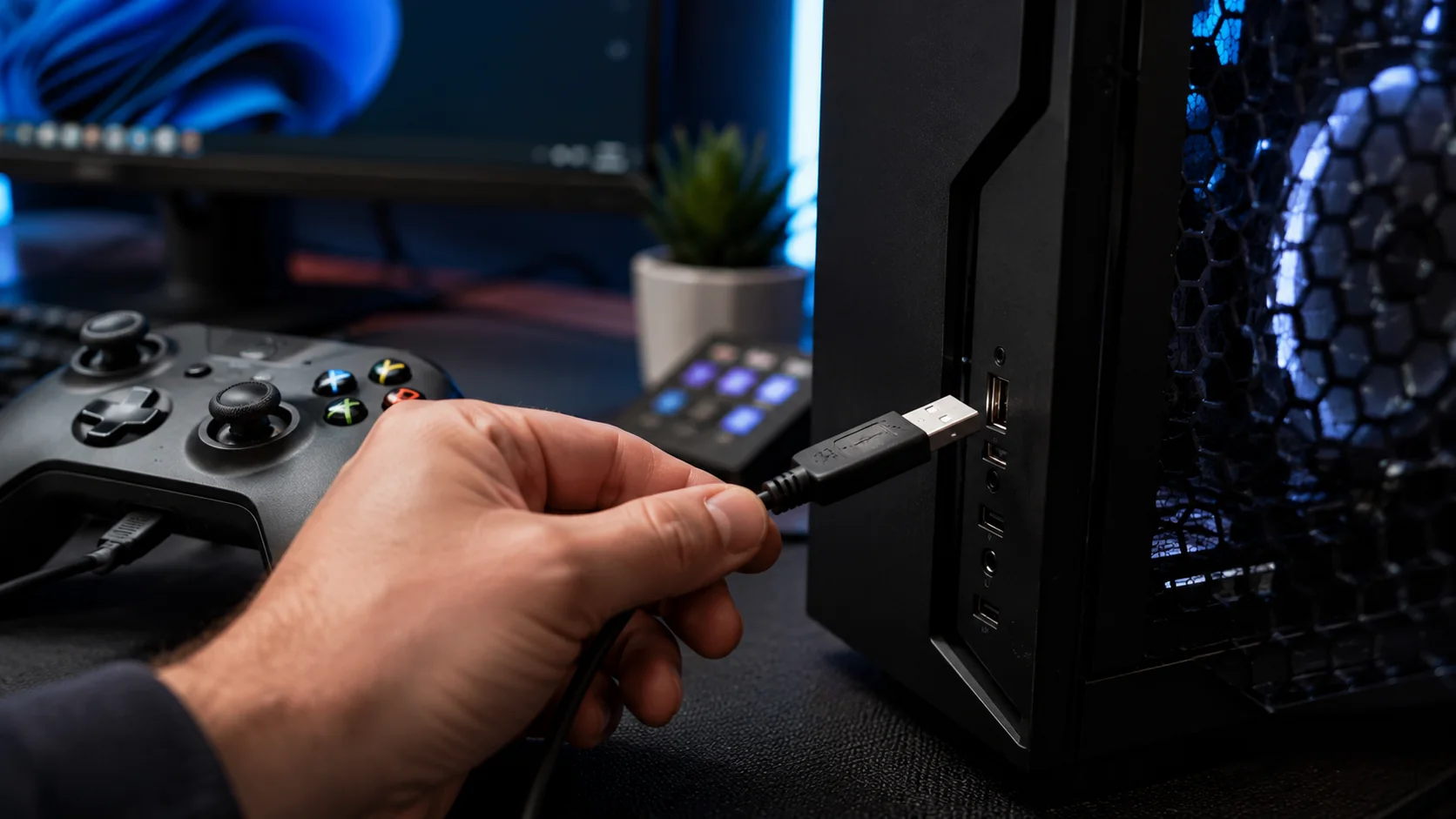
If the controller already fails this test, focus on the connection first. For USB, try another port and connect directly to the PC rather than through an unpowered hub. If the cable is detachable, try a known data-capable cable. For Bluetooth, remove the existing pairing and pair the controller again. Also make sure the controller has sufficient battery power before spending time changing game settings.
- Test every button and D-pad direction.
- Move both analog sticks through their full range.
- Check analog triggers where applicable.
- Watch for intermittent disconnects or reconnects.
The game may support a different controller interface
System recognition and game compatibility are separate layers
PC games do not all handle controllers in the same way. A game may be designed around a particular input interface or a narrower range of devices. This is especially relevant with older releases, certain PC ports and less common controllers. The result can look confusing: Windows receives every input correctly, while the game receives nothing useful.
Open the game's Controls, Input or Controller menu and look for an explicit gamepad option. Restore the default controller bindings if the configuration has previously been modified. Some games automatically switch from keyboard and mouse prompts when the first controller input arrives, while others require a manual setting. If the game's official documentation lists supported controller types, compare that information with the device you are using.
- Check the game's controller or input settings.
- Restore default bindings.
- Look for an input-device selection option.
- Check official compatibility information for the game.
Controller remapping can fix the problem — or create another one
Avoid multiple input translation layers
Controller translation and remapping software can make an otherwise unsupported gamepad appear to a game as a more familiar controller type. Platform-level controller support can perform a similar job. The trouble begins when several layers are active simultaneously. A physical controller may then be exposed alongside a virtual controller, leaving the game with two devices representing the same player.
Duplicate menu movement is a strong clue. If pressing down once moves through two menu entries, or button prompts constantly change, close unnecessary remapping applications and test again. If your launcher provides controller translation, compare the game with that feature enabled and disabled rather than stacking it with another remapper. Restart the game after each change because many titles enumerate controllers only during startup.
- Close unnecessary controller utilities.
- Use one remapping method at a time.
- Check whether Windows or the game sees duplicate controllers.
- Restart the game after changing controller software.
USB works but Bluetooth does not: use the cable as a control test
Compare connection modes instead of guessing
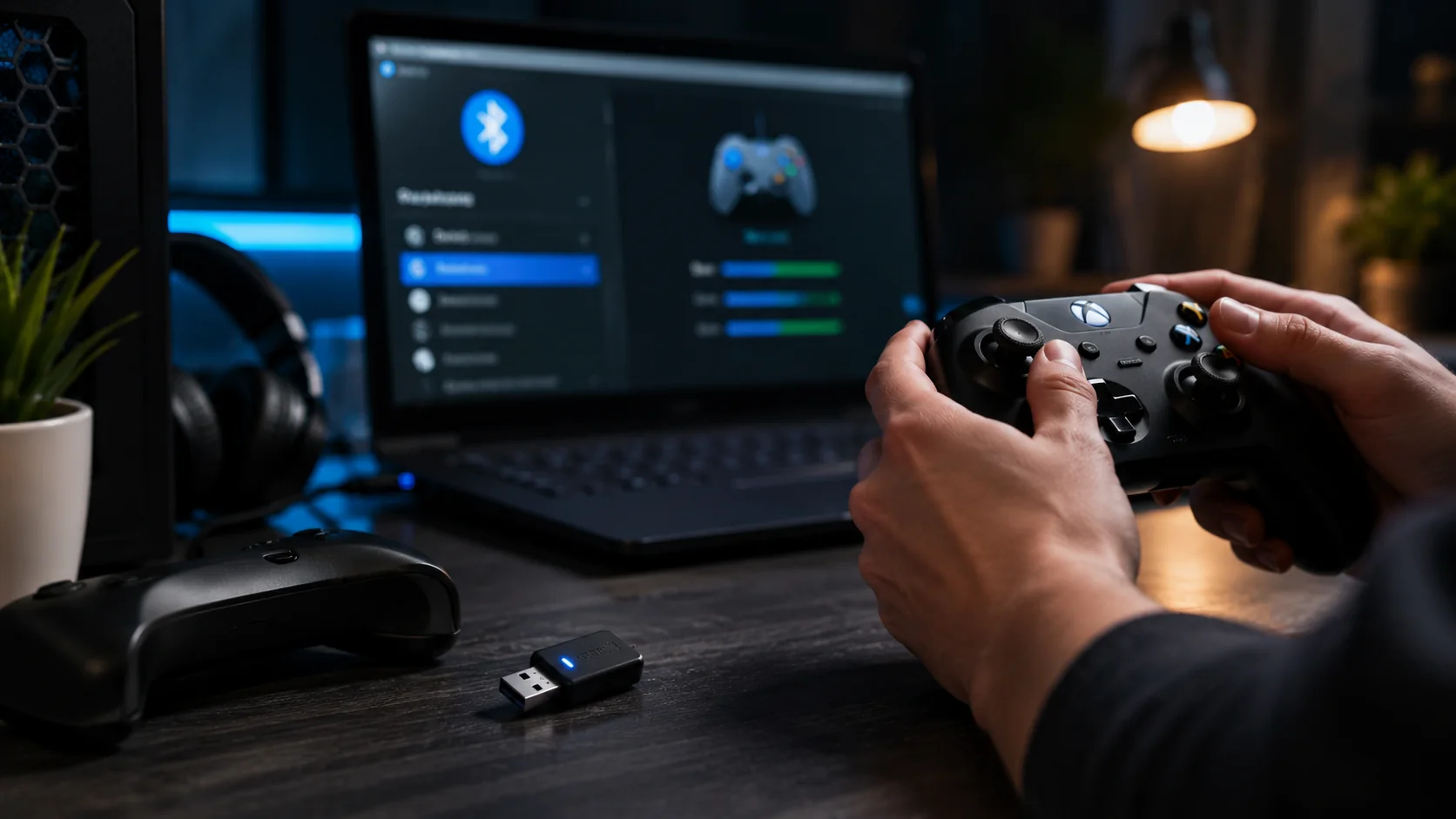
For controllers supporting both wired and wireless operation, comparing USB and Bluetooth is one of the fastest diagnostic tests. Disconnect Bluetooth, connect the controller directly by USB and launch exactly the same game. If it immediately starts working, the controller and game are capable of communicating and the investigation can focus on Bluetooth pairing, wireless identification or software handling the wireless mode.
The reverse test is useful too. If Bluetooth works but USB does not, make sure the cable carries data rather than only power. Try another USB port and a known data cable. Avoid leaving both connection methods active during troubleshooting, because the same physical controller can sometimes be represented differently depending on how it is connected.
- Test wired and wireless modes separately.
- Disconnect the unused connection during each test.
- Use a USB cable known to support data.
- Re-pair the controller if Bluetooth behavior remains inconsistent.
Use a troubleshooting order that actually isolates the fault
Save driver changes for later
Randomly changing drivers, launcher settings and game configuration at the same time makes troubleshooting harder. Start with an external controller test. Then connect only one gamepad, close unnecessary controller utilities and check the game's own input settings. Test the alternative connection mode next, followed by one controller-translation method at a time. Retest the game after every step.
Only move deeper into Windows device drivers or vendor utilities when the simpler tests fail. If the controller works in several games but not one particular title, the evidence points strongly toward that game's configuration or compatibility. If the same failure follows the controller across multiple games and connection methods, system-level configuration, drivers or the device itself become more relevant.
- 1. Verify inputs outside the game.
- 2. Disconnect other controllers.
- 3. Close remapping software.
- 4. Check in-game controller settings.
- 5. Compare USB and Bluetooth.
- 6. Investigate drivers only after the earlier tests.
A controller that works in Windows but fails inside a game is not automatically defective. Confirm its raw inputs first, investigate the game's controller support, remove competing remapping layers and compare USB with Bluetooth. Following that order turns a vague controller problem into a much smaller set of possible causes.
FAQ
Why does Windows detect my controller but my game does not?
Windows and the game are separate parts of the input chain. The operating system may understand the controller while the game expects another interface, has controller input disabled or is being confused by a remapping layer.
Should I test USB if Bluetooth is not working in a game?
Yes. A successful USB test shows that the controller and game can work together and directs troubleshooting toward Bluetooth pairing or wireless-mode handling.
Why does my controller move twice in game menus?
The game may be receiving input from both the physical controller and a virtual controller created by remapping software.
Should reinstalling drivers be the first step?
Usually not. Test the controller, game settings, connection mode and remapping configuration first. Driver troubleshooting becomes more useful when the problem affects multiple games.
ACC64 editorial article prepared from the cited materials and approved before publication.