
144 Hz monitor stuck at 60 Hz – how to set the correct refresh rate in Windows
A 144 Hz monitor can be fully capable of high refresh operation while Windows is still sending it a 60 Hz signal. The cause is usually a display setting, a cable or port limitation, the selected resolution, or the way the graphics driver detects the screen. This guide walks through the checks in the order that is most useful, without jumping straight to risky custom resolutions.
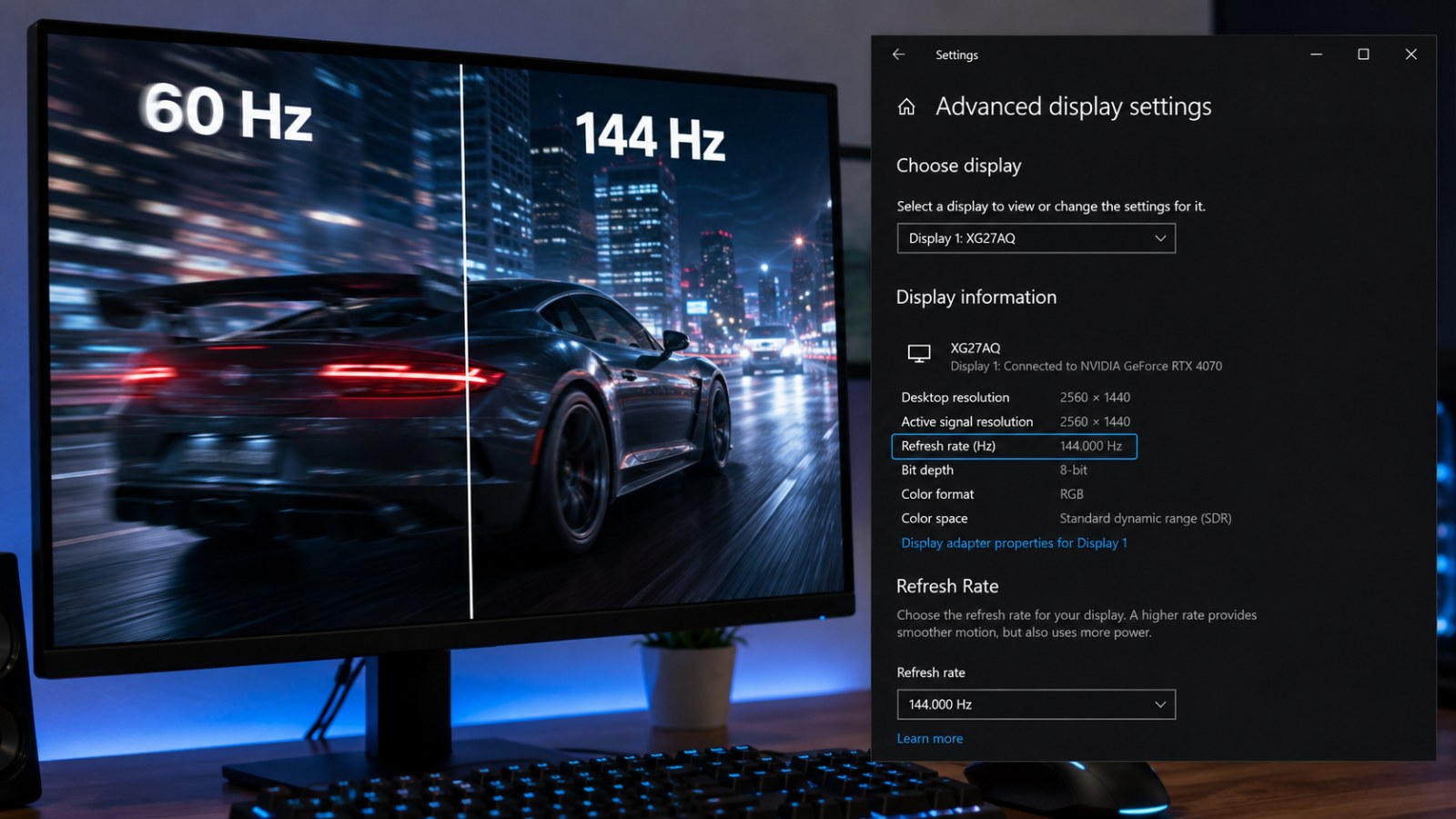
Key takeaways
- Check Advanced display in Windows first; a monitor does not always switch to 144 Hz automatically.
- If 144 Hz is missing, inspect the whole signal path: GPU port, cable, adapter, dock and monitor input.
- Values such as 143.98 Hz can be a normal representation of a nominal 144 Hz mode.
- Do not force unsupported custom timings before confirming the monitor and connection officially support the target mode.
Fast troubleshooting matrix
| Symptom | Check first | Next action |
|---|---|---|
| 144 Hz is listed | Windows refresh-rate setting | Select it and confirm the change |
| List stops at 60 Hz | Cable, port and native resolution | Connect directly and try another supported path |
| 144 Hz only appears at lower resolution | Connection bandwidth or mode support | Check the specifications of the PC port, cable and monitor input |
| It returned to 60 Hz after an update | Driver and Windows display settings | Restart and select the high-refresh mode again |
| One monitor works, another does not | Input, cable or selected display | Swap cables/ports and compare |
| Desktop is 144 Hz but a game looks like 60 Hz | Game display settings | Check resolution, screen mode, refresh rate and FPS cap |
Why a 144 Hz monitor can end up running at 60 Hz
The refresh rate printed on the box describes what the display is capable of under supported conditions, not what Windows is guaranteed to select by itself. After a fresh connection, a driver update or a change of input, the operating system may stay at 60 Hz. That makes the desktop feel no smoother than an ordinary 60 Hz screen even though the panel itself is designed for a higher refresh rate. Multi-monitor setups can add another source of confusion because it is easy to change the setting for the wrong display.
The signal path also matters from end to end. The graphics output, laptop port, dock, adapter, cable and monitor input all have to support the chosen resolution and refresh combination. A monitor may expose its full refresh range over one input but fewer modes over another. Color depth, HDR and the selected resolution can affect what the connection can carry as well. That is why the most efficient troubleshooting order is Windows settings first, then connection hardware, then drivers and monitor-specific options.
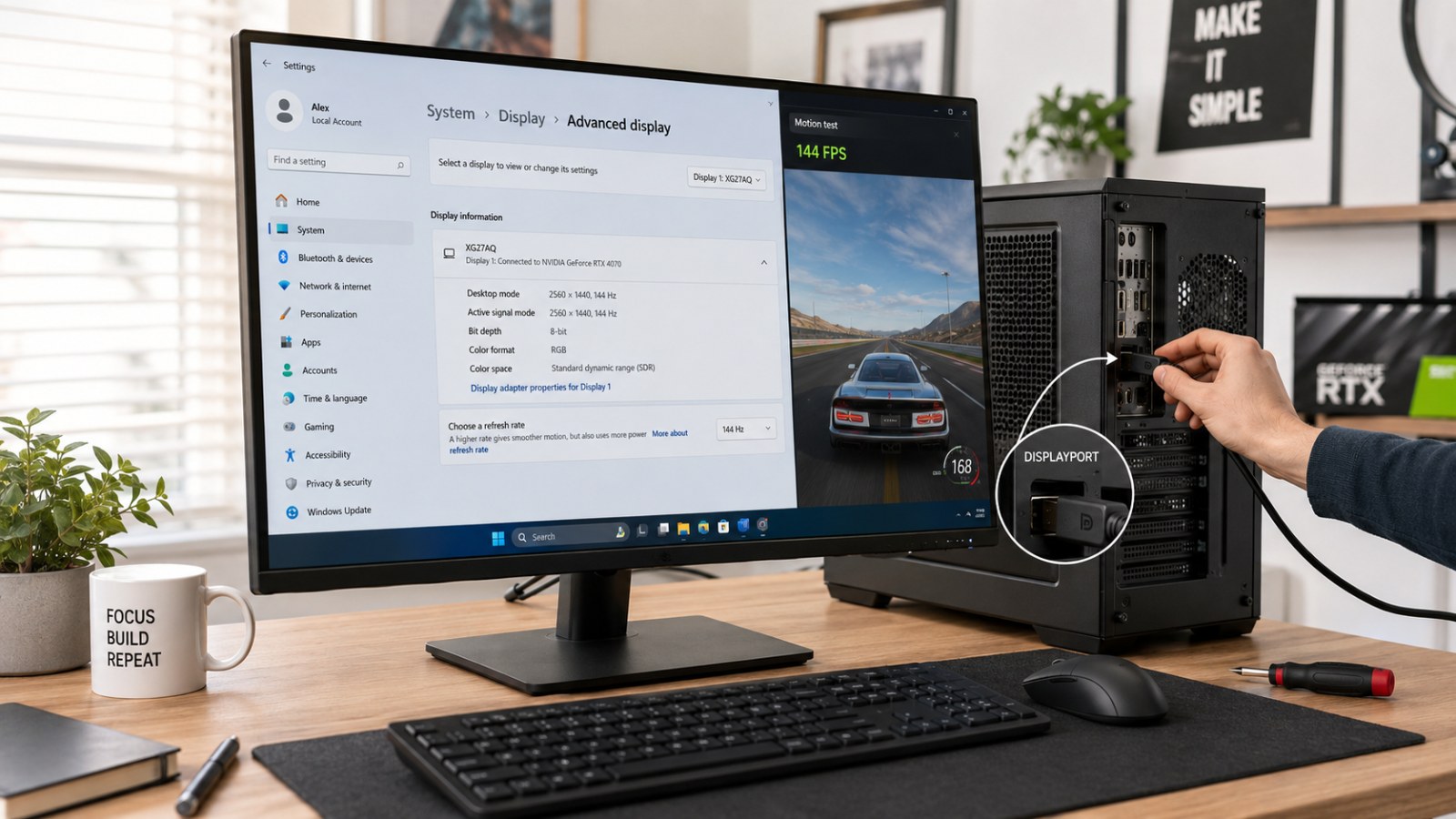
Set 144 Hz in Windows before changing anything else
Make sure you are editing the correct display
In Windows 11, open Settings and go to System > Display > Advanced display. If more than one screen is connected, select the 144 Hz monitor from the display picker. Under the refresh-rate option, choose 144 Hz or the closest equivalent exposed by the monitor, such as 143.98 Hz. The change normally applies immediately. Return to the same page after a few seconds and confirm that Windows still reports the selected rate and the expected resolution for that display.
Windows 10 uses a similar route through Settings > System > Display and the advanced display or display-adapter properties pages. If 144 Hz is not offered, first confirm that the monitor is set to its native resolution. A different resolution can expose a different set of timings, so a missing 144 Hz option does not by itself prove that the screen or graphics card is faulty. It simply means Windows is not currently receiving or accepting a matching mode for the active connection.
- Select the correct monitor in a multi-display setup.
- Use the panel's native resolution for the first test.
- Choose 144 Hz, 143.98 Hz or the corresponding high-refresh option shown by Windows.
- Reopen Advanced display and verify that the setting remained active.
No 144 Hz option? Check the cable, port and resolution
When the refresh-rate list stops at 60 Hz, simplify the connection. Connect the monitor directly to the graphics card or laptop port with a cable that meets the monitor manufacturer's requirements. Temporarily remove USB-C hubs, KVM switches, docking stations, converters and splitters. On a desktop with a dedicated graphics card, make sure the monitor is plugged into the graphics card rather than a motherboard video output unless the system is intentionally using integrated graphics. On a laptop, the manual may specify which USB-C, HDMI or DisplayPort-capable connector supports the highest external-display modes.
Do not judge compatibility from the connector name alone. HDMI and DisplayPort capabilities vary by version and by the way a manufacturer implements a port. The required bandwidth also changes with resolution, refresh rate, color format and bit depth. If the monitor has multiple suitable inputs, try another one and test a known-good cable. If 144 Hz suddenly appears after lowering the resolution, that is a useful clue that the current connection cannot carry the preferred resolution and refresh combination in its present configuration.
- Bypass docks and adapters for the first diagnostic test.
- Try another supported input on the monitor and output on the PC.
- Use the cable type recommended for the monitor's high-refresh mode.
- Treat passive or active adapters as possible bottlenecks rather than assuming they preserve every mode.
Check the graphics driver and the monitor's own menu
What to do when Windows still only sees 60 Hz
Update the graphics driver from the GPU or computer manufacturer's official source, then restart the PC and check Advanced display again. With NVIDIA graphics, Control Panel > Display > Change resolution can also be used to confirm the selected resolution and refresh rate. Pay attention to the resolution group as well as the number itself, because the same dimensions may appear in different categories. On AMD systems, Windows display settings are still a good first reference point; driver software can then help confirm that the correct monitor and display mode are being detected.
Next, open the monitor's on-screen display. Some models expose their maximum refresh rate only when a particular input mode, DisplayPort setting or manufacturer-provided overclock mode is enabled. The exact requirement varies by model, so the manual is more reliable than a generic recipe. Avoid creating a custom 144 Hz mode above the manufacturer's supported range. If the display has been used with several devices and the menus have become difficult to trace, a factory reset of the monitor can be a sensible way to start again with a clean input configuration.
- Restart after a major graphics-driver change.
- Check the monitor manual for high-refresh input requirements.
- Do not exceed the manufacturer's supported refresh range.
- Reset the monitor only if you are prepared to reconfigure brightness, color and input settings.
Confirm that the monitor is actually running at high refresh
Advanced display in Windows is the best quick reference because it identifies the selected screen and shows the active resolution and refresh rate. The figure does not have to be a perfect integer. A mode around 143.98 Hz can be the normal timing behind a monitor advertised as 144 Hz. Once the desktop is really running at the higher rate, cursor movement, scrolling and dragging windows should look noticeably smoother than at 60 Hz, although the size of the difference you perceive depends on the content and your own sensitivity to motion.
Refresh rate and game frame rate are related but not identical. A monitor can be refreshing at 144 Hz while a game renders 70 frames per second, and a frame counter can show more than 144 FPS while the display mode is still 60 Hz. Check the game's own resolution, full-screen or borderless mode, refresh-rate selector and frame limiter if it still looks wrong after fixing Windows. Variable-refresh technologies such as G-SYNC or FreeSync work within supported ranges; they do not remove the need to configure the display's proper maximum mode first.
- Recheck Windows after major driver or hardware changes.
- Verify in-game display mode separately from the Windows desktop.
- Do not use an FPS counter as proof that the monitor itself is set to 144 Hz.
Most 144 Hz monitors that appear to be stuck at 60 Hz are not broken. Start by selecting the high-refresh mode in Windows, confirm the native resolution, and then simplify the connection so the display runs directly from a suitable graphics output. If the option is still missing, move on to the graphics driver and the monitor's on-screen menu. Only after those checks should you consider advanced timing changes, and only within the modes the manufacturer documents. If a known-good cable and compatible port still expose no 144 Hz option, testing the monitor on another PC is a useful final way to separate a display issue from a computer-side limitation.
FAQ
Why does Windows show 143.98 Hz instead of exactly 144 Hz?
That is usually normal. Display timings can result in a reported refresh rate that is fractionally below the rounded marketing value. If Windows and the monitor both expose that mode normally and the picture is stable, there is no reason to force an exact 144.000 Hz custom timing.
Does every HDMI cable support 144 Hz?
No. The usable resolution and refresh combination depends on the capabilities of both ports, the cable, the monitor and sometimes an adapter or dock in between. Use the monitor manual and the PC or GPU specifications rather than relying on the HDMI name alone.
Do I need to set 144 Hz inside each game too?
Sometimes. Windows can be configured correctly while a game, especially in an exclusive full-screen mode, selects a different resolution or refresh rate. If a game still looks like 60 Hz, check its display menu and restart the game after changing the setting if required.
Will FreeSync or G-SYNC automatically make a 144 Hz monitor run at 144 Hz?
Variable refresh synchronizes the display within its supported operating range, but it is not a substitute for selecting the correct maximum display mode. Configure the high-refresh mode first, then enable and tune the adaptive-sync feature if the monitor and GPU support it.
ACC64 editorial article prepared from the cited materials and approved before publication.