
Webcam not working or detected? Why Windows cannot find your camera and how to fix it
A webcam that suddenly disappears from Windows is not necessarily dead. Camera permissions, USB connectivity, drivers, privacy controls and applications competing for the device can all produce very similar symptoms.
Key takeaways
- A missing video feed does not automatically mean hardware failure.
- Test the webcam in another app before changing drivers.
- Windows and browser camera permissions should be checked separately.
- Device Manager can reveal detection and driver problems.
- Testing another USB port and another PC is one of the fastest ways to isolate hardware faults.
Symptoms and where to troubleshoot first
| Symptom | Check first | Next step |
|---|---|---|
| Camera completely missing | USB port, cable and Device Manager | Test another computer |
| Works in only one app | Permissions and camera selection | Review affected app settings |
| Black video feed | Privacy shutter and competing apps | Restart and check driver |
| Random disconnects | Cable, port, hub or dock | Connect directly |
| Fails on multiple computers | Cable and webcam connector | Consider hardware fault |
Start by finding out whether Windows can see the webcam
Separate an application problem from a system-wide failure
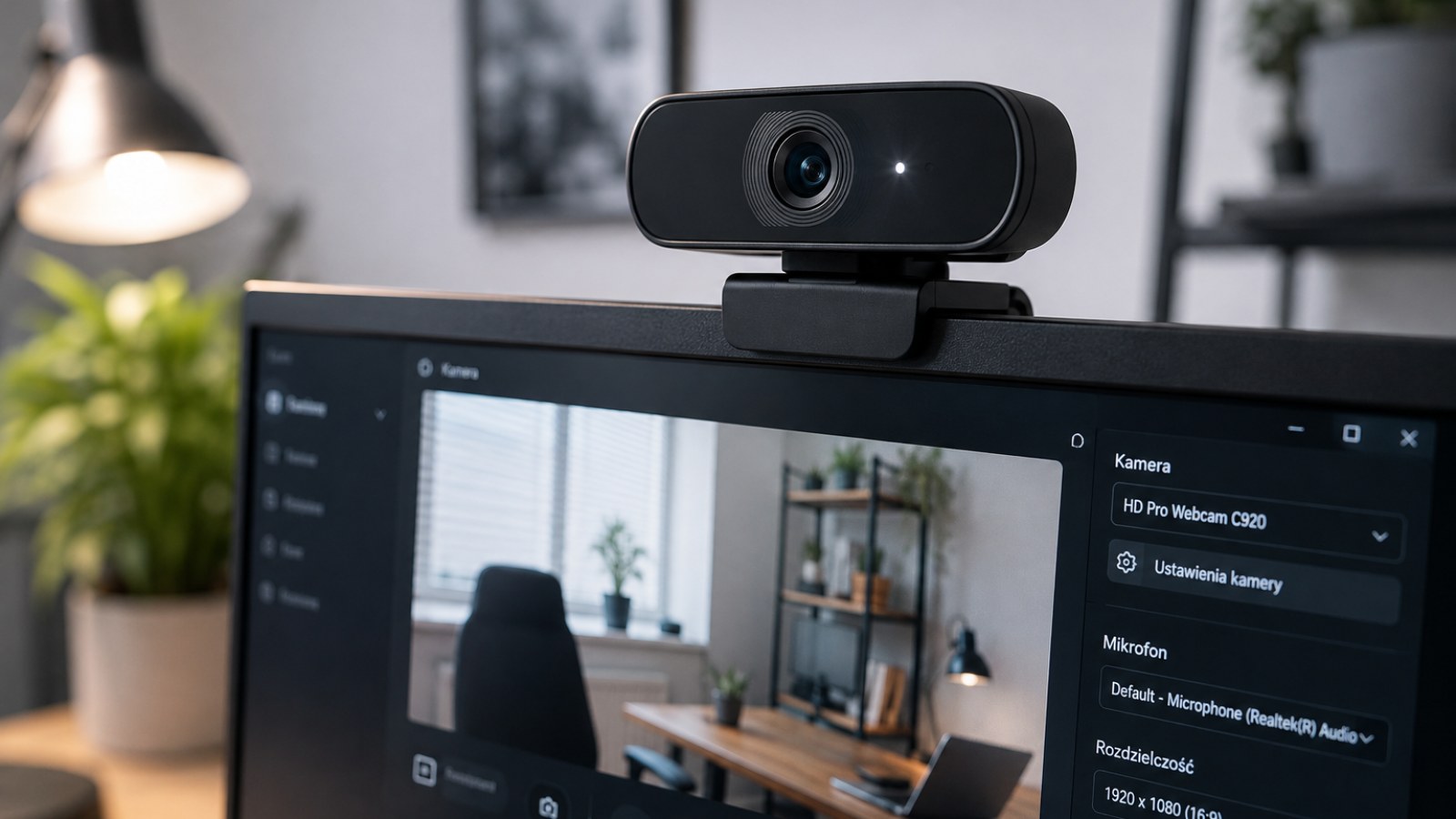
Before reinstalling anything, determine how broad the problem really is. Open the built-in camera application or another trusted program that can display a webcam feed. If the camera works there but fails in a meeting app, browser or streaming program, the hardware and basic Windows camera stack are probably functioning. Focus on the affected application's camera selection and permissions instead of immediately replacing drivers.
For an external webcam, unplug it for a few seconds and connect it directly to a different USB port. Temporarily remove USB hubs, extension cables and docking stations from the chain. Check the lens for a physical privacy shutter and look for any hardware privacy switch. Laptop cameras may also be disabled through a function key or manufacturer-specific privacy control, which can make a perfectly healthy camera appear unavailable.
- Test the webcam in at least two applications.
- Reconnect an external camera to another USB port.
- Bypass hubs and docking stations during testing.
- Check physical privacy shutters and switches.
Camera permissions can block working hardware
Windows, applications and browsers may each control access
If Windows recognizes the camera but applications cannot use it, review the camera privacy settings. Camera access must be allowed at the relevant system and application level. These settings can change after configuration changes, account changes or privacy adjustments. Checking them takes only a moment and is far safer than downloading an unknown driver package simply because an application reports that no camera is available.
Browsers introduce another permission layer. A webcam may work in a desktop application while a video-conferencing site or online camera test remains blank because that website was denied access. Open the site's permissions and confirm that camera access is allowed. Also inspect the camera selector inside the service itself. Systems with an integrated laptop camera and an external USB webcam often expose multiple video devices, and software can select the wrong one.
- Review Windows camera privacy settings.
- Check browser site permissions.
- Confirm the correct video device is selected inside the app.
Use Device Manager to investigate detection and driver issues
A webcam that Windows cannot enumerate needs a different approach
Open Device Manager and look under camera, imaging and relevant USB device categories. The exact location depends on the hardware and driver. A warning symbol, unknown device entry or camera that repeatedly appears and disappears is useful diagnostic evidence. Restart Windows first, then check Windows Update and, where appropriate, driver or support downloads provided by the computer or webcam manufacturer.
If the failure began immediately after a driver change, reinstalling the device or returning to a previous driver can sometimes restore normal operation when that option is available. Removing the camera device and allowing Windows to detect it again may also rebuild a damaged device configuration. Avoid generic driver-download websites. For an integrated webcam, the laptop or motherboard manufacturer's support resources are generally the appropriate source; for an external model, use its manufacturer.
- Look for warning icons or unknown devices.
- Restart after driver changes.
- Prefer Windows Update and official manufacturer support.
The camera is listed, but the picture is black or unavailable
Application conflicts and unstable USB connections can mimic failure
A detected webcam can still produce a black screen or an unavailable-device message. Close programs that might be using video, including meeting clients, recording software, streaming tools and unnecessary browser tabs. Then open only one camera application and test again. If the feed returns, another application or its configuration was probably interfering with access rather than the webcam itself being defective.
Intermittent disconnects deserve special attention to the physical connection. A worn cable, loose connector, unreliable USB hub or docking station can make a webcam reset and disappear from Windows. If the camera uses a detachable cable, try another compatible cable when possible. A webcam that exhibits the same failures on multiple computers is much more suspicious than one that only fails through a particular hub or on a single Windows installation.
- Close other camera and recording applications.
- Connect directly to the PC.
- Test another compatible cable if the cable is removable.
- Try the webcam on another computer.
A practical troubleshooting order that avoids unnecessary fixes
Change one variable at a time
Troubleshooting is much faster when each test answers a specific question. Restart the computer and verify the camera in a simple application. Next check privacy permissions and the selected video device. For USB webcams, change the port and remove intermediate accessories. Only after these basic checks should you investigate Device Manager, driver updates or device reinstallation. Changing several settings simultaneously can hide the real cause and make a simple problem harder to reproduce.
If an external webcam remains completely undetected on several direct USB ports and also fails on another computer, attention shifts toward the webcam, its cable or connector. Conversely, if another webcam works immediately on the original PC, that is useful evidence against a broad Windows camera problem. Integrated laptop cameras require more caution because the internal connection cannot be swapped easily; after software settings, drivers and hardware privacy controls have been eliminated, professional hardware diagnosis may be appropriate.
- 1. Restart Windows.
- 2. Test the camera in a basic camera app.
- 3. Verify permissions and device selection.
- 4. Change the USB port and bypass hubs.
- 5. Inspect Device Manager and drivers.
- 6. Test the webcam on another computer.
When Windows cannot find a webcam, treat the problem as a process of elimination. Establish whether the failure belongs to one application, Windows itself, the USB connection or the camera hardware. Permissions, another USB port, Device Manager and a second-computer test usually provide far more useful evidence than immediately reinstalling software.
FAQ
Why did Windows suddenly stop detecting my webcam?
Possible causes include changed camera permissions, a driver problem, an unstable USB connection, a privacy control or a hardware fault. Work through these possibilities one at a time.
Why does my webcam work in one app but not another?
That usually points to app permissions, incorrect camera selection or an application-specific configuration problem rather than a dead webcam.
Can a USB hub cause webcam problems?
Yes. A problematic hub, dock, cable or connection can cause intermittent detection. Connect the webcam directly to the computer while troubleshooting.
How can I tell whether my webcam is broken?
Test it directly in different USB ports and on another computer if possible. Consistent failure across independent systems after checking the cable makes a hardware fault more likely.
ACC64 editorial article prepared from the cited materials and approved before publication.