
How to Connect Multiple Monitors to a Computer: A Complete Multi-Display Setup Guide
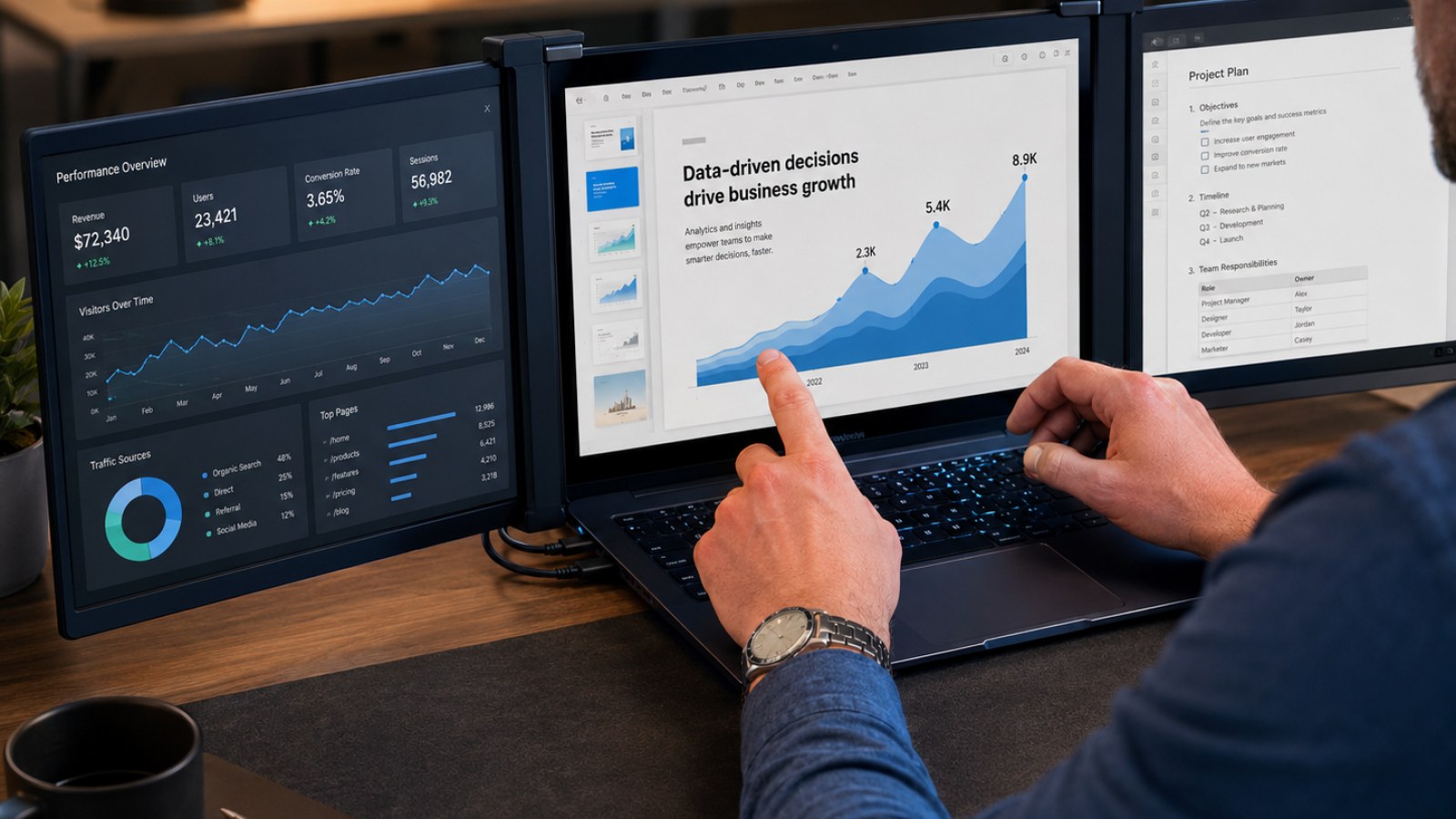
Adding a second or third display is usually straightforward, but an unused HDMI socket does not automatically guarantee that every configuration will work. This guide covers ports, cables, docks, Windows settings, refresh rates and the most common reasons an extra monitor is not detected.
Key takeaways
- Check both the physical video outputs and the maximum display support of your computer.
- On a desktop with a dedicated graphics card, connect displays to the graphics card whenever possible.
- A USB-C connector does not automatically mean video output is supported.
- Windows lets you configure resolution, scaling and refresh rate separately for each monitor.
- A basic HDMI splitter normally mirrors one signal rather than creating two independent desktops.
Common ways to connect multiple monitors
| Method | Best for | Watch out for |
|---|---|---|
| Separate HDMI/DisplayPort outputs | Desktop PCs with multiple GPU ports | Different ports may support different display modes |
| USB-C video output | Laptops with video-capable USB-C | Not every USB-C port carries video |
| Docking station | Laptop desks with several peripherals | Check supported display count, resolution and refresh rate |
| DisplayPort MST daisy chain | Compatible DisplayPort monitors | Available bandwidth is shared between displays |
| HDMI splitter | Showing the same image on two screens | Usually mirrors rather than extends the desktop |
Start by checking what your computer can actually drive
Ports alone do not tell the whole story
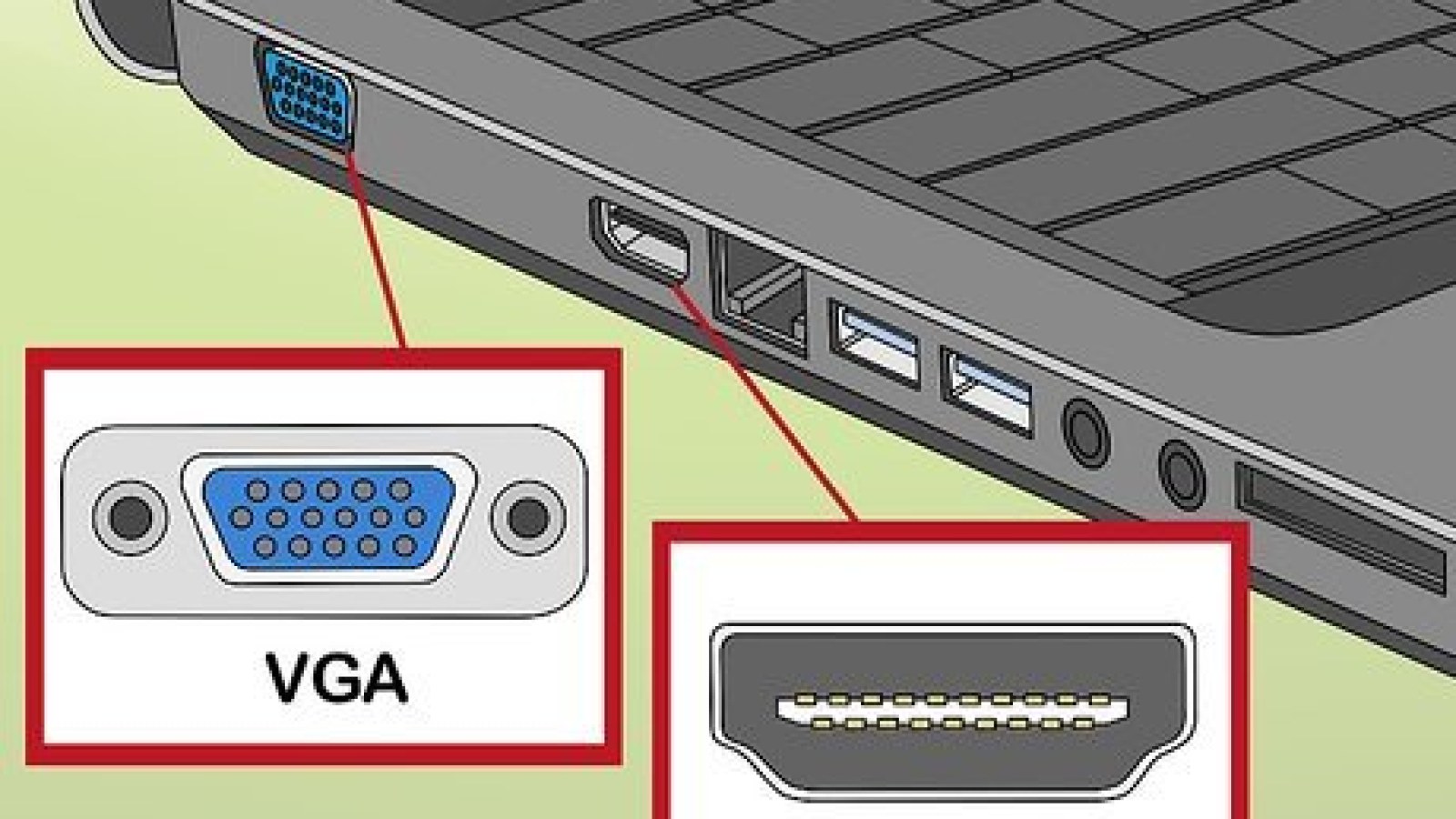
Before buying cables or a docking station, identify the video outputs available on the computer. A desktop graphics card commonly offers a mixture of DisplayPort and HDMI connectors. Laptops may provide HDMI plus one or more USB-C, USB4 or Thunderbolt ports. The important detail is that identical-looking connectors can have different capabilities. USB-C in particular may support charging and data without carrying a display signal, so the specification for the exact laptop model matters more than the shape of the socket.
You should also check how many displays the graphics hardware supports simultaneously. The number of physical connectors is useful, but it is not always the same as the number of independent displays that can run at once. Resolution and refresh rate matter too. Driving several ordinary office monitors places different demands on the video connection than running multiple high-resolution, high-refresh displays. If you are planning three or four screens, verify the supported display configurations before buying adapters based solely on the number of sockets you can see.
- Identify HDMI, DisplayPort and video-capable USB-C ports.
- Check the specifications of the GPU or laptop.
- Plan the target resolution and refresh rate for every display.
HDMI, DisplayPort or USB-C: which connection should you use?
Use the simplest link that supports the display mode you need
For a desktop, the cleanest arrangement is normally one cable from each monitor to a separate output on the graphics card. There is no requirement to use the same connector type for every screen. A primary gaming monitor might use DisplayPort while a secondary display uses HDMI. What matters is whether each connection supports the resolution, refresh rate and other features you intend to use. A monitor capable of a high refresh rate can still fall back to a lower setting if the chosen port, adapter or cable becomes the limiting part of the chain.
USB-C is especially useful for laptops because one connection can sometimes handle display output together with other dock functions. However, the host port must support video, such as an appropriate DisplayPort alternate mode, USB4 or Thunderbolt implementation. A dock may then provide two or more HDMI or DisplayPort outputs. Always check the dock's supported display configurations rather than assuming that every socket can operate at its maximum specification simultaneously. Available bandwidth is shared, and demanding combinations of resolution and refresh rate can expose those limits.
- Direct GPU connections are usually the most straightforward on desktops.
- Confirm that a USB-C port supports video before buying an adapter.
- Check the supported display modes of docks and adapters.
How to physically connect two, three or more displays
Desktop and laptop setups differ in one important way
If your desktop has a dedicated graphics card, connect the monitors to the ports on that card rather than automatically using the HDMI or DisplayPort connectors near the motherboard's USB ports. Motherboard video outputs depend on the processor's integrated graphics and system configuration, and they may be disabled when a discrete GPU is installed. Using both graphics devices can be possible on some systems, but it should be an intentional configuration rather than an accidental mixture of ports.
With a laptop, connect the first screen to an available video output and add further displays through another supported output or a compatible docking station. Some DisplayPort monitors also support MST daisy chaining. In that arrangement the computer connects to the first monitor, and the next monitor connects to a DisplayPort output on the first. Both the source and the relevant hardware must support the feature, and the displays share the available link bandwidth, which can affect the combinations of resolution and refresh rate that are possible.
- Connect each monitor to a supported video output.
- Select the correct input source on every monitor.
- Power on the displays before configuring their layout in Windows.
Configure multiple monitors correctly in Windows
Arrange the virtual displays to match your desk
Open Settings, go to System and then Display. Windows should show a diagram representing the connected screens. Use Identify to display a number on each physical monitor, then drag the rectangles until their positions match the real arrangement on your desk. This step is more important than it looks. If a monitor that physically sits on the left is positioned on the right in Windows, the mouse pointer and dragged windows will cross the wrong edge of the screen.
For a normal productivity setup, select the option to extend the desktop across the displays. Duplicate mode shows the same content on multiple screens and is more useful for presentations or situations where two viewers need to see the same image. You can also choose a main display, which affects where Windows places certain interface elements and where many applications initially open. The Win+P shortcut provides quick access to the basic projection and multi-display modes.
- Use Identify to match numbers with physical screens.
- Drag the monitor icons into the correct order.
- Choose Extend for independent desktop space.
- Select the display you want to use as the main monitor.
Mixing resolutions, scaling and refresh rates
A 4K screen can work beside a 1080p or high-refresh monitor
Multiple monitors do not need to share the same size or native resolution. Select each display individually in Windows and use its recommended resolution. When screens have very different pixel densities, adjust scaling separately so text and interface elements remain comfortable to read. A small high-resolution laptop panel beside a larger lower-resolution monitor is a common example. Some older applications may briefly appear too large, too small or slightly blurred when moved between displays with very different scaling, but the monitors themselves do not need matching specifications.
Refresh rate is also configured per display. If a monitor advertised for high-refresh operation is stuck at 60 Hz, open its advanced display settings and check the available refresh rates. If the expected option is missing, investigate the entire signal path: output port, cable, adapter, dock and monitor input. In a gaming setup, connecting the primary high-refresh display directly to the graphics card is generally the simplest arrangement and removes unnecessary intermediate hardware that could limit the available mode.
- Use the recommended native resolution for each display.
- Set scaling independently when pixel density differs significantly.
- Check the refresh rate separately for every monitor.
What to do when the second monitor is not detected
Troubleshoot the signal path one component at a time
Start with the simple checks. Make sure the monitor is powered on and set to the input you actually connected, such as HDMI 1 or DisplayPort. Reseat the cable at both ends and test another output if one is available. Windows also provides a Detect option in the display settings. If the monitor is connected through a dock, hub or adapter, temporarily connect it directly to the computer. That single test can quickly reveal whether the intermediate device is causing the problem.
Flickering, intermittent black screens or a missing high-refresh option can point to a connection that cannot reliably sustain the selected mode. Temporarily reduce the resolution or refresh rate and check whether the signal becomes stable. If it does, inspect the specifications of the cable, adapter, dock and ports. Updating the graphics driver can also resolve detection or configuration problems. When monitors repeatedly change order after docking or waking the computer, review both the Windows layout and any firmware or software supplied for the docking station.
- No signal: verify the monitor input, cable and output port.
- Not detected: use Detect and test without the dock.
- Refresh rate too low: check the complete connection path.
- Flickering: test a lower display mode and another cable.
The most reliable multi-monitor setup is usually the simplest one: give each display a supported video connection, arrange the screens in Windows and configure resolution and refresh rate individually. Two monitors are rarely difficult, but three or four screens make the limits of GPU outputs, docks and USB-C bandwidth more important. If a display works but cannot reach its expected resolution or refresh rate, check the cable, adapter and port before assuming that the monitor itself is faulty.
FAQ
Can I connect two monitors to one HDMI port?
A basic HDMI splitter normally sends the same image to both screens. For two independent extended desktops, the computer must provide two independent display streams through separate outputs or a compatible multi-display adapter or dock.
Should both monitors be connected to the graphics card?
On a desktop with a dedicated graphics card, that is generally the preferred arrangement. Motherboard display outputs depend on integrated graphics support and system configuration.
Can a 60 Hz monitor and a 144 Hz monitor run together?
Yes. Windows can configure refresh rate separately for each display as long as the GPU, ports, cables and monitors support the selected modes.
Why does my USB-C monitor show no picture?
USB-C describes the connector, not all of its capabilities. Check whether the specific laptop port supports display output and whether the adapter or dock is compatible with that video mode.
ACC64 editorial article prepared from the cited materials and approved before publication.