
Mouse Keeps Cutting Out? Why the Cursor Freezes, Jumps or Loses Tracking
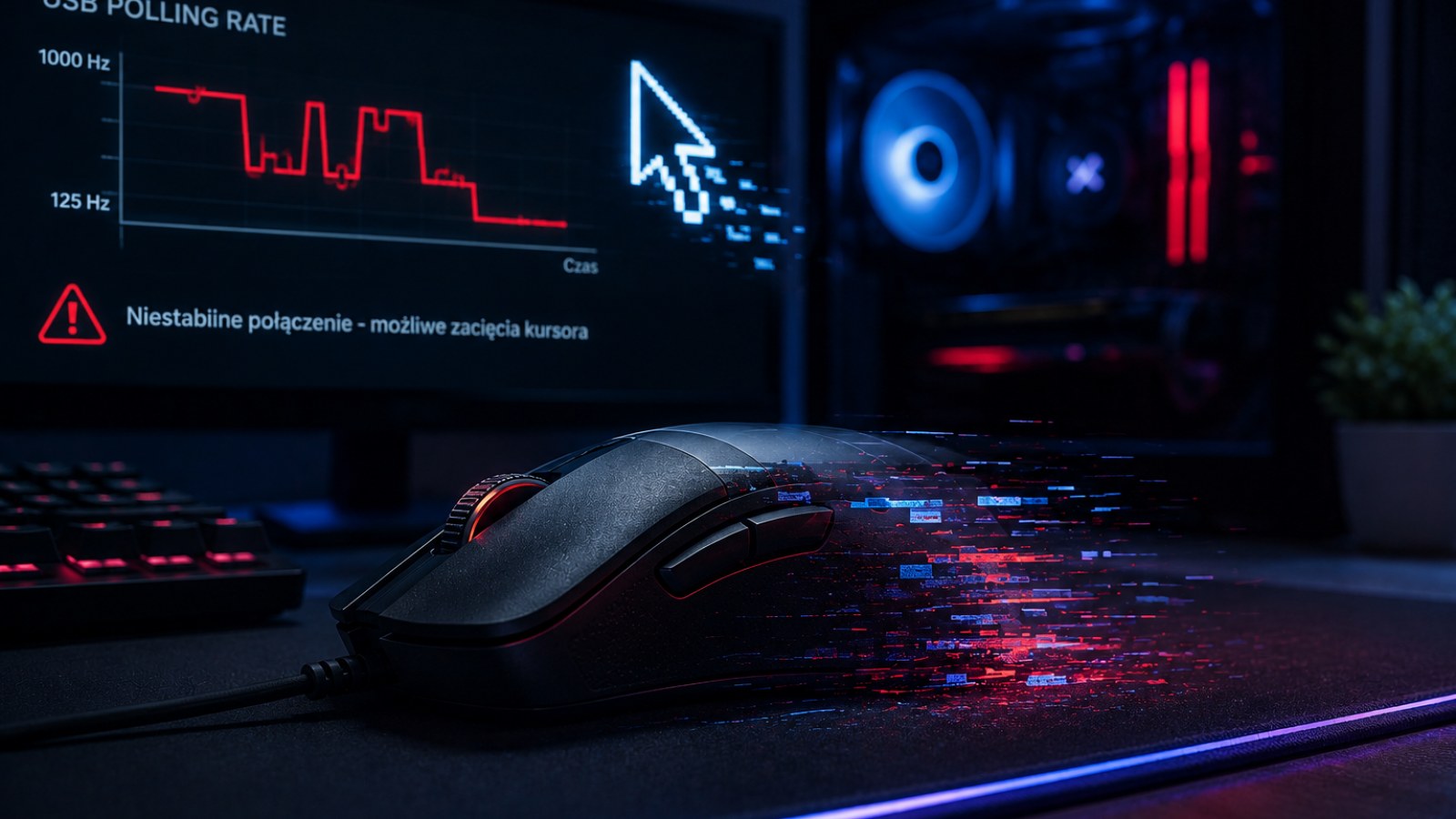
A mouse that briefly freezes, jumps across the screen or loses tracking during fast movement can make both everyday work and gaming frustrating. The cause may be as simple as dirt around the sensor, but USB connections, wireless interference, the surface, software and hardware faults are also worth checking.
Key takeaways
- Start with the sensor, surface and connection before changing software settings.
- Wireless dropouts can look almost identical to sensor tracking failures.
- A problem limited to one game may come from the application rather than the mouse.
- Testing another USB port and another computer is one of the most useful diagnostic steps.
- Change one variable at a time so you know what actually fixes the issue.
Symptoms and useful first tests
| Symptom | Check first | Comparison test |
|---|---|---|
| Cursor briefly freezes | USB, cable, receiver, battery | Different port or computer |
| Cursor suddenly jumps | Sensor and surface | Clean matte mousepad |
| Problem occurs in one game | Game settings and performance | Desktop and another game |
| Movement of cable causes dropout | Cable and connector | Carefully change cable position |
| Only wireless mode fails | Battery and receiver | Alternative connection mode |
Identify the failure before trying to fix it
Freezing, jumping and tracking loss point to different areas
Pay attention to exactly what happens during a normal movement. A cursor that stops for a fraction of a second and then continues may indicate a temporary connection or tracking interruption. A pointer that suddenly shoots in an unexpected direction can instead point toward the sensor or surface. If movement feels wrong only inside one game, the problem may be related to software, frame delivery or input configuration rather than a physical mouse failure.
Move the mouse slowly in large circles on the desktop and then repeat the test with several faster swipes. Check whether the same motion repeatedly triggers the fault. Also test the buttons and scroll wheel when the cursor freezes. If every mouse function stops simultaneously, investigate the USB connection, cable, wireless receiver or power before concentrating exclusively on the optical sensor.
- Compare slow and fast movements.
- Check buttons and scrolling during a dropout.
- Test the desktop and several applications.
- Note whether one specific area of the mousepad triggers the problem.
Check the optical sensor and the surface underneath it
A clean sensor still needs a suitable tracking surface
Dust, hair and small debris near the optical opening can interfere with tracking. Disconnect or switch off the mouse and carefully inspect the sensor area. Gentle cleaning is enough for routine troubleshooting; avoid pushing sharp objects into the opening or applying unnecessary pressure to optical components.
Next, change the surface. Glass, highly reflective desks, unusual textures and worn or dirty mousepads can cause problems for some sensors. Use a clean, matte mousepad as a controlled test surface. Try different parts of the pad as well. If the cursor loses tracking only over one damaged or dirty section, replacing or cleaning the surface may solve the problem without touching any system setting.
Mouse feet deserve a quick inspection too. Damaged, uneven or incorrectly installed skates can change how the mouse sits above the surface. If tracking trouble started after replacing the feet, check that old adhesive or additional layers were not left underneath and that the replacement pieces are seated correctly.
- Inspect and clean around the sensor.
- Test on a clean matte mousepad.
- Avoid reflective surfaces during troubleshooting.
- Inspect the mouse feet and their installation.
Rule out USB, cable and wireless connection problems
A perfect sensor cannot compensate for an interrupted signal
For a wired mouse, inspect the cable near the mouse body and USB plug. If moving the cable makes the device disconnect, reconnect or briefly stop responding, the cable or connector becomes a strong suspect. Plug the mouse directly into another computer USB port and temporarily bypass hubs, extension cables and docking stations. A problematic port can produce symptoms that look like a failing mouse.
Wireless models introduce battery level, receiver placement and radio conditions into the equation. Fully charge the mouse or install a known-good battery, then move the receiver closer if possible. A receiver hidden behind a metal desktop case or placed among many connected devices may not be an ideal diagnostic setup. Brief communication dropouts often appear to the user as frozen tracking.
If the mouse supports both a dedicated receiver and Bluetooth, comparing the two modes can provide another clue. The purpose is not to decide which technology is universally better. You are checking whether the same fault survives a change in communication path. Stable operation in one mode and repeated dropouts in another narrows the investigation considerably.
- Try another USB port.
- Bypass hubs and extension cables.
- Charge or replace the battery.
- Move the wireless receiver closer.
- Compare connection modes when available.
Separate mouse faults from Windows and game problems
A stuttering game can make correct mouse input look broken
When the pointer works normally on the desktop but feels inconsistent in a single game, test other games before blaming the hardware. Review the title's mouse and input options, temporarily disable unnecessary software that modifies input and observe whether the game itself is stuttering. Uneven frame delivery can make aiming appear to skip even while the mouse continues reporting movement.
For system-wide problems, restart the computer and test with the manufacturer's optional utility closed if the mouse can operate without it. If the issue began immediately after changing mouse settings, return them to sensible defaults. Use official software sources rather than downloading random driver packages from third-party sites.
For mice that expose polling-rate settings, temporarily selecting a lower available rate can be a diagnostic experiment. An improvement does not prove one particular component is defective, but the result can help distinguish configuration or system interaction from a problem that remains identical under every setting.
- Compare multiple games and desktop applications.
- Restart the computer.
- Test default mouse settings.
- Use official manufacturer software.
A reliable step-by-step test for a suspected faulty mouse
Change one variable, repeat the same movement, record the result
Begin with the simplest controlled setup: clean the sensor and mousepad, then repeat a consistent movement test. Next change the USB port or receiver position, verify battery condition or inspect the cable, and test several applications. Avoid changing everything simultaneously because you will not know which adjustment actually affected the fault.
The most valuable final comparison is another computer. If the mouse repeatedly loses tracking on a second known-good system, with a suitable surface and different connection environment, a hardware fault becomes considerably more plausible. Perform the reverse test as well by connecting another known-good mouse to the original computer.
If the symptom follows the mouse across computers, ports and surfaces, endless Windows tweaks are unlikely to be productive. For a device under warranty, document the repeatable behavior and follow the retailer or manufacturer's support procedure rather than opening the mouse and potentially complicating a warranty claim.
- 1. Clean the sensor and mousepad.
- 2. Change the port or receiver position.
- 3. Check the cable or battery.
- 4. Test multiple applications.
- 5. Test the mouse on another computer.
- 6. Compare with another known-good mouse.
A freezing or jumping cursor does not automatically mean the optical sensor is dead. Eliminate surface and contamination problems first, then test the USB or wireless connection and finally software. If the same repeatable fault follows the mouse to another computer and another suitable surface, the evidence for a hardware problem becomes much stronger.
FAQ
Why does my mouse cursor randomly jump?
Start by checking the sensor opening and mousepad. Dirt or an unsuitable surface can disrupt tracking. If both are fine, test the USB or wireless connection.
Why does my mouse cut out during fast movements?
Try a clean matte mousepad and another computer. If fast swipes consistently trigger the same problem across different systems, investigate the mouse hardware after ruling out its connection and software.
Can a USB port make a mouse stutter?
Yes. A problematic port or hub can cause brief communication interruptions. Connect the mouse directly to another USB port as a quick comparison.
How can I tell whether the mouse or PC is faulty?
Test the mouse on a second computer and connect another known-good mouse to the original PC. Comparing both combinations is one of the fastest ways to isolate the problem.
ACC64 editorial article prepared from the cited materials and approved before publication.