
Controller input lag: what causes delayed gamepad response and how to reduce it
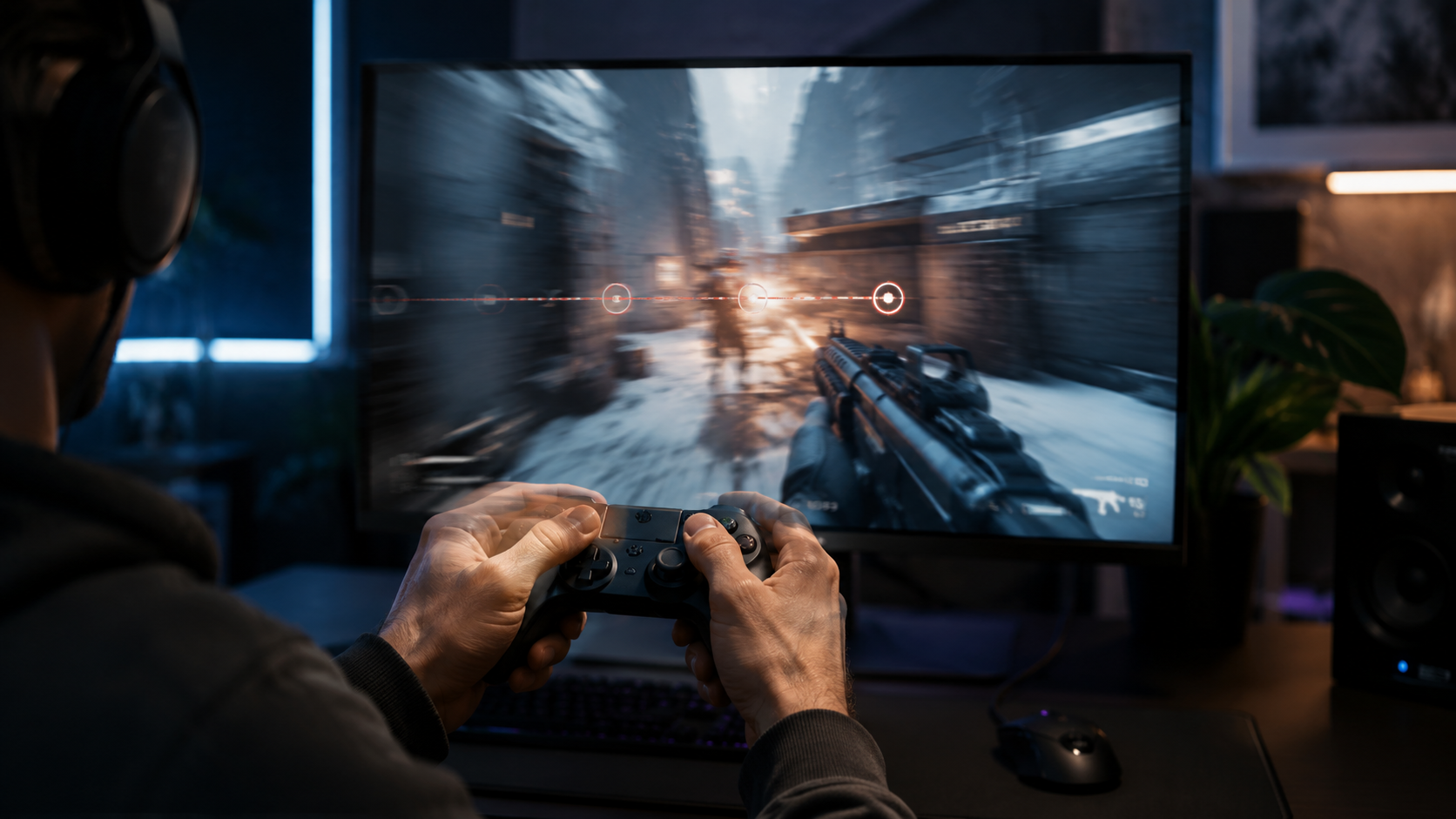
You press a button now, but the game reacts noticeably later. Controller lag can come from Bluetooth, wireless interference, USB routing, mapping software, frame pacing, display processing or the game itself. The fastest way to find the cause is to test the input chain one layer at a time instead of blaming the gamepad immediately.
Key takeaways
- Controller input lag is the delay between a physical action and the response you can observe in an app or game.
- A wired test is a useful baseline because it removes some wireless variables without proving that Bluetooth is inherently bad.
- Compare the same controller in a browser tester, over different connections and in more than one game before changing advanced settings.
- Low or unstable FPS, display processing and network latency can feel like controller lag even when the gamepad reports input correctly.
Quick controller-lag diagnosis
| Symptom | Likely area to investigate | First check |
|---|---|---|
| USB feels good, Bluetooth feels worse | Wireless link | Range, antenna, driver, interference |
| Tester is responsive, one game is slow | Game / mapping / rendering | Second game, overlays, FPS |
| Everything feels delayed on a TV | Display processing | Game mode / picture processing |
| Online play rubber-bands or teleports | Network | Ping, jitter, packet loss |
| Slow on several PCs, wired and wireless | Controller / firmware | Reset, update, support |
What controller input lag actually means
Separate the gamepad signal from frame and network delay
Input lag is not a single component. A button press travels through the controller, the USB or wireless link, the operating system, the game engine, frame rendering and finally the display. Any stage can add delay. That is why “my controller feels slow” is a symptom rather than a diagnosis.
If one button misses presses, a stick jumps around or the game detects duplicate controllers, you may be dealing with a different problem. Classic input lag usually means the action is correct but arrives later or inconsistently. Start by checking whether buttons, triggers and sticks appear promptly and repeatedly in a neutral tester.
- Check whether every control feels delayed or only one action.
- Compare a browser tester with the affected game.
- Notice whether the delay is constant or appears in bursts.
Bluetooth, USB and 2.4 GHz receivers
Use each connection as a diagnostic comparison, not a marketing assumption
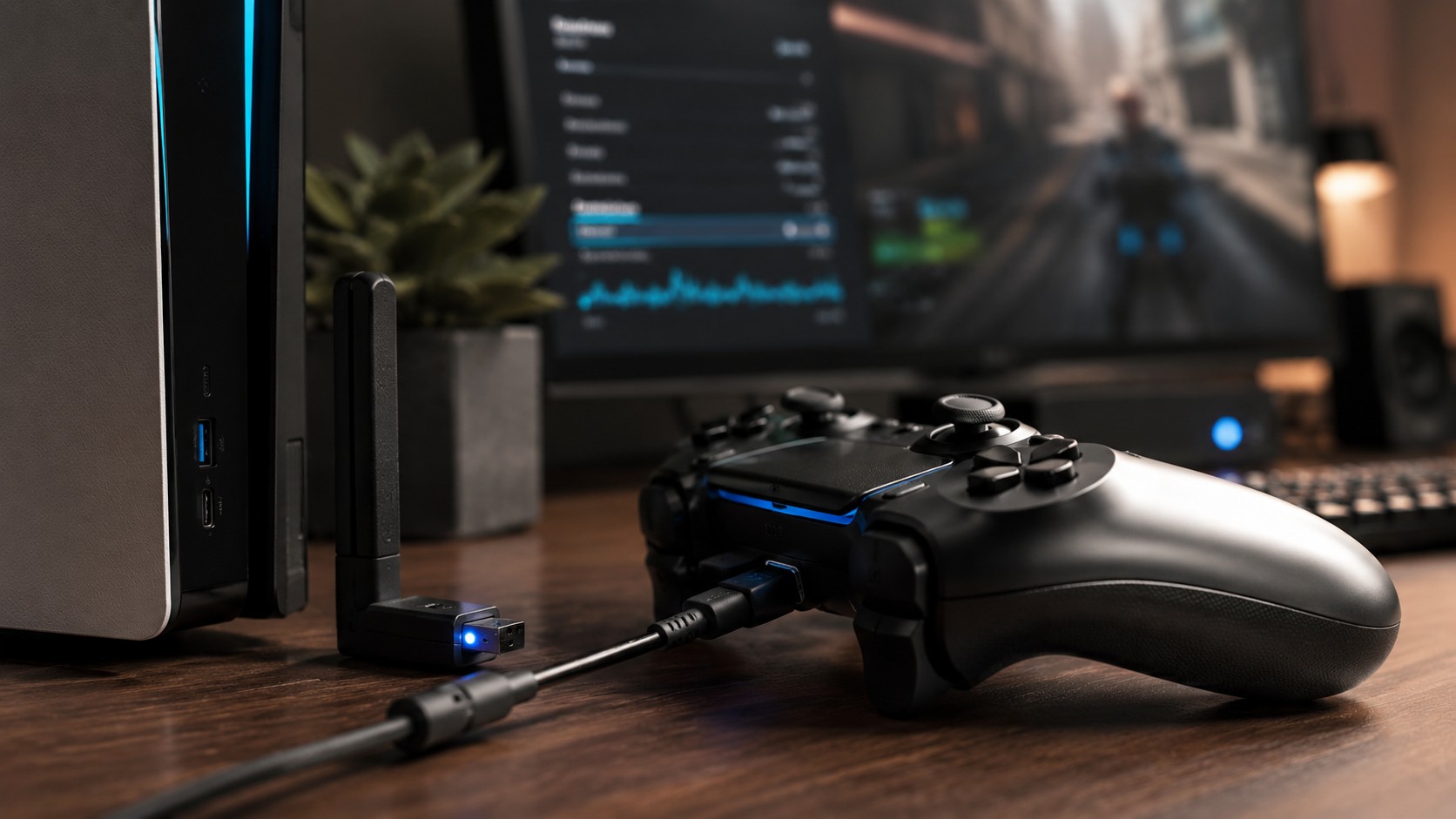
A wired connection removes radio range and interference from the equation, so it is an excellent baseline. If the controller becomes clearly more consistent over USB, inspect the wireless side: distance, antenna placement, Bluetooth drivers and nearby devices. Desktop PCs can perform poorly when the antenna is hidden behind a metal case or a small dongle is plugged into a crowded rear I/O area.
A proprietary 2.4 GHz receiver may behave differently from Bluetooth, but there is no useful universal conclusion for every controller. Run the same short test with each available connection while keeping the game, frame rate and display settings unchanged.
- Connect directly to a USB port during diagnosis.
- Move a wireless receiver closer if possible.
- Charge the controller before comparing wireless modes.
- Keep the rest of the test conditions identical.
How to find where the delay is introduced
A repeatable comparison beats random tweaks
Open the ACC64 Gamepad Test and check that button presses, triggers and stick movement are reflected consistently. Repeat the same actions wired and wirelessly. If the tester feels immediate but one game feels heavy, investigate the game, input mapping layer, overlays or rendering rather than the controller alone.
Then try a second game or app and, when practical, another computer. Close tools that remap or intercept controller input while testing. Multiple input layers can create conflicts or duplicate virtual devices. Change one variable at a time and repeat the same short sequence after every change.
- Tester first, then wired versus wireless.
- Try a second game or application.
- Temporarily disable unnecessary remappers and overlays.
- Use another computer if the result is still ambiguous.
Ways to reduce perceived controller delay safely
Fix obvious bottlenecks before experimenting with advanced tweaks
If USB is consistently better, improve the wireless path: reduce distance, reposition the receiver or antenna and remove obvious obstructions. Use a known-good data cable for wired play and avoid a questionable hub during testing. Driver or firmware updates can also matter, especially if the behaviour changed after an operating-system or hardware update.
Inside the game, check frame-rate stability. Uneven frame times can make controls feel soft or delayed even when input events are delivered correctly. Also compare display processing settings. TVs in particular may have a game mode designed to reduce image processing, while some monitors expose their own low-latency options.
- Prefer stable, simple configurations over registry “tweaks”.
- Avoid running several controller mapping utilities at once.
- On a TV, compare normal picture processing with game mode.
When the controller is not the real problem
Rendering and networking can mimic slow input
If the feeling changes dramatically with graphics settings, frame rate or display mode, the bottleneck may be in rendering rather than the controller. In online games, rubber-banding, delayed server events and teleporting are more closely related to ping, jitter or packet loss. Distinguish “my local action appears late” from “the server confirms the result late”.
If the controller is equally delayed in a browser tester, in several games, over USB and wirelessly, and on another computer, a controller or firmware issue becomes more plausible. At that point consult the model-specific reset, pairing, firmware and warranty instructions instead of continuing to change unrelated PC settings.
- Frame pacing and display processing affect perceived responsiveness.
- Network lag is different from local button-to-screen delay.
- A problem reproduced across several systems points more strongly to the controller.
There is no single “low-latency setting” that fixes every controller problem. Start with a neutral input test, compare wired and wireless behaviour, then isolate the game, frame rate, display and network. This sequence is faster and safer than applying a long list of unrelated tweaks.
FAQ
Is Bluetooth always slower than a cable?
Do not treat that as a universal rule. Compare the same controller on your own system under the same conditions.
Can a browser gamepad test measure total latency in milliseconds?
It can verify that inputs are detected consistently, but total button-to-screen latency also includes the OS, game, rendering and display.
Can low FPS feel like controller input lag?
Yes. Poor frame pacing or delayed rendering can make controls feel less responsive even when the controller is reporting normally.
What should I check first if lag suddenly gets worse?
Compare wired and wireless operation, battery level, USB port, drivers or firmware, and whether the problem exists outside the affected game.
ACC64 editorial article prepared from the cited materials and approved before publication.