
Before You Buy a Game, Check How It Will Run on Your PC
System requirements only tell part of the story. Before spending money on a new PC game, it is worth checking not only whether your computer can launch it, but also what frame rate, graphics quality and resolution you can realistically expect.
Check the game in Game FPS Test

Key takeaways
- Meeting the minimum requirements does not guarantee a smooth experience.
- GPU, CPU, RAM and resolution affect gaming performance in different ways.
- Estimated performance is more useful when compared across Low, Medium, High and Ultra settings.
- Checking your PC before buying can help you avoid a game that runs far below your expectations.
What to check before buying a PC game
| Item | Why it matters | What to check |
|---|---|---|
| Graphics card | Usually handles most rendering workload | Exact GPU model, VRAM, resolution and graphics preset |
| Processor | Affects simulation, physics and maximum achievable FPS | Exact model and generation |
| RAM | Stores active game and operating-system data | Capacity and background memory usage |
| Resolution | Higher resolutions require more pixels to be rendered | 1080p, 1440p, 4K or native resolution |
| Graphics settings | Can dramatically alter GPU and CPU load | Shadows, reflections, ray tracing, effects and draw distance |
System requirements are only the starting point
Minimum and recommended specifications rarely describe the whole experience
Most game stores present two hardware lists: minimum requirements and recommended requirements. Minimum specifications usually indicate the class of hardware on which the game is expected to launch, while the recommended list suggests a stronger configuration. What these lists often fail to explain is the expected frame rate, resolution and graphics preset. A PC can therefore meet the published requirements while still delivering an experience that feels too slow, inconsistent or visually compromised for the player.
Hardware names can also be misleading when viewed without context. Two processors carrying similar branding may belong to very different generations and provide noticeably different gaming performance. The same is true for graphics cards: more video memory does not automatically make one GPU faster than another. Instead of treating a requirements table as a pass-or-fail test, use it as an initial reference and then evaluate the actual performance class of your components.
- Check the exact CPU, GPU and amount of system memory.
- Use the resolution you actually intend to play at.
- Do not assume that recommended hardware automatically means 60 FPS at High settings.
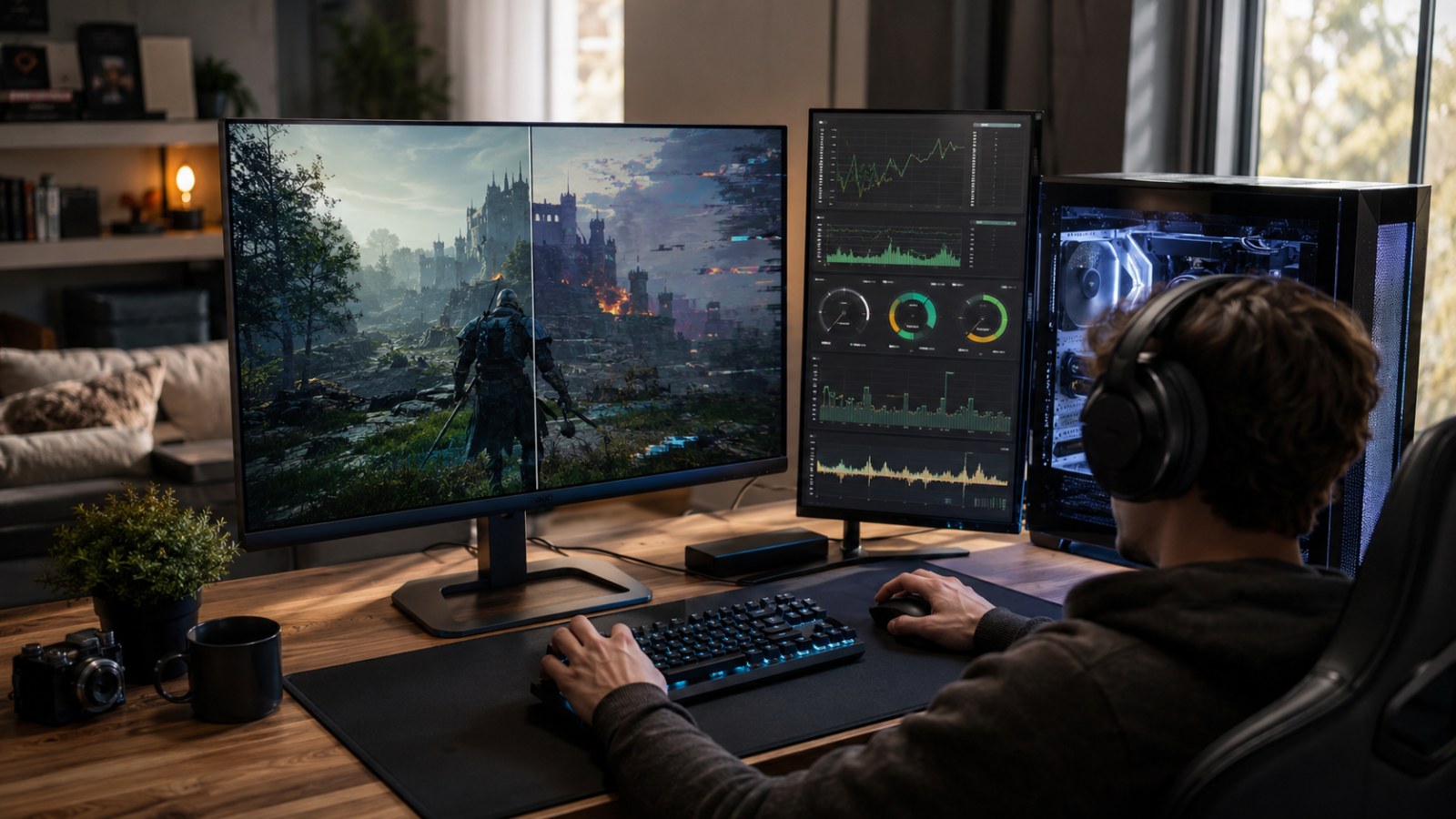
Which PC components matter most for frame rate?
The graphics card is important, but it is not the whole PC
In many modern games, the graphics card has the largest direct influence on frame rate. The GPU renders the scene, lighting, shadows, reflections, textures and numerous visual effects. Raising resolution increases the number of pixels that must be processed every frame, which is why a system that performs comfortably at 1920 × 1080 may become much slower at 2560 × 1440 or 4K. Features such as ray tracing, high-quality shadows, volumetric effects and complex reflections can increase GPU load even further.
The processor becomes especially important in games with large crowds, complex physics, detailed world simulation or very high target frame rates. When the CPU cannot prepare frames quickly enough, reducing texture quality may achieve almost nothing. RAM is another part of the equation. If the game and operating system run short of memory, the PC may rely more heavily on storage, potentially causing pauses or stutter. An SSD normally does not raise average FPS in the same way that a faster GPU can, but it can shorten loading screens and improve asset streaming in games designed around fast storage.
- GPU: usually the main limitation at high resolutions and demanding visual settings.
- CPU: increasingly important at high FPS and in simulation-heavy scenes.
- RAM: insufficient capacity can contribute to stutter and heavy paging.
- SSD: primarily improves loading and asset streaming rather than raw rendering speed.
Do not ask only whether it runs — ask how it runs
A performance estimate gives more useful information than a simple yes or no
The statement that a PC can run a game does not tell you whether you will enjoy the result. A player using a standard display may be satisfied with a stable experience around 60 FPS, while someone with a high-refresh-rate monitor may be aiming for substantially more. In slower cinematic games, another player may accept a lower frame rate in exchange for better image quality. That is why performance should always be considered together with resolution, graphics settings and your personal target.
ACC64 Game Performance is designed around this idea. You can select a game, enter or adjust your processor, graphics card, RAM and resolution, and then compare the expected experience at different quality levels. Any predicted FPS should be treated as an estimate rather than a promise. Driver versions, game updates, background software, cooling, power limits and even the particular scene being rendered can affect real performance. Even with those variables, a realistic estimate provides much more useful buying information than simply matching component names against a minimum requirements list.
- Test at 1080p, 1440p or the native resolution of your display.
- Compare several graphics presets instead of checking only Ultra.
- Consider potential drops and stutter, not only an average FPS figure.
What if your PC is close to the limit?
You can often recover performance without turning everything to Low
A borderline result does not necessarily mean you should skip the game. First identify the component most likely to be limiting performance. If the GPU is underpowered for your chosen resolution, lowering render resolution, shadows, reflections, volumetric effects, ambient occlusion or ray tracing can provide meaningful gains. Texture quality may sometimes remain relatively high if your graphics card has enough usable video memory, so reducing every option indiscriminately is rarely the best approach.
If the CPU is the limitation, reducing purely GPU-heavy settings may barely change the frame rate. Look instead for options related to crowd density, simulation quality, object detail, draw distance or world complexity. Close unnecessary background programs, make sure the graphics driver is current and check that overheating is not reducing clock speeds. Laptop users should also pay attention to power modes: a gaming notebook running on battery can perform very differently from the same machine connected to its power adapter and configured for performance.
- Determine whether the main bottleneck is the GPU, CPU or memory capacity.
- Lower the most expensive settings first instead of selecting the lowest preset immediately.
- Check temperatures and background processes.
- On a laptop, use the correct performance profile and external power.
A five-minute checklist before pressing Buy
A little preparation can prevent a disappointing purchase
Start by identifying the complete names of your processor and graphics card, together with the installed RAM. Labels such as Core i7 or GeForce RTX are not precise enough because performance varies substantially between generations and individual models. On a laptop, make sure you are evaluating the mobile version of the graphics chip where applicable. Then select the resolution you really plan to use. Checking a 1080p estimate when you intend to play at 1440p can create unrealistic expectations.
Compare several quality presets and decide what result would actually satisfy you. If your goal is a smooth 60 FPS, a High preset may make far more sense than Ultra when the visual difference is small but the performance difference is substantial. Conversely, if even Low or Medium settings appear well below your acceptable range, it is useful to know before purchasing and downloading the game. The objective is not to produce one magical FPS number, but to understand the range of experiences your hardware is likely to provide.
- Identify your exact CPU and GPU models.
- Enter the correct amount of RAM.
- Use your real gaming resolution.
- Compare Low, Medium, High and Ultra.
- Buy only when the expected compromise between visual quality and performance makes sense for you.
Do not buy a PC game simply because your computer technically meets its minimum requirements. What matters more is the frame rate you can expect at your preferred resolution and an acceptable level of graphics quality. Comparing your exact CPU, GPU, RAM and several settings presets in Game Performance gives you a much clearer idea of whether the experience will meet your expectations and where compromises may be necessary.
FAQ
Do minimum requirements mean the game will run at 60 FPS?
No. Minimum requirements generally describe hardware capable of running the game, but they do not automatically imply 60 FPS, High settings or a particular resolution unless the publisher explicitly states those targets.
Will lowering graphics settings always improve FPS?
Not always. It usually helps when the GPU is the limiting component. If the game is primarily CPU-limited, reducing GPU-heavy options may produce only a small improvement.
Does adding more RAM increase FPS?
Once a system has enough memory for the game and operating system, additional RAM usually produces little improvement in average FPS. Insufficient RAM, however, can contribute to stutter, paging and poor responsiveness.
Why can actual FPS differ from a performance estimate?
Performance predictions cannot reproduce every individual PC. Driver versions, game patches, temperatures, power limits, background software and different areas of a game can all change the final result.
ACC64 editorial article prepared from the cited materials and approved before publication.