
Logitech G Pro X Superlight — how to pair the mouse with a new USB receiver
Losing the original dongle does not make the PRO X SUPERLIGHT unusable. With a compatible LIGHTSPEED receiver, you can pair the mouse again through Logitech G HUB; the important part is using the correct receiver family and following the pairing workflow in the right order.
Key takeaways
- The PRO X SUPERLIGHT uses Logitech LIGHTSPEED, so a Unifying or Logi Bolt receiver is not a substitute.
- G HUB includes a Device Pairing Tool specifically for pairing supported mice and keyboards with replacement receivers.
- Logitech currently lists the PRO LIGHTSPEED Receiver as compatible with the original PRO X SUPERLIGHT.
- If G HUB cannot see the receiver, test a direct USB connection and make sure the mouse and receiver firmware are up to date.
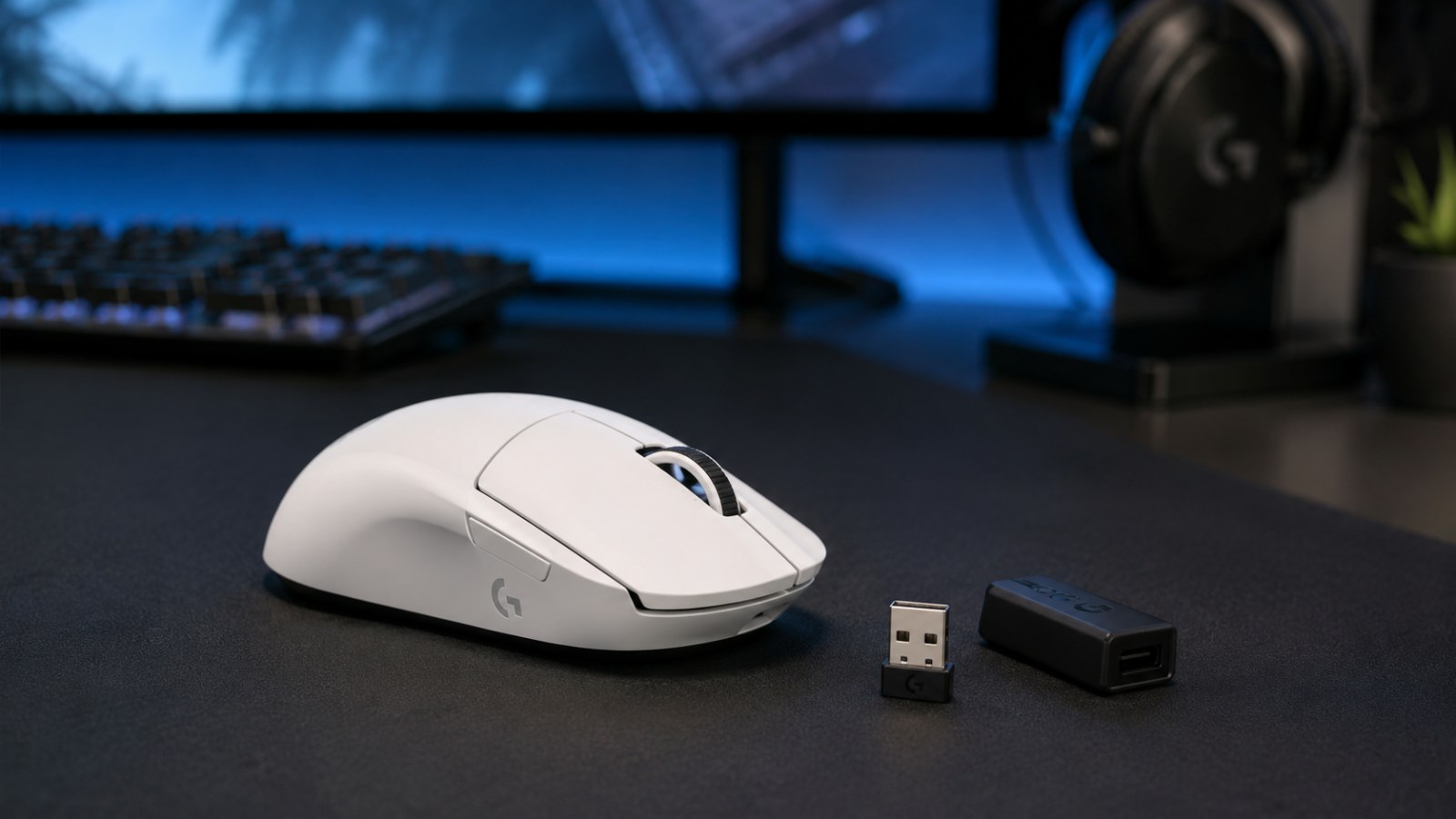
- After pairing, place the receiver close to the mouse with the extension adapter rather than leaving it behind the PC.
Quick pairing checklist
| Item | What to do | Expected result |
|---|---|---|
| Receiver | Use a compatible LIGHTSPEED receiver | G HUB detects it in Device Pairing Tool |
| Mouse | Charge it, switch it on and connect it by cable if needed | G HUB recognizes PRO X SUPERLIGHT |
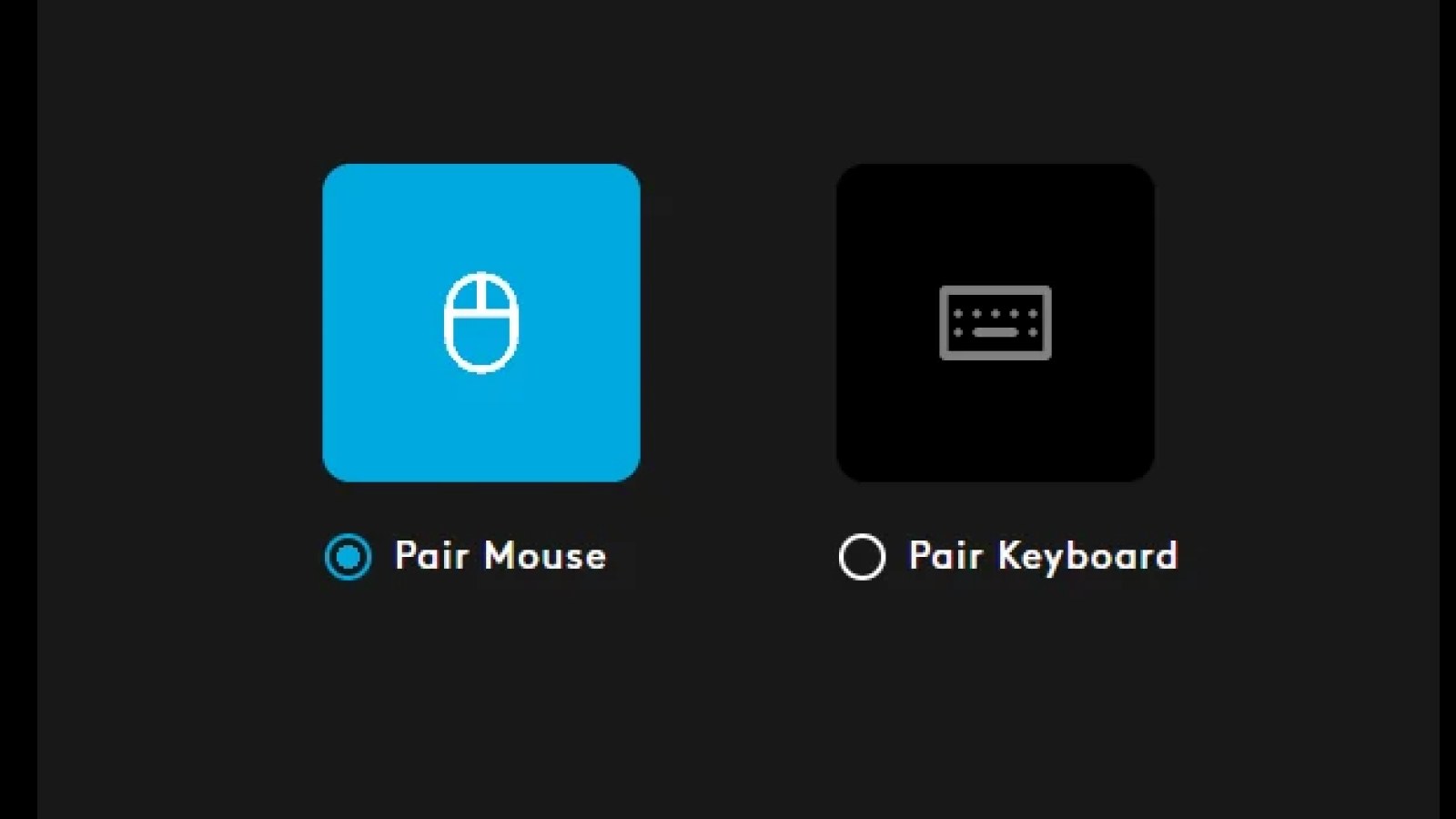
| G HUB | Settings → Device Pairing Tool → Mouse | The wizard offers the receiver and starts pairing |
| After pairing | Disconnect the cable and move the mouse | Wireless cursor movement works and the mouse appears in G HUB |
| If it fails | Change USB port, check firmware and compatibility | Both receiver and mouse are detected normally |
Start by identifying the receiver you actually have
A Logitech logo does not make every dongle interchangeable
The most common mistake happens before G HUB is even opened: someone buys a random Logitech USB receiver because it looks similar to the lost one. The PRO X SUPERLIGHT belongs to Logitech's LIGHTSPEED gaming ecosystem. Unifying and Logi Bolt receivers use different connection systems and should not be treated as universal replacements. A USB-A plug and familiar branding are not enough to establish compatibility, especially when second-hand listings use vague descriptions such as “Logitech wireless receiver.” :contentReference[oaicite:10]{index=10}
The safest choice is a receiver intended for the PRO X SUPERLIGHT or one that Logitech explicitly lists as compatible. Logitech's current PRO LIGHTSPEED Receiver page includes the original PRO X SUPERLIGHT in its compatibility information and instructs users to pair devices through G HUB. :contentReference[oaicite:11]{index=11} If you are buying used, compare the exact receiver name and product information instead of relying on its casing. Different LIGHTSPEED receivers can look almost identical while supporting different device combinations.
Prepare the mouse and PC before you pair anything
A clean setup makes troubleshooting much easier
Plug the replacement receiver into the computer, switch the mouse on and make sure it has enough charge to complete the process. Install the current Logitech G HUB release from Logitech. Windows may detect the USB receiver immediately, but that only means the computer can see the dongle; it does not mean the mouse has already been associated with it. It is perfectly possible for the receiver to appear normally in the system while the pointer remains completely unresponsive.
If you still have another working LIGHTSPEED receiver attached to the PC, disconnect it temporarily. Doing so reduces the chance of selecting the wrong dongle inside the pairing wizard. For the first attempt, connect the replacement receiver directly to a USB port rather than through a hub or dock. Once pairing is complete, you can return to the receiver extension arrangement shown in the PRO X SUPERLIGHT setup guide and position the dongle closer to the mouse. :contentReference[oaicite:12]{index=12}
Pair the PRO X SUPERLIGHT in Logitech G HUB
Use Device Pairing Tool, not the old office-peripheral utilities
Logitech provides a dedicated Device Pairing Tool inside G HUB for supported gaming devices. With the receiver connected, open G HUB, enter the application settings and find Device Pairing Tool. Depending on the interface version, Logitech has shown the option under Support or App Settings. Select the option to pair a mouse, confirm the receiver that G HUB has detected, and continue. Logitech's own support steps follow this same flow: connect the receiver, launch G HUB, open the pairing tool and proceed through the on-screen wizard. :contentReference[oaicite:13]{index=13}
The wizard then asks you to select the supported device and begin pairing. Follow the prompts exactly, including any request to power-cycle the mouse. Avoid moving the receiver to a different port midway through the procedure, and do not close G HUB until it reports completion. When the pairing succeeds, the PRO X SUPERLIGHT should appear in G HUB as the connected wireless mouse and the cursor should respond with the charging cable disconnected.
Is your mouse working as it should?
Check clicks, the scroll wheel and buttons in a few moments — no software to install and no need to leave this page.
What to do when G HUB cannot find the receiver
Rule out USB and firmware problems before blaming the mouse
If Device Pairing Tool shows no usable receiver, begin with the basics. Unplug the dongle, restart G HUB and reconnect the receiver to a different USB port. Logitech recommends unplugging and reconnecting a LIGHTSPEED receiver and trying another port when connection or firmware problems occur. For receiver firmware issues, Logitech also advises bypassing the extension adapter and connecting the receiver directly to USB, while the mouse can be attached by its charging/data cable so G HUB can complete device updates. :contentReference[oaicite:14]{index=14}
If G HUB detects the dongle but never offers PRO X SUPERLIGHT as a pairing option, revisit receiver compatibility first. This is particularly important with used receivers or marketplace listings that omit the exact part information. Next, connect the mouse by cable and confirm that G HUB recognizes the mouse itself. Install any offered firmware update, restart the computer and repeat the pairing procedure. If neither the wired mouse nor the receiver is detected across several known-good USB ports, the issue may involve the cable, USB controller, driver installation or hardware rather than pairing alone.
The mouse is paired but the wireless link still feels unstable
Pairing and radio quality are separate issues
A completed pairing process does not guarantee ideal radio conditions. If the pointer occasionally freezes, the mouse disconnects for a moment or the problem becomes noticeable only in games, look at receiver placement. A dongle hidden behind a metal PC case, under the desk and among several USB cables is in a worse position than one placed near the mousepad. Logitech supplies an extension adapter and cable with the PRO X SUPERLIGHT setup specifically so the receiver can be positioned close to the working area. :contentReference[oaicite:15]{index=15}
Do not immediately unpair and re-pair the mouse because of one brief stutter. First move the receiver, try another USB port and increase the distance from other wireless transmitters or crowded cable clusters. If the issue began immediately after a firmware or G HUB update, re-pairing can be a reasonable later troubleshooting step. Testing the mouse and receiver on another computer is also useful: if the same symptoms follow the hardware, that points in a different direction than a problem that only exists on one Windows installation.
Do not confuse the original Superlight with newer PRO models
Exact model names matter when shopping for spare receivers
The PRO family now includes several similarly named mice, so sellers often shorten receiver descriptions to phrases such as “Superlight dongle.” The original PRO X SUPERLIGHT and PRO X SUPERLIGHT 2 are different products. Do not identify a replacement solely from the photograph, color or the word PRO on the casing. Check the exact mouse model and compare it with Logitech's current receiver compatibility information. The current PRO LIGHTSPEED Receiver page is especially useful because Logitech explicitly lists supported models rather than asking buyers to infer compatibility from appearance. :contentReference[oaicite:16]{index=16}
This guide is aimed at the first-generation PRO X SUPERLIGHT. The G HUB pairing workflow is similar across a number of Logitech gaming devices because they use the same Device Pairing Tool, but that does not make every LIGHTSPEED receiver universal. Treat compatibility and pairing as two separate questions: first establish that the receiver supports your mouse, then use G HUB to create the new pairing. That order prevents most wasted purchases and makes a failed pairing attempt much easier to diagnose.
Pairing a Logitech G PRO X SUPERLIGHT with a replacement receiver is usually straightforward once the receiver is known to be compatible. The job is done in Logitech G HUB through Device Pairing Tool; no disassembly or special hardware is required. If the wizard fails, focus first on receiver compatibility, direct USB detection, wired detection of the mouse and firmware updates. Only after those checks make sense should you suspect a faulty receiver or a hardware problem in the mouse itself.
FAQ
Can any Logitech LIGHTSPEED receiver be paired with PRO X SUPERLIGHT?
Do not assume that. LIGHTSPEED is used by many Logitech gaming products, but compatibility depends on the particular receiver. Use a receiver designed for the model or explicitly listed as compatible. Logitech currently lists the PRO LIGHTSPEED Receiver as compatible with PRO X SUPERLIGHT. :contentReference[oaicite:17]{index=17}
Do I need Logitech G HUB to pair a replacement receiver?
Yes. Logitech's official gaming-device procedure uses Device Pairing Tool in G HUB, which is specifically intended to pair supported mice and keyboards with replacement receivers. :contentReference[oaicite:18]{index=18}
Will a Logitech Unifying or Logi Bolt receiver work?
They should not be treated as replacements for this mouse. PRO X SUPERLIGHT uses LIGHTSPEED, while Unifying and Logi Bolt are separate receiver systems. Logitech states that Unifying receivers do not work with products that are not Unifying-compatible, and Logi Bolt products cannot be paired with other Logitech receiver types or vice versa. :contentReference[oaicite:19]{index=19}
What if the mouse works by cable but will not pair wirelessly?
That is useful diagnostic information: it means the mouse is at least being detected over USB. Check receiver compatibility, update firmware in G HUB, move the dongle to a direct USB port and repeat Device Pairing Tool with other Logitech receivers disconnected.
ACC64 editorial article prepared from the cited materials and approved before publication.