
How to Check SSD Health: Warning Signs of a Failing SSD
An SSD can appear perfectly normal until read errors, corrupted files or boot problems begin to surface. Here is a practical way to check SSD health, understand SMART information and decide when troubleshooting should give way to backing up your data and replacing the drive.
Key takeaways
- SMART data can reveal wear and errors, but a healthy status cannot guarantee that an SSD will not fail.
- Repeated read/write errors, disappearing drives, corrupted files and unexplained freezes deserve immediate attention.
- If valuable data is at risk, make a backup before running write-heavy benchmarks or stress tests.
- Judge SSD health from several indicators rather than relying on a single health percentage.
Quick SSD diagnostic guide
| Symptom | Possible cause | Recommended action |
|---|---|---|
| Increasing data errors | Drive or communication problem | Back up and investigate |
| High temperature | Insufficient cooling | Improve airflow or heatsinking |
| Drive disappears | SSD, cable, port, power or controller | Back up and check connections |
| Read-only mode | Possible SSD protection state | Copy accessible data immediately |
Warning signs that an SSD may be failing
Look for patterns, not one slow file transfer
SSDs usually fail without the mechanical noises associated with hard drives. Early symptoms can instead include files that suddenly refuse to open, recurring read or write errors, applications freezing when accessing particular data, unusually troublesome booting or a drive that intermittently disappears from the operating system or UEFI. Another serious symptom is an SSD unexpectedly becoming read-only. Some controllers use protective behavior when they can no longer guarantee reliable writes, so accessible data should be copied immediately.
Performance loss alone is less conclusive. A nearly full SSD can slow down, and sustained writes may become much slower after a fast cache is exhausted. Thermal throttling can also reduce NVMe performance. SATA cables, motherboard ports, USB enclosures, drivers and unstable power can produce symptoms that resemble drive failure. A single benchmark result therefore tells you far less than repeated errors combined with SMART information and system logs.
- Recurring read or write failures.
- Files become corrupted without an obvious cause.
- The drive repeatedly disappears and returns.
- The system freezes during storage activity.
- The SSD unexpectedly switches to read-only operation.
Check SMART data and SSD health indicators
A health percentage is only a summary
SMART and NVMe health information provide the best convenient starting point. Use the SSD manufacturer's utility where available or a reputable diagnostic tool capable of reading the appropriate SATA or NVMe telemetry. NVMe drives expose useful fields such as Critical Warning, Available Spare, Percentage Used, temperature, media and data integrity errors, and unsafe shutdown counts. SATA SMART attributes vary more between manufacturers, so raw values should be interpreted using documentation for the particular drive rather than assuming that every vendor uses identical definitions.
A program may simplify this information into a 100%, 90% or similar health score. That is useful for quickly tracking estimated flash wear, but it should not be mistaken for a probability that the drive will survive. Controller or electronics failures may occur without a gradual decline in this number. Trends are more informative: save the diagnostic results and check whether significant error counters or warning fields change over time.
- Check overall SMART status and critical warnings.
- Review wear, temperature and error counters.
- For NVMe, inspect Percentage Used and Available Spare.
- Use the manufacturer's documentation for vendor-specific attributes.
A safe SSD diagnostic routine
Protect the files before stressing the drive
If the SSD contains important files and is already behaving abnormally, copy the data to another physical device before doing anything intensive. Avoid beginning with a benchmark that writes a large amount of data. Once a backup exists, record SMART information, check operating temperatures and inspect operating-system logs for storage or I/O errors. You can then check the filesystem for logical corruption. Remember that filesystem repair and SSD health are separate issues: repairing metadata does not repair failing NAND or electronics.
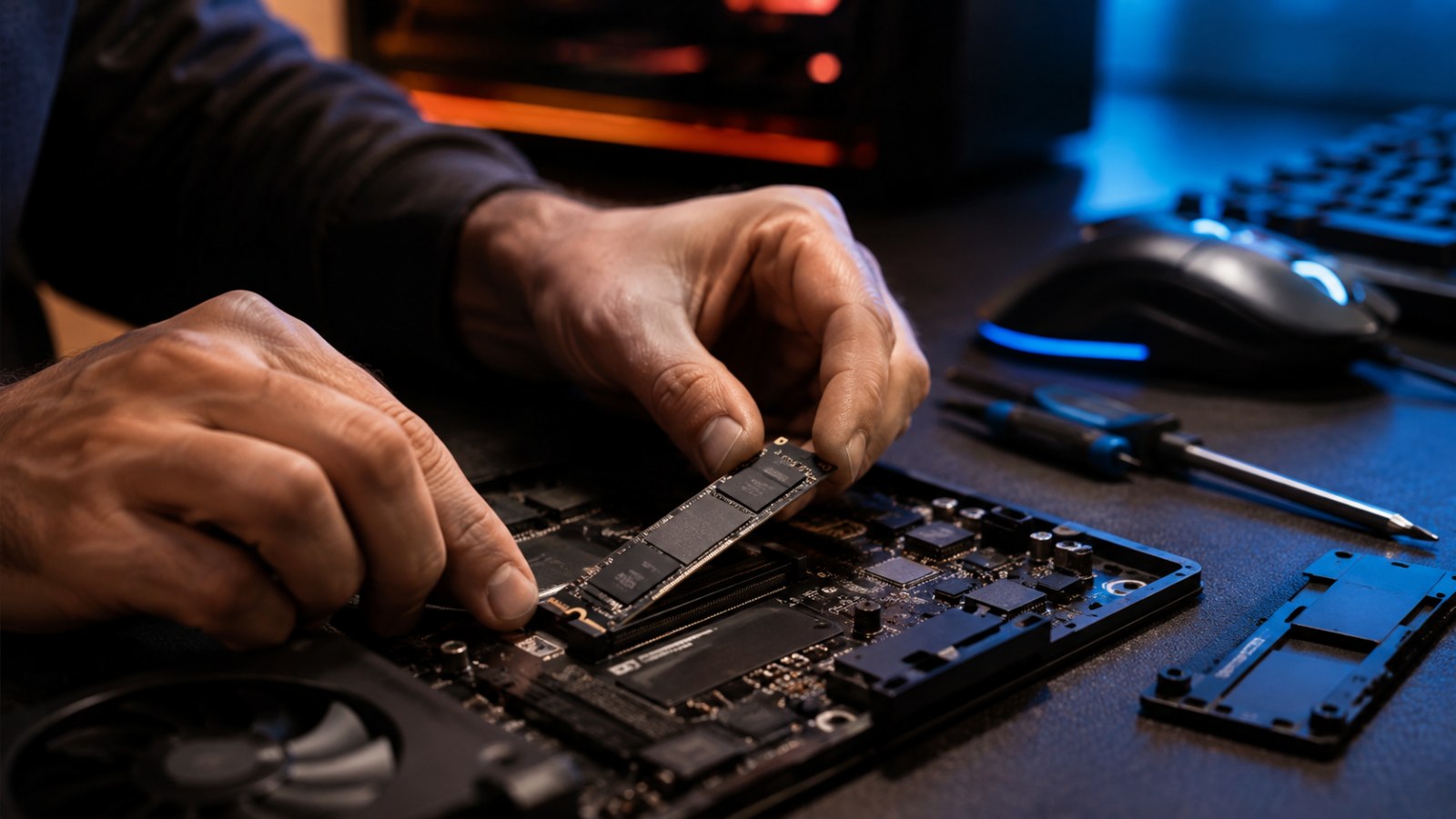
For a SATA drive, shut the computer down before checking the data and power connections; if appropriate, test another known-good cable or motherboard port. For an M.2 SSD, verify that the module is correctly seated and monitor its temperature under load. If an external SSD is unreliable, the USB cable, bridge controller or enclosure can be responsible, so testing through another compatible connection can be useful. Read tests and benchmarks belong near the end of this process, after the data is safe.
- 1. Back up irreplaceable data.
- 2. Record SMART or NVMe health information.
- 3. Check temperatures and system logs.
- 4. Inspect cables, ports and enclosures where applicable.
- 5. Check the filesystem.
- 6. Run performance tests only after the previous steps.
Why SSDs fail and when replacement makes sense
Flash wear is not the only failure mode
NAND flash has finite write endurance, although SSD controllers manage it with wear leveling, error correction and spare flash capacity. Drives can also fail because of their controller, firmware, power circuitry or other electronics. Excessive heat can create additional problems, particularly for high-performance NVMe drives installed where airflow is poor. Connection failures can further complicate diagnosis, which is why a disappearing SATA SSD should not automatically be blamed on NAND before its cable and port are checked.
Replacement should be treated as urgent when critical health warnings appear, significant data errors continue to accumulate, the drive repeatedly vanishes, files are becoming corrupted or the SSD switches into read-only mode. If the real cause turns out to be a faulty cable or inadequate cooling, correcting it may restore stable operation. But a questionable SSD should never remain the only location containing important information.
Preventing data loss before the next warning
Backups matter more than a perfect health score
No diagnostic utility can turn an SSD into a guaranteed storage device. SMART can provide valuable warning signs, but sudden electronic or controller failures are possible. Important files should therefore exist in multiple independent locations. A properly maintained local backup, an additional separate device or an appropriately secured backup service provides protection that a green SMART status cannot.
Routine care is straightforward: keep reasonable free space available, provide sufficient cooling, install firmware updates when the drive manufacturer recommends them for the specific model, and review health data periodically. Constant benchmarking is unnecessary and can create extra writes without providing useful new information. Watching for changes in health indicators and responding quickly to unusual behavior is more valuable.
The most useful SSD health check combines SMART or NVMe telemetry with error logs, temperature readings and the drive's actual behavior. Do not let a reassuring percentage override recurring real-world failures. When an SSD starts corrupting data, disappearing or reporting critical warnings, protecting the data and replacing the questionable drive should take priority over further benchmarking.
FAQ
Can an SSD fail while showing 100% health?
Yes. A health score commonly reflects estimated flash wear and cannot guarantee that the controller, electronics or firmware will not fail unexpectedly.
Does a slow SSD mean it is dying?
Not necessarily. A full drive, thermal throttling, exhausted write cache, background activity, a bad cable or an external enclosure can all reduce performance.
Should I benchmark a suspected failing SSD?
Not first. Back up important files and inspect health data before running tests that generate substantial additional reads or writes.
How often should SMART be checked?
There is no universal schedule. Periodic checks are useful, and you should inspect the data whenever storage errors, corruption, freezes or drive detection problems appear.
ACC64 editorial article prepared from the cited materials and approved before publication.