
Bluetooth not working on your PC? How to fix it in Windows 11 and Windows 10
A missing Bluetooth switch, headphones that refuse to reconnect, or a mouse that suddenly stops appearing can have very different causes. The fastest way to fix Bluetooth in Windows is to determine whether the failure affects one accessory or the computer's Bluetooth adapter as a whole, then work through the checks in the right order.
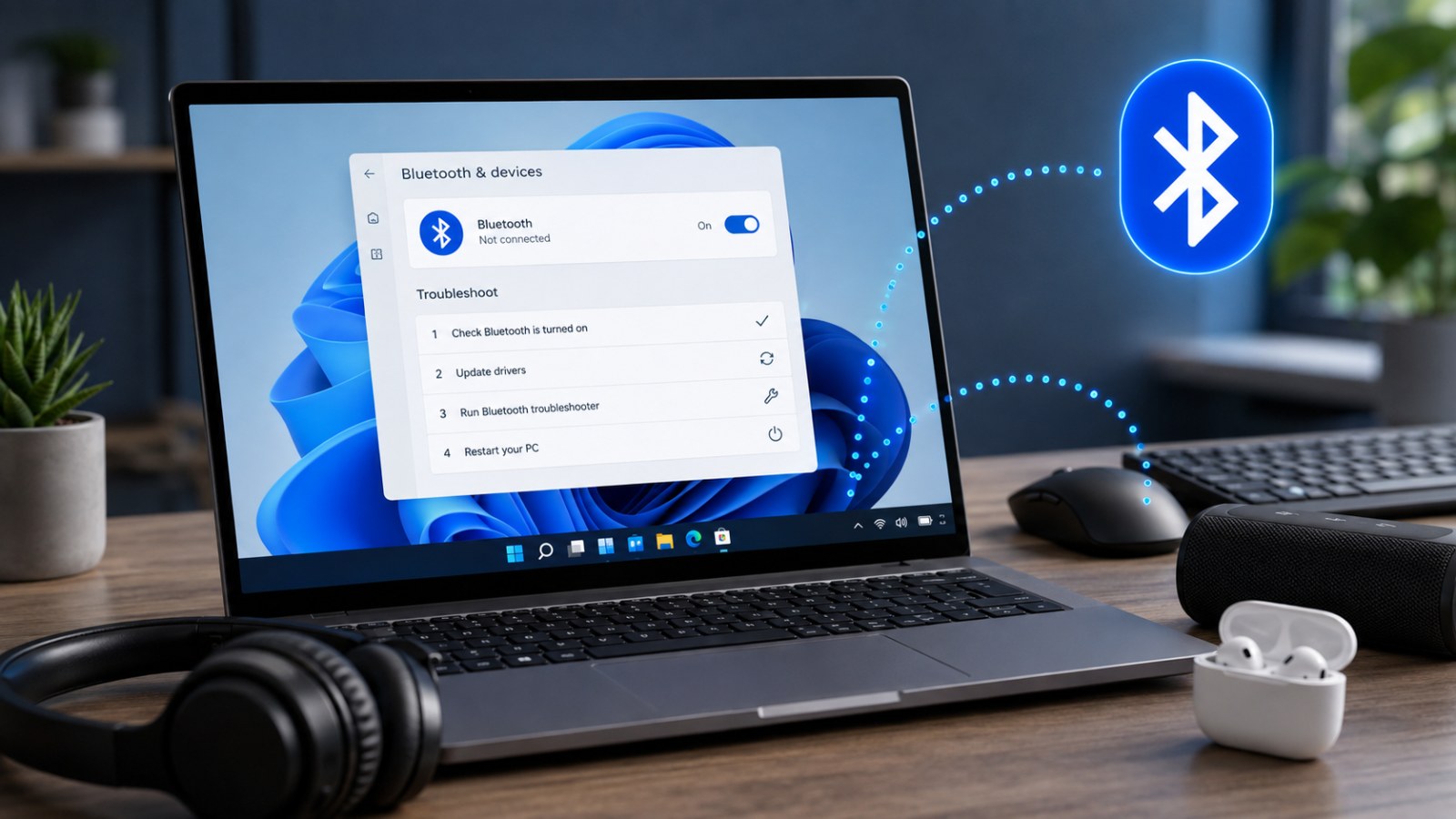
Key takeaways
- Test another Bluetooth accessory before changing drivers or Windows settings.
- A missing Bluetooth toggle usually points to the adapter, driver, service, or hardware detection.
- Removing an old pairing and pairing the device again fixes many connection-profile issues.
- Prefer Windows Update and the PC or adapter manufacturer's official driver packages.
- If Bluetooth is absent from Device Manager as well, check firmware settings and possible hardware failure.
Quick Bluetooth troubleshooting guide
| Symptom | Likely area to investigate | First action |
|---|---|---|
| Bluetooth toggle is missing | Adapter, driver, or hardware detection | Check Device Manager and drivers |
| Device appears but will not connect | Saved pairing or another active host | Forget and pair the device again |
| All Bluetooth devices disconnect | Adapter, driver, power, or interference | Test drivers and radio environment |
| Only one accessory fails | Accessory-side issue | Charge, reset, and test it on another device |
| No Bluetooth adapter in Device Manager | Disabled hardware, missing driver, or failure | Check hidden devices, BIOS/UEFI, and OEM drivers |
Work out whether Bluetooth itself is broken
One device failing is very different from the adapter disappearing
Start by checking the scope of the problem. Open Settings > Bluetooth & devices in Windows 11. On Windows 10, open Settings > Devices > Bluetooth & other devices. If the Bluetooth switch is present and another accessory connects normally, the PC's radio is probably working and the problem is more likely to be the individual headset, mouse, keyboard, gamepad, or its saved pairing. If Bluetooth has vanished from Settings altogether, focus on the PC rather than resetting every accessory you own.
Before making deeper changes, turn Bluetooth off and back on, confirm Airplane mode is disabled, and restart the computer. Then check the accessory itself. Charge it, place it close to the PC, and put it into its proper discovery or pairing mode. Many wireless headphones and keyboards automatically reconnect to the most recently used phone or tablet, so temporarily disabling Bluetooth on those devices can make troubleshooting much easier.
- Try a second known-working Bluetooth device.
- Keep the accessory close to the computer during testing.
- Confirm Airplane mode is off.
- Disconnect the accessory from phones or tablets it may prefer automatically.
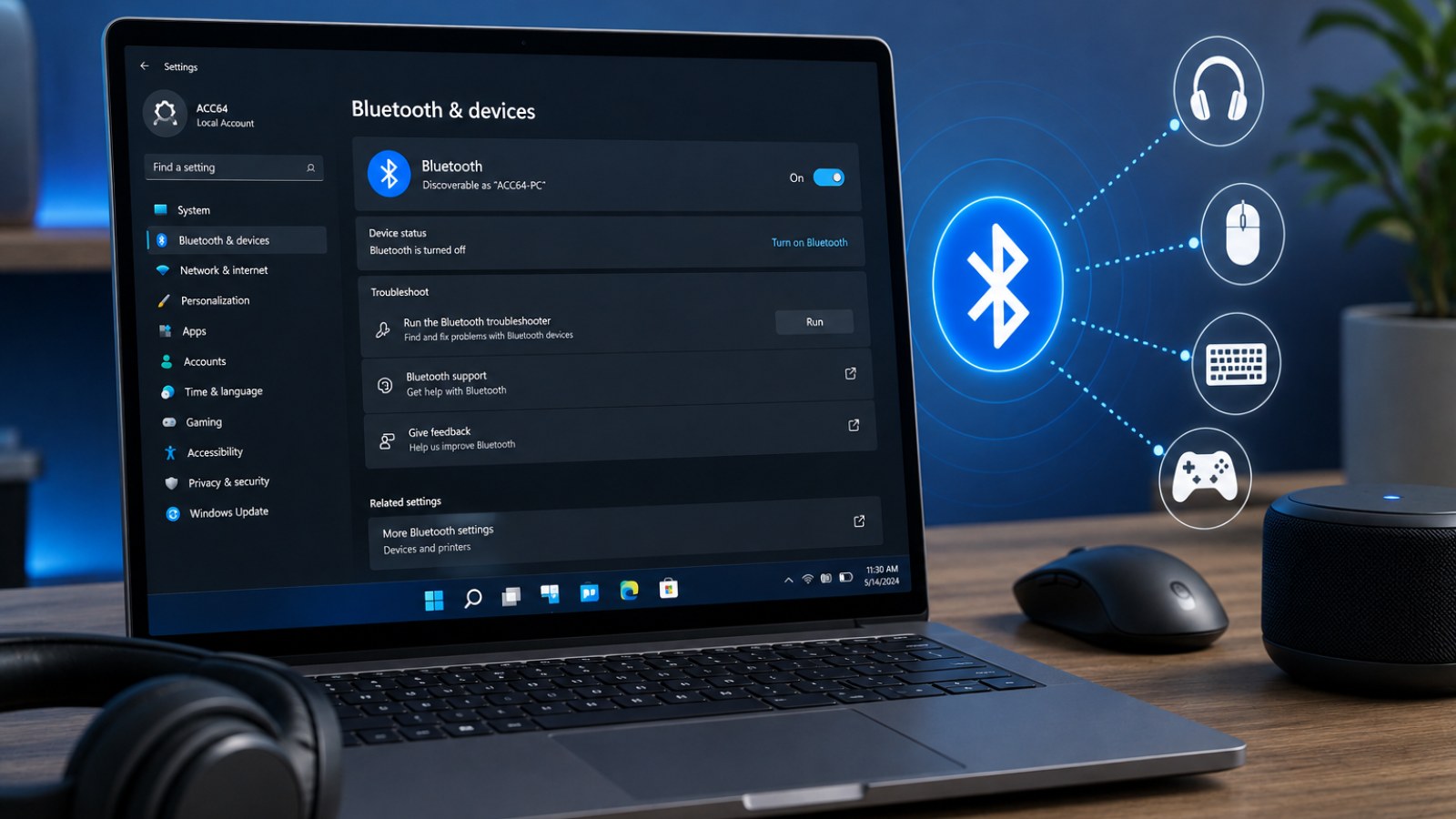
Forget the device and create a fresh pairing
A damaged or outdated pairing record can survive multiple restarts
If Windows can see the accessory but connection attempts fail, remove its existing pairing. This is especially useful when a device shows as connected but does not actually respond, disconnects immediately, or started misbehaving after an update. In Windows 11, open Bluetooth & devices > Devices and remove the affected device. Windows 10 users can do the same from Bluetooth & other devices. Restart the accessory, activate pairing mode again, and add it as a new device.
For headsets, speakers, and multifunction devices, also verify what Windows is doing after the connection succeeds. A Bluetooth headset can be paired correctly while Windows continues playing audio through speakers or another output. Similarly, some keyboards and mice contain multiple Bluetooth channels and may currently be set to the wrong channel. Resetting an accessory to factory defaults should normally be a later step, because it can delete pairings with every phone and computer stored in the device.
- Remove the old Bluetooth entry.
- Restart the accessory.
- Activate its pairing mode.
- Pair it again from Windows Settings.
Check the Bluetooth adapter in Device Manager
The most important check when the Bluetooth switch has disappeared
Right-click Start and open Device Manager, then expand Bluetooth. Depending on the computer, the adapter may be listed as Intel Wireless Bluetooth, Realtek Bluetooth Adapter, MediaTek Bluetooth, or another vendor-specific name. A warning icon indicates that Windows has detected the hardware but cannot start it correctly. Open the device properties and note any error code before changing anything. You can also use View > Show hidden devices if the adapter disappeared after sleep, an update, or a driver change.
For driver problems, start with Windows Update, including any relevant optional driver updates. Laptop and prebuilt-PC owners should also check the support page for the exact computer model, because manufacturers may provide drivers customized for their hardware. If updating does not help, uninstalling the Bluetooth adapter in Device Manager and restarting Windows can force hardware detection and driver installation to run again. Avoid generic third-party driver-download sites: an incorrect wireless package can affect Bluetooth, Wi-Fi, sleep behavior, and power management at the same time.
- Check whether the Bluetooth adapter is enabled.
- Record any Device Manager error code.
- Use official OEM or adapter-manufacturer drivers.
- Restart the PC after reinstalling the driver.
If Bluetooth is completely gone, check services and firmware
What to do when Windows behaves as if no Bluetooth hardware exists
If there is no Bluetooth section in Settings and Device Manager does not show a Bluetooth adapter, fully shut the computer down and power it back on. A full power cycle can sometimes reset a wireless module that was left in a bad firmware or power state. You can also open services.msc and check the Windows services associated with Bluetooth support. Their exact names and startup behavior vary between Windows versions and configurations, so avoid changing several unrelated services at once.
Next, check the computer's BIOS or UEFI if it provides controls for Wireless, WLAN, or Bluetooth. On many laptops and motherboards, Wi-Fi and Bluetooth are supplied by the same physical wireless card, so simultaneous Wi-Fi and Bluetooth failures are an important clue. A desktop PC may simply have no Bluetooth radio at all, in which case an appropriate USB adapter is needed. If Bluetooth previously worked but the adapter remains absent after a full shutdown, driver reinstall, and firmware check, a hardware problem becomes increasingly likely.
- Perform a full shutdown rather than only sleep or hibernation.
- Check Bluetooth-related Windows services.
- Look for Wireless or Bluetooth controls in BIOS/UEFI.
- Confirm that the PC actually contains Bluetooth hardware.
Fix dropouts, stuttering audio, and poor Bluetooth range
A connection that works badly is often an interference problem
Bluetooth shares the busy 2.4 GHz spectrum with many other devices. If a mouse stutters, a controller disconnects, or headset audio breaks up, test from a short distance first. Move USB wireless receivers, external drives, hubs, and other radio equipment away from the Bluetooth adapter. On a desktop, a tiny USB Bluetooth dongle connected directly behind a metal tower can have poor reception. A short USB extension cable that moves the adapter onto the desk can be a useful diagnostic test.
Compare several accessories. If only one headset drops out while every other Bluetooth device remains stable, investigate the headset first. If every paired device disconnects at the same moment, the PC's adapter, driver, power management, or radio environment is more suspicious. Some adapters expose a Power Management tab in Device Manager that allows Windows to turn the hardware off to save power. If that option exists, temporarily disabling it can help determine whether aggressive power saving is causing the interruptions.
- Test at close range.
- Move the adapter away from USB hubs and other radios.
- Compare behavior with more than one Bluetooth device.
- Test adapter power-management settings if the driver exposes them.
Bluetooth troubleshooting is much faster when you avoid treating every symptom as a driver problem. First establish whether one accessory or the entire radio is affected, then move from re-pairing to Device Manager, drivers, Windows services, and finally firmware or hardware checks. Windows 10 can still run Bluetooth devices, but its standard support ended on October 14, 2025, so compatible PCs should also consider moving to Windows 11 for a currently supported Windows environment.
FAQ
Why did Bluetooth suddenly disappear from Windows?
A driver failure, power-state problem, disabled adapter, update issue, or hardware detection failure can make the Bluetooth controls disappear. Device Manager is the best place to start.
What if Bluetooth is missing from Device Manager?
Enable Show hidden devices, install the official driver for the PC or adapter, perform a full shutdown, and check BIOS/UEFI wireless settings. Persistent absence may indicate a hardware problem.
Can I reinstall a Bluetooth driver?
Yes. Uninstall the Bluetooth adapter from Device Manager and restart Windows. The system may reinstall it automatically, or you can install the official package supplied by the computer or adapter manufacturer.
Why are my Bluetooth headphones connected but silent?
Check the selected audio output in Windows. The Bluetooth link can be active while Windows continues routing audio to speakers or another device.
ACC64 editorial article prepared from the cited materials and approved before publication.