
Monitor ghosting in games? What causes ghosting, inverse ghosting and how to reduce motion trails
If enemies leave shadows behind them or moving text becomes difficult to read, your monitor is not necessarily defective. Motion trails are commonly linked to pixel response behavior, overdrive tuning and the characteristics of the LCD panel itself.
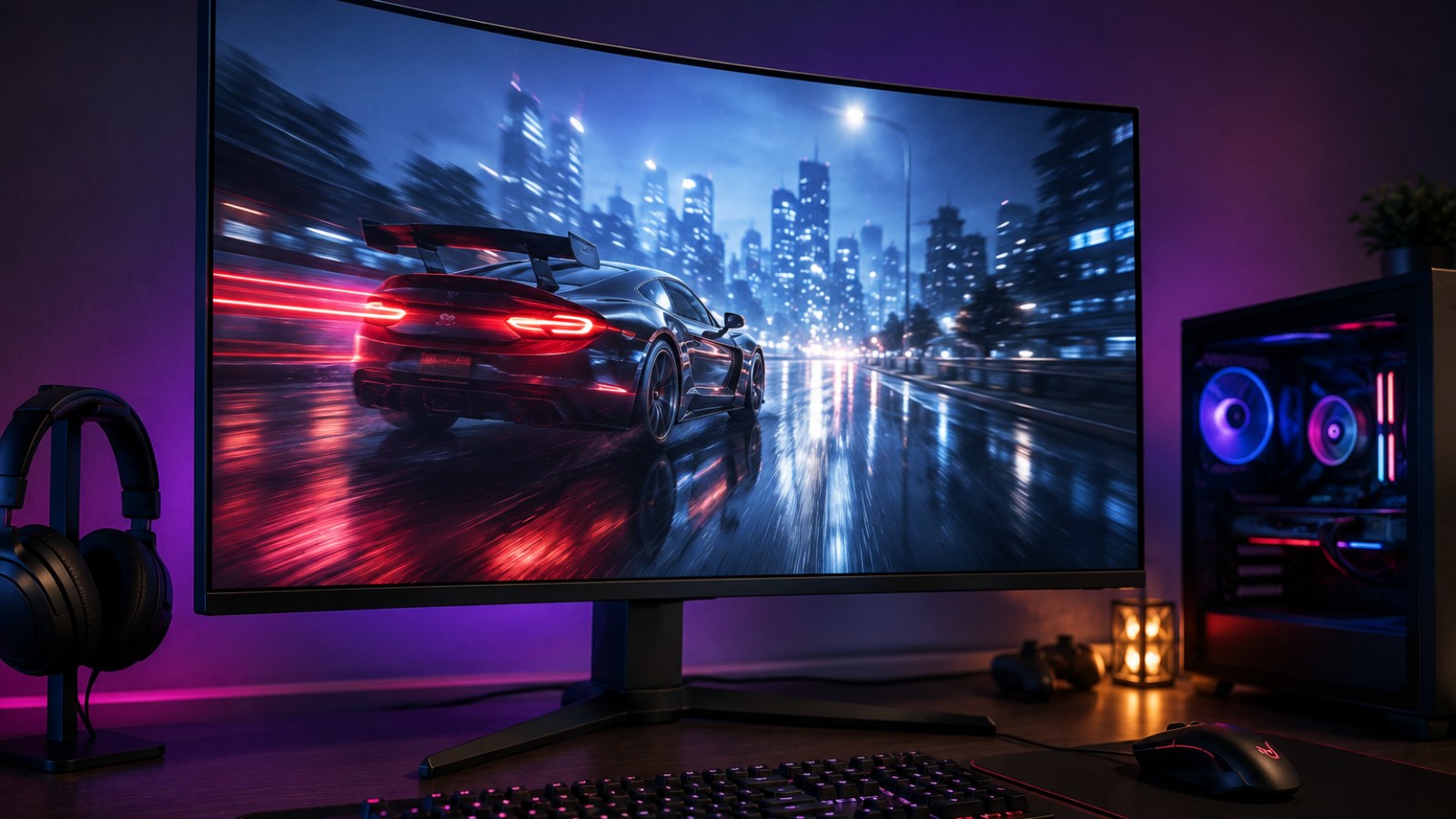
Key takeaways
- Ghosting appears when pixel transitions cannot keep up with successive frames.
- A higher refresh rate alone does not guarantee clean motion.
- Excessive overdrive can create inverse ghosting and obvious halos.
- The fastest Response Time setting is often not the cleanest.
- Overdrive should be checked at the refresh rates and frame rates you actually use.
Quick ghosting diagnosis
| Symptom | Likely cause | What to try |
|---|---|---|
| Soft shadow behind motion | Slow pixel transitions | Try a higher overdrive level |
| Bright or dark halo | Excessive overdrive | Reduce overdrive |
| Worse artifacts at lower FPS | Overdrive behavior at lower refresh | Test VRR at several frame rates |
| Generally unclear motion | Low refresh rate or slow panel | Check refresh settings and panel behavior |
Why does a monitor leave trails behind moving objects?
Pixel response is the key part of the problem
An LCD pixel must change from one state to another whenever the image changes. If a transition takes too long, the pixel may still be approaching its new value when the next frame arrives. During motion, remnants of previous states become visible as translucent shadows behind an object. Fast camera pans, dark game environments and high-contrast edges can make the effect especially easy to notice.
Pixel response time should not be confused with input lag. A display can begin showing a new frame quickly while some pixel transitions remain relatively slow. This is also why a single response-time figure printed on a specification sheet cannot describe every transition the panel performs. Different shades can behave differently, and the monitor's overdrive implementation changes the result further.
- Check both bright and dark transitions.
- Watch the edges of moving objects rather than judging the entire scene.
- Do not rely on a single advertised response-time number.
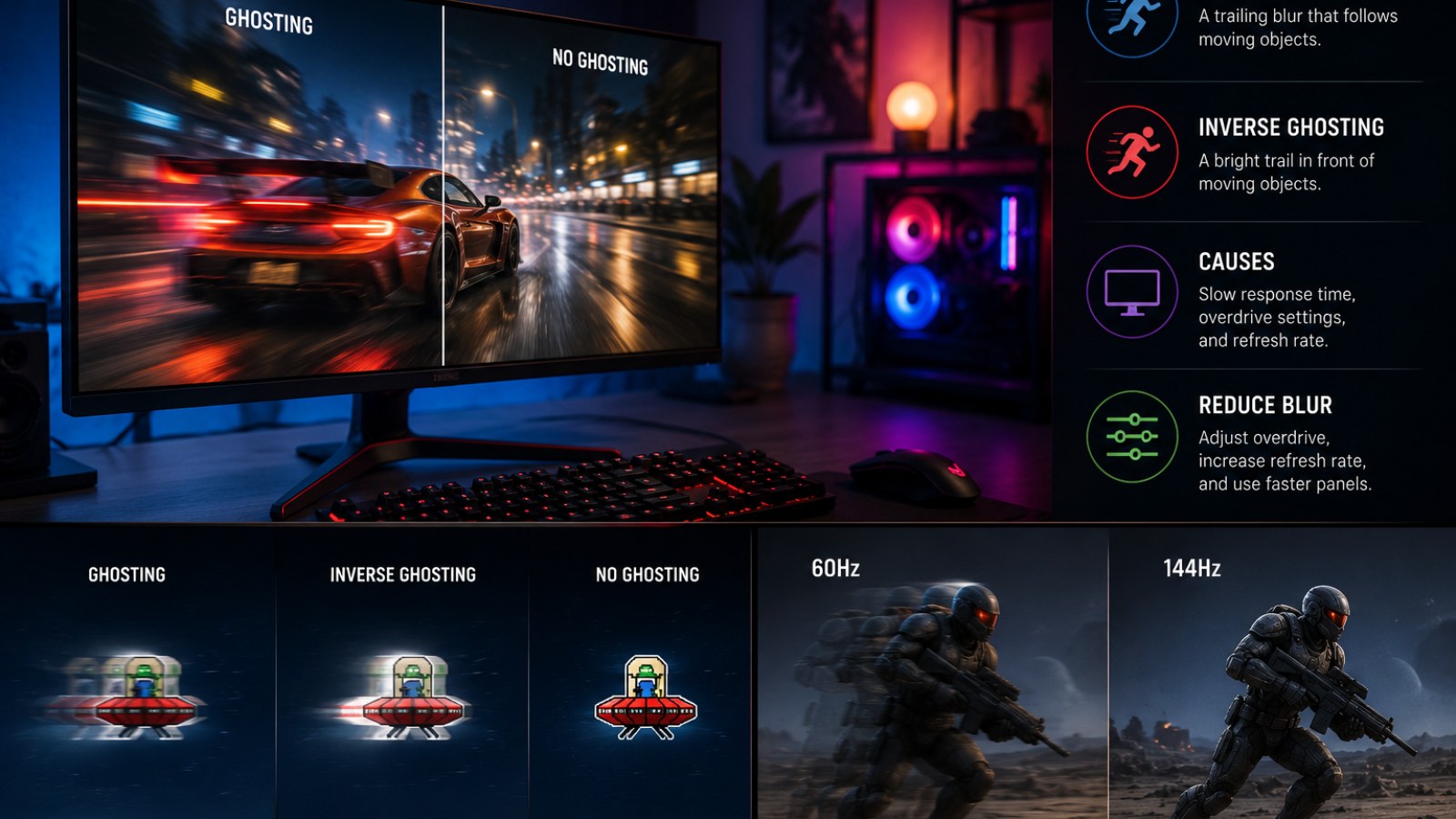
Ghosting vs inverse ghosting: how to tell them apart
More overdrive is not always better
Gaming monitors use overdrive to push pixels toward their target values faster. Depending on the manufacturer, the control may be called Overdrive, Response Time, OD or something similar. A well-tuned setting can reduce the soft trail behind moving objects and make motion noticeably cleaner.
If the acceleration is too aggressive, however, a pixel can overshoot its intended value before settling. This creates inverse ghosting. Instead of a soft copy of the previous image, you may see a bright, dark or oddly colored halo around a moving edge. If switching from a medium response setting to the fastest option replaces ordinary blur with a sharp luminous trail, the faster mode is probably introducing too much overshoot.
- Normal ghosting usually resembles a soft afterimage.
- Inverse ghosting often produces a contrasting halo.
- The maximum overdrive setting can look worse than a medium setting.
How to reduce monitor ghosting in games
Find the best overdrive setting instead of the highest one
Start by selecting the refresh rate you normally use. Open the monitor's on-screen menu and locate its Response Time or Overdrive option. Begin with the default or middle setting and use a repeatable moving scene or motion test. Increase overdrive by one step and compare the trailing edge. If the normal trail becomes shorter without a new bright or dark halo appearing, the change is useful. Once obvious inverse ghosting appears, move back to the previous level.
Variable refresh rate users should repeat this check at different frame rates. An overdrive level that looks clean near the upper end of the monitor's refresh range may produce more overshoot at lower refresh rates. Also verify that the operating system is actually running the monitor at the intended refresh rate; connecting a high-refresh display does not always mean the desired mode is already selected.
- Confirm the refresh rate in the operating system.
- Compare multiple overdrive levels.
- Choose the lowest trailing without obvious overshoot.
- With VRR, test both high and lower frame rates.
When settings cannot completely fix motion trails
Panel characteristics still set the limits
Overdrive can accelerate pixel transitions, but it cannot remove every physical limitation of a panel. Some transitions may remain substantially slower than others, especially between particular dark shades. In that situation, a monitor can still show visible trailing even when its overdrive is configured correctly.
If the behavior has been consistent since the monitor was new and appears mainly in particular tones, it may simply be a characteristic of the panel. A sudden change deserves more investigation: reset relevant display settings, verify the refresh rate and signal connection, and compare several games or applications before concluding that the panel itself has developed a fault.
Ghosting is usually a matter of pixel transitions failing to settle quickly enough for the rate at which frames are being displayed. The goal is not to maximize overdrive but to find the setting that reduces ordinary trailing without introducing visible inverse ghosting. If substantial trails remain after proper configuration, the panel's native response characteristics may be the limiting factor.
FAQ
Does ghosting mean my monitor is broken?
Not necessarily. Some amount of trailing can be a normal consequence of LCD response behavior or an unsuitable overdrive setting. A sudden new change is more reason to investigate a possible problem.
Will 144 Hz or 240 Hz eliminate ghosting?
No. Higher refresh rates can improve motion presentation, but the pixels still need to complete their transitions quickly enough.
Should Response Time always be set to Fastest?
No. The fastest setting can produce excessive overshoot and inverse ghosting. A medium or moderately fast mode can deliver cleaner motion.
ACC64 editorial article prepared from the cited materials and approved before publication.