
Lost a Logitech USB receiver? What can actually be replaced
Losing a tiny Logitech USB receiver does not always mean replacing the whole device. The answer depends on whether your hardware uses Unifying, Logi Bolt, LIGHTSPEED or a product-specific 2.4 GHz receiver.
Quick answer
- Unifying: usually yes. Logitech sells replacement Unifying receivers for compatible products.
- Logi Bolt: yes. Logitech says a new Bolt receiver can be purchased and paired with supported devices through Logi Options+ or Logi Web Connect.
- LIGHTSPEED: sometimes. You need a receiver explicitly compatible with the exact Logitech G device.
- Other 2.4 GHz receivers: compatibility varies by model. Do not assume another Logitech nano receiver will work.
First, identify what receiver you lost
“Logitech receiver” is not one standard. Before ordering anything, identify the mouse, keyboard or headset model and then determine whether it belongs to the Unifying, Bolt or Logitech G LIGHTSPEED family. If you still have the packaging, product support page or a photo of the old dongle, use it as a reference.
For mice and keyboards, the fastest clue is the logo printed on the underside of the device. Logitech recommends looking for the matching Unifying or Logi Bolt mark. If neither is present, the receiver may be product-specific.
If you are unsure, start with our Bolt vs Unifying vs LIGHTSPEED identification guide.
Can your lost receiver be replaced?
| Type | Replacement possible? | What you need |
|---|---|---|
| Unifying | Usually yes | A genuine/compatible Unifying receiver and a supported Unifying device |
| Logi Bolt | Yes for supported Bolt products | A Bolt receiver plus Logi Options+ or Logi Web Connect |
| LIGHTSPEED gaming | Depends on model | A receiver explicitly listed as compatible with your exact device |
| Other Logitech 2.4 GHz | Depends on model | Product-specific support information or Logitech Support |
If you lost a Logitech Unifying receiver
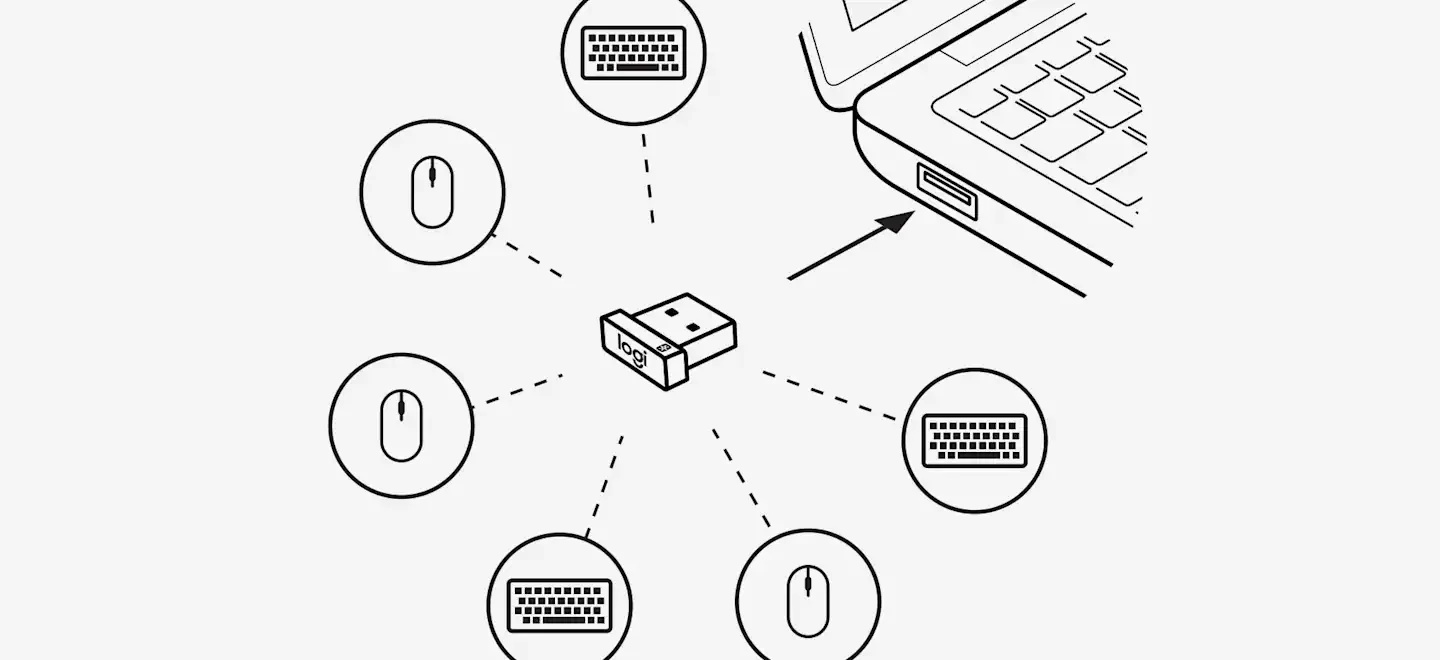
This is one of the easiest cases. Logitech sells a standalone Unifying receiver and states that it can replace a lost receiver for compatible Unifying products. A single Unifying receiver can also connect multiple supported keyboards and mice.
The important word is compatible. Check for the orange Unifying mark on the device. A Bolt-only product will not work with the Unifying receiver even though both are Logitech USB dongles.
Once you have the replacement, follow our Unifying pairing guide.
If you lost a Logi Bolt receiver
Logitech says replacement Bolt receivers can be purchased. To connect a supported product to the new receiver, use Logi Options+ or Logi Web Connect. You do not need the original receiver as long as the device itself supports Bolt.
Do not buy Unifying as a cheaper substitute. Logitech explicitly states that the two systems are not cross-compatible.
If you lost a Logitech G LIGHTSPEED receiver
LIGHTSPEED requires more care because the family contains many gaming products and receiver compatibility is not universal. Logitech G HUB's Device Pairing Tool can pair replacement receivers with supported mice and keyboards, but the receiver you select determines which devices are offered as compatible.
That means you should search for the exact model or receiver part listing before buying. For example, Logitech's replacement gaming receiver listings name the devices they support rather than claiming compatibility with all LIGHTSPEED hardware.
If you use a G PRO X SUPERLIGHT, see our replacement receiver pairing guide. If you use a G PRO X 2 headset, see the PRO X 2 receiver guide, because the headset uses its own pairing procedure.
What not to buy blindly
- A receiver that only says “2.4 GHz Logitech compatible” without naming your device or receiver family.
- A random LIGHTSPEED dongle just because it carries the Logitech G logo.
- A Bolt receiver for an orange-logo Unifying device, or a Unifying receiver for a Bolt device.
- A used receiver when the seller cannot confirm the exact part number or compatibility.
A replacement receiver is inexpensive compared with replacing the whole peripheral, but a wrong receiver is still wasted money.
After you get the replacement
- Connect the receiver directly to the computer for the first pairing attempt.
- Install the correct Logitech app for that receiver family: Logi Options+ / Web Connect for supported Bolt devices, or Logitech G HUB for compatible gaming receiver pairing.
- Follow the model-specific pairing sequence instead of repeatedly unplugging the dongle.
- After pairing, verify real input: move the mouse, type with the keyboard, or test headset audio.
You can verify mouse buttons and scroll in the ACC64 mouse test, keyboard input in the keyboard test, and headset channels in the headphone test.
FAQ
Can I buy any Logitech USB receiver after losing mine?
No. Match the receiver family and, for LIGHTSPEED or other 2.4 GHz devices, the exact compatibility list.
Can a replacement Unifying receiver work with my old Unifying mouse?
Yes, if the mouse is genuinely Unifying-compatible. Logitech sells the receiver specifically as a replacement for lost Unifying receivers.
Can I replace a lost Bolt receiver?
Yes. Logitech says a new Bolt receiver can be purchased and paired using Logi Options+ or Logi Web Connect.
Can G HUB pair every LIGHTSPEED device to every LIGHTSPEED receiver?
No. G HUB filters devices based on the selected receiver, so exact compatibility still matters.
Official Logitech references
Logitech receiver guides
Not every Logitech USB receiver uses the same wireless system. Use the guide that matches the problem you are trying to solve:
Identifying the correct Logitech receiver prevents most wasted troubleshooting and avoids buying a dongle that can never pair with your device.