
Logitech USB receiver not detected in Windows: what to check
A Logitech receiver can fail in two very different ways: Windows may not see the USB device at all, or Windows may see the receiver while the mouse, keyboard or headset is not paired to it. The fix depends on which failure you actually have.
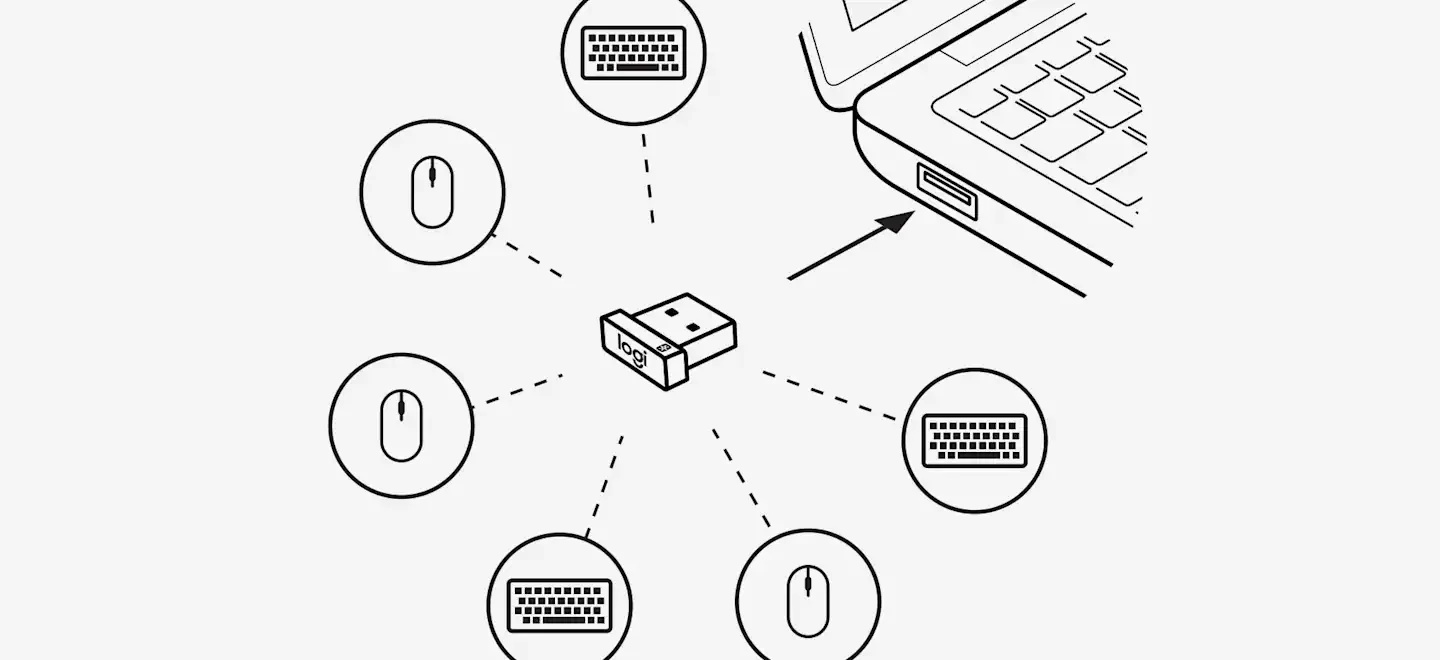
Start by separating two problems
- Receiver not detected: Windows does not react to the USB dongle, or the receiver does not appear in the relevant Logitech software.
- Receiver detected, device not connected: the USB dongle is present but the mouse, keyboard or headset does not communicate with it.
Do not keep re-pairing a device if Windows cannot see the receiver in the first place. Test the USB connection first.
1. Move the receiver to another USB port
Unplug the receiver and connect it directly to another USB port on the PC. For troubleshooting, avoid an unpowered hub, monitor USB hub or long extension until the connection works reliably.
If possible, test both a front and rear port on a desktop. A receiver that works in one port but not another points toward the USB port, hub or Windows USB configuration rather than a pairing problem.
Logitech's own LIGHTSPEED troubleshooting also recommends unplugging and reconnecting the receiver when the pairing tool does not detect it.
2. Confirm that you have the right receiver
A receiver can be perfectly healthy and still refuse to pair because it belongs to the wrong Logitech ecosystem. Bolt and Unifying are not compatible with one another, and LIGHTSPEED receivers can be limited to specific gaming products.
Before changing drivers, use our receiver identification guide. If you recently replaced a lost dongle, also check which Logitech receivers can actually be replaced.
3. Check whether Windows reacts when you insert the dongle
Open Device Manager, leave it visible, then unplug and reconnect the receiver. The device list should refresh when Windows detects a USB hardware change. The exact name shown can vary by receiver family and driver, so do not rely on one specific label.
If nothing in Device Manager changes across multiple known-good USB ports, test the receiver on another computer if one is available. If the second PC also shows no reaction, the dongle itself becomes the main suspect.
If Windows does react, move on to the appropriate Logitech pairing tool instead of treating the receiver as electrically dead.
4. Use the correct Logitech pairing software
For supported Logi Bolt products, Logitech recommends Logi Options+ or Logi Web Connect. For compatible Logitech G gaming mice and keyboards, G HUB includes a Device Pairing Tool.
Do not assume one Logitech app can pair every receiver family. The software needs to match the receiver and the product.
For Unifying, Logitech's current support pages increasingly point users toward Logi Options+ for supported devices. Older guides may still mention the legacy Unifying Software or Logitech Options, but Logitech notes that several older utilities are no longer maintained.
5. If G HUB sees the receiver but not the mouse or keyboard
Open G HUB settings and use the Device Pairing Tool. Logitech says the receiver you select determines which devices can be paired. If your product never appears as an option, verify firmware and receiver compatibility rather than repeatedly power-cycling the mouse.
If G HUB asks for a firmware update, complete it before pairing. Logitech specifically notes that firmware may need to be updated before the pairing tool can be used.
6. If the receiver works but the device still does not
- Charge the device or replace its battery.
- Turn the device off and back on when the pairing instructions request it.
- Move the device close to the receiver during pairing.
- Temporarily remove nearby USB 3.x hubs or wireless adapters if you suspect interference.
- Follow the exact model-specific pairing process.
For a G PRO X SUPERLIGHT, use the SUPERLIGHT replacement receiver guide. For G PRO X 2, use the headset-specific procedure. For a Unifying mouse or keyboard, use the Unifying guide.
What the symptom usually means
| Symptom | Most useful next check |
|---|---|
| No Windows reaction in any USB port | Test receiver on another computer; possible receiver or USB hardware failure |
| Windows reacts, Logitech software does not | Check that you are using the correct app and receiver family |
| Software sees receiver, but device is not offered | Verify receiver/device compatibility and firmware |
| Pairing succeeds but input does not work | Test the actual mouse, keyboard or audio path and confirm Windows device selection |
7. Verify that the connected device really works
After Windows and Logitech software show a successful connection, test real input rather than stopping at a “paired” message. Use the ACC64 mouse test for buttons, wheel and double clicks, the keyboard test for key input, or the headphone test for left/right playback.
If the receiver and device work on another PC but not the original one, the problem is now local to Windows, the USB controller, installed software or the target application's device selection.
FAQ
Why does Windows detect my Logitech receiver but my mouse does nothing?
The receiver may not be paired to that mouse, or it may be an incompatible receiver family/model. Use the matching Logitech pairing tool and verify compatibility.
Should I reinstall USB drivers first?
No. Start with another direct USB port, check whether Device Manager reacts, and verify receiver compatibility. Driver changes are a later step when basic hardware detection is confirmed.
Why does G HUB not show my device in the pairing tool?
The selected receiver determines which compatible devices G HUB can pair. Firmware can also need an update before pairing.
Can a Bolt receiver fix a missing Unifying dongle?
No. Logitech states that Bolt and Unifying are not cross-compatible.
Official Logitech references
Logitech receiver guides
Not every Logitech USB receiver uses the same wireless system. Use the guide that matches the problem you are trying to solve:
Identifying the correct Logitech receiver prevents most wasted troubleshooting and avoids buying a dongle that can never pair with your device.