
PS5 controller pressing buttons or moving on its own? How to diagnose DualSense problems
A character that walks by itself, a camera that slowly turns or an action that triggers without a button press can make a DualSense feel completely unreliable. Before assuming the controller is broken, separate analog drift and false button inputs from game settings, remapping and connection-related behavior.
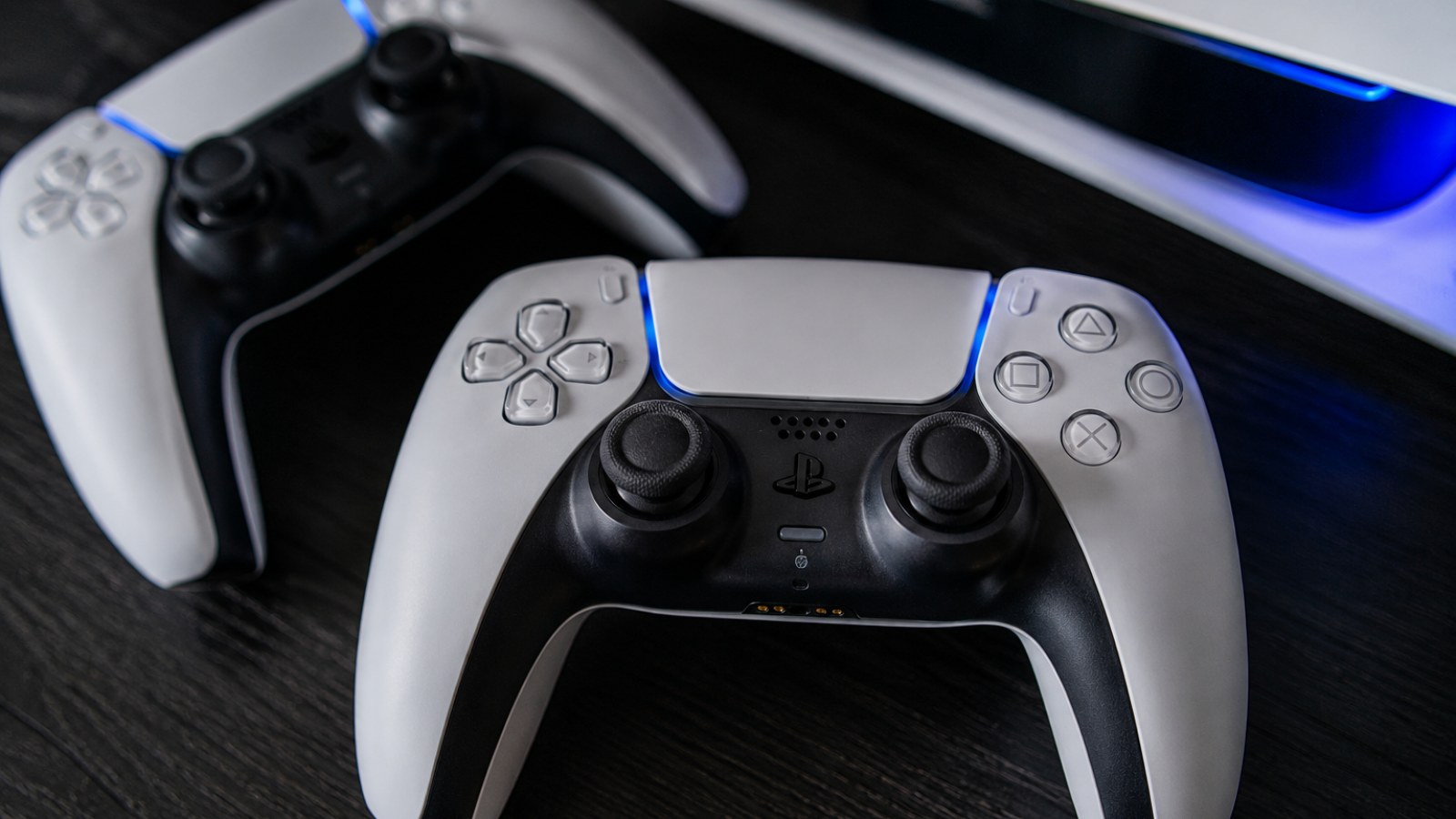
Key takeaways
- Unwanted character or camera movement often points to analog drift, but an aggressive deadzone setting can expose very small stick offsets.
- Unexpected button actions should be verified outside the affected game.
- A gamepad input tester can reveal whether the controller is actually sending a signal while untouched.
- Comparing USB and wireless operation helps isolate connection-dependent behavior.
- A fault that repeats across games, devices and tests is stronger evidence of a controller-side problem.
Symptom and the most useful diagnostic check
| Symptom | Check | What the result may indicate |
|---|---|---|
| Character moves without input | Left-stick raw position | Persistent offset can indicate drift |
| Camera turns by itself | Right-stick raw position | Unstable neutral position can create movement |
| Game triggers an action | Button states while untouched | Unexpected activation needs further diagnosis |
| Only one game is affected | Deadzone and mapping | Configuration may be responsible |
| Behavior changes by connection | USB versus wireless | Investigate the communication path |
What does a DualSense doing things by itself actually mean?
Identify the unwanted input before trying to fix it
Several different symptoms are commonly described as a controller acting on its own. The classic example is unwanted movement: the character slowly walks when the left stick is untouched, or the camera and crosshair move when the right stick should be centered. This is consistent with analog stick drift, where the reported axis position does not remain sufficiently close to neutral. A game with a small deadzone can make even a modest offset visible.
Unexpected face-button, D-pad, bumper or trigger actions are a different category. If a game behaves as though Cross, Circle, Square, Triangle, L1, R1 or another control was pressed, identify the exact input first. A physical button fault is possible, but altered mappings, accessibility features, game profiles and PC controller software can produce surprisingly similar symptoms.
- Character moving by itself: examine the left stick.
- Camera or aim drifting: examine the right stick.
- Random action: determine which digital or trigger input is being reported.
- Issue limited to one title: investigate that game's configuration first.
Stick drift or phantom button press? Test the raw inputs
Remove the game from the diagnostic chain
A controller tester is useful because it displays inputs more directly than a game does. Connect the DualSense, leave both sticks completely untouched and watch their resting positions. They should remain close to the center. Tiny deviations are not automatically proof of a defective controller because games normally use deadzones, but a clear, persistent offset or an unstable center can explain unwanted movement.
Then inspect the buttons. Leave the controller untouched and watch for any input that becomes active unexpectedly. After that, press every suspect control individually and check whether each physical press produces a predictable response. Repetition matters: an input that consistently appears without contact is far more significant than a single unexplained event.
- Release both sticks and observe their neutral positions.
- Move each stick through its range and let it return naturally.
- Leave every button untouched and watch for unexpected activation.
- Press suspect buttons one at a time and look for repeated or stuck signals.
- Repeat the test before reaching a conclusion.
Why can the problem appear in only one game?
Deadzone, sensitivity and remapping can imitate hardware faults
Games do not interpret analog sticks identically. Different deadzones and response curves mean a controller can appear perfectly normal in one title while producing slow movement in another. If raw input shows a small stick offset, temporarily increasing the affected stick's deadzone is a useful diagnostic step. If the unwanted movement stops, you have established a relationship between the neutral offset and the game's input threshold.
Resetting the game's control scheme is equally useful when the problem involves buttons. Check custom mappings, accessibility options, alternate control layouts and user profiles. On PC, also consider software that translates or remaps controller input. If the tester looks normal but only one game performs an unexpected action, configuration deserves attention before hardware repair.
- Restore the game's default control mapping.
- Check the deadzone for both sticks.
- Temporarily disable custom profiles and remapping.
- Compare the controller in at least two games.
USB versus wireless: a useful comparison
Change one variable at a time
Intermittent behavior is easier to investigate when you create repeatable test conditions. Test the controller in its normal connection mode, then connect it over USB and perform the same actions again. A cable will not cure a worn analog mechanism or faulty button, but a difference between the two tests can tell you that the connection path deserves further investigation.
Avoid changing several settings simultaneously. If you reset a game, switch devices, change the cable and alter controller settings all at once, you lose the ability to identify what affected the result. A controller-side fault becomes more convincing when the same abnormal input is visible in a tester, across multiple games and under different connection conditions.
- Repeat the same test wirelessly and over USB.
- If practical, test the controller on another compatible device.
- Change only one variable between tests.
- Record the conditions under which the fault reliably appears.
What to do when the DualSense test confirms abnormal input
Start with low-risk checks before considering repair
If one stick or button repeatedly reports input outside a game while untouched, the controller itself becomes the primary suspect. Check whether the control is physically obstructed and remove easily accessible surface debris around the stick or button without using aggressive cleaning methods. Restart the relevant device and repeat the test. It is also sensible to keep supported system and controller software current when troubleshooting unexplained behavior.
Increasing a game's deadzone may make mild analog drift less noticeable, but it does not repair the underlying cause. Persistent false inputs may ultimately require warranty service, a retailer claim or professional repair depending on the controller's circumstances. Opening the controller yourself requires suitable skills and can affect service or warranty options, so check those options before disassembly.
- Confirm the fault with another raw-input test.
- Check that the affected control is not physically obstructed.
- Remove only accessible surface dirt using safe methods.
- For persistent faults, consider warranty, retailer support or professional service.
Do not diagnose a DualSense from one strange moment in one game. Check its raw inputs first, compare multiple games, inspect deadzone and mapping settings, and repeat the test over USB and wireless when relevant. If the same false input remains reproducible outside games and across configurations, a controller-side hardware problem becomes much more likely.
FAQ
Why does my PS5 character move by itself?
Analog stick drift is one possible cause: the controller reports a stick position away from neutral even when you are not touching it. A very small in-game deadzone can produce a similar visible symptom, so test the raw stick position before deciding the controller is faulty.
Can I test DualSense drift without launching a game?
Yes. A gamepad tester can display analog axes and button states directly, making it easier to see whether an input appears while the controller is untouched.
Does increasing deadzone fix stick drift?
It can hide a small neutral offset and stop unwanted movement in some games, but it does not repair the physical source of drift. It is best treated as a diagnostic tool or workaround.
What if a button activates by itself in a controller tester?
A repeatable activation outside the game is stronger evidence of a controller-side input problem. Repeat the test and, where possible, compare the controller on another compatible device before deciding on repair.
ACC64 editorial article prepared from the cited materials and approved before publication.