
Mouse wheel jumps or scrolls the wrong way? How to test the scroll encoder
You scroll down and the page briefly moves up, the wheel skips steps, or several scroll events arrive at once. A worn or dirty encoder is a common suspect, but software settings, mouse profiles and connection issues can produce similar symptoms. A controlled browser test helps separate repeatable input errors from app-specific scrolling behaviour.

Key takeaways
- A faulty scroll wheel may reverse direction for a step, skip movement or behave inconsistently.
- Many mice use an encoder to detect wheel direction and steps; mechanical wear or contamination can make its output unstable.
- An online mouse test is useful because it shows whether wrong-direction events appear outside the original app.
- Before opening the mouse, compare another port, another app, another computer and the mouse software settings.
Quick scroll-wheel diagnosis
| Symptom | Area to investigate | First check |
|---|---|---|
| One step reverses direction | Encoder/input | Online tester, second PC |
| Only one app behaves badly | App settings | Smooth scrolling, extensions |
| Wheel skips steps | Encoder/contamination | Slow controlled test |
| Only wireless mode is affected | Connection | Receiver, range, battery |
| Same error on several PCs | Mouse hardware | Warranty, service, encoder |
What a bad scroll wheel actually looks like
Focus on repeatable wrong-direction or missing events
The classic symptom is a short reversal: you rotate the wheel downward and the page or tester records one upward step. Another version is missing movement, sudden multi-step jumps or a wheel that reacts only at certain speeds. If the same pattern appears in several applications, the mouse itself becomes more suspicious than one piece of software.
Not every fast page movement is a hardware fault. Browsers and operating systems can apply smooth scrolling, acceleration and different line counts per wheel event. The important question is whether a physical rotation in one direction consistently produces input events in that same direction.
- One step briefly goes the opposite way.
- Some wheel movement is skipped.
- Similar rotations produce very different event counts.
- The symptom appears outside one app.
What the scroll encoder does and why it becomes unstable
A mechanical part can produce ambiguous transitions
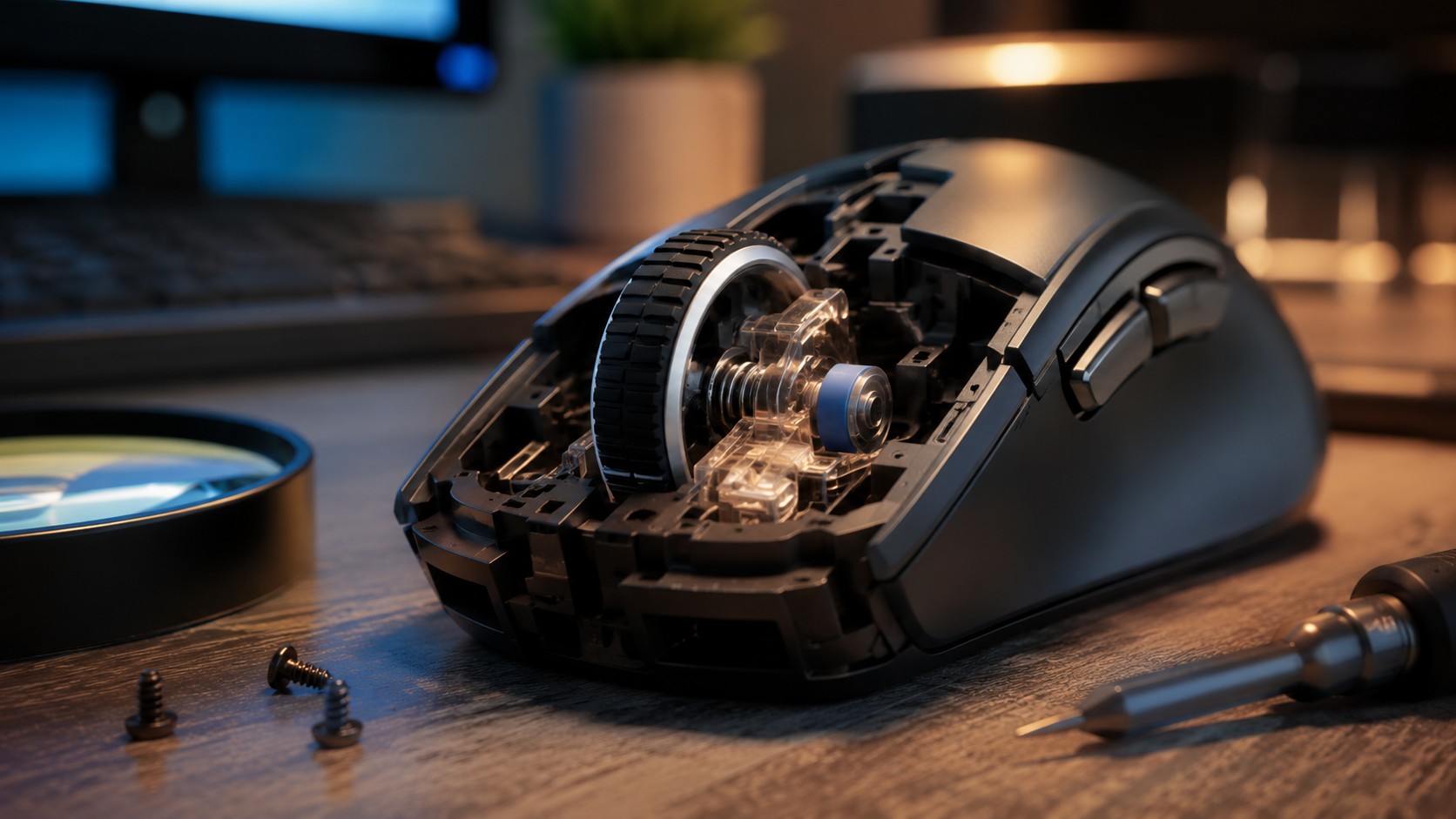
Many wheel designs use an encoder to report rotation direction and steps to the mouse controller. Over time, mechanical wear or contamination can make those transitions less clean. A short part of a downward rotation may then be interpreted incorrectly, producing the familiar “bounce” in the opposite direction.
The encoder is not the only possible cause. Macros, unusual wheel assignments, vendor software profiles, USB problems or an unstable wireless link can also affect behaviour. A reversed event is therefore a clue, not automatic proof that the encoder must be replaced.
- Encoder wear or contamination.
- Macros or custom wheel assignments.
- USB receiver or connection issues.
- Application or OS scrolling configuration.
How to test a mouse wheel online
Scroll slowly in one direction at a time
Open the ACC64 Mouse Test and use the wheel section. Start with several calm rotations only downward and watch for any upward events. Then run a separate series only upward. Slow, deliberate movement is more useful for diagnosis than spinning the wheel as fast as possible.
If the problem is rare, perform several shorter runs. Notice whether the error appears with light movement, normal scrolling or only at high speed. Then repeat the same sequence using another USB port or another computer. Reproducibility is the strongest part of the test.
- Down-only series, then up-only series.
- Use normal speed, not maximum speed.
- Repeat several short runs.
- Retest on another port or computer.
Hardware fault or software setting?
Compare environments before opening the mouse
If scrolling is wrong only in one application, check that app’s smooth-scrolling options, extensions and input settings. If the behaviour appears in the OS, browser, tester and several apps, a mouse-side problem becomes more likely. Wireless models should also be tested over another available connection when possible.
Disable wheel macros and special profiles in the vendor utility during diagnosis. Change one variable at a time. If you alter scroll speed, firmware, drivers and application settings together, you lose the ability to identify what actually fixed or changed the symptom.
- One app only: inspect its settings first.
- Several apps: focus on the mouse and connection.
- Disable macros and special profiles.
- Compare a second computer.
What to do if the wheel still jumps
Start with safe cleaning and warranty options
If dust is visible around the wheel, clean accessible gaps gently with a soft brush or compressed air used according to the product instructions. Do not flood the mouse with liquid or spray random chemicals into the mechanism. If the device is still under warranty, check support terms before removing skates and opening the shell.
Replacing an encoder is possible on many mice, but it often requires disassembly and soldering. The replacement must match the physical dimensions and design. After any repair, repeat the same controlled wheel test so you can compare the before-and-after behaviour objectively.
- External cleaning and warranty first.
- Do not pour liquid into the mouse.
- Encoder replacement may require soldering and a compatible part.
- Repeat the same test after repair.
A jumping wheel is easiest to diagnose with slow, one-direction scrolling in a neutral tester. If opposite-direction events repeatedly appear on a second computer as well, an encoder or mouse-hardware issue becomes much more plausible. Rule out software, profiles and connection problems before disassembling the device.
FAQ
How do I test whether my mouse wheel is faulty?
Run a slow down-only series and then an up-only series in a mouse tester. Look for opposite-direction events or missing steps.
Can Windows settings cause scroll jumping?
They can change scroll speed and feel, but repeatable opposite-direction events in a neutral tester point more strongly to the mouse input.
Can I clean the encoder without opening the mouse?
You can remove accessible external dust safely, but direct encoder access depends on the design. Do not introduce liquids unless the manufacturer specifically instructs it.
Is replacing a scroll encoder difficult?
On many mice it requires disassembly and soldering. Check warranty and exact part compatibility first.
ACC64 editorial article prepared from the cited materials and approved before publication.