
Controller trigger not reaching 100%? How to test LT/RT and L2/R2 and diagnose trigger problems
A controller can look perfectly normal while one trigger quietly reports only part of its usable range. That can mean reduced throttle in racing games, inconsistent braking, or an input that never fully releases. Testing LT/RT or L2/R2 outside the game makes it much easier to separate a hardware fault from calibration or software settings.
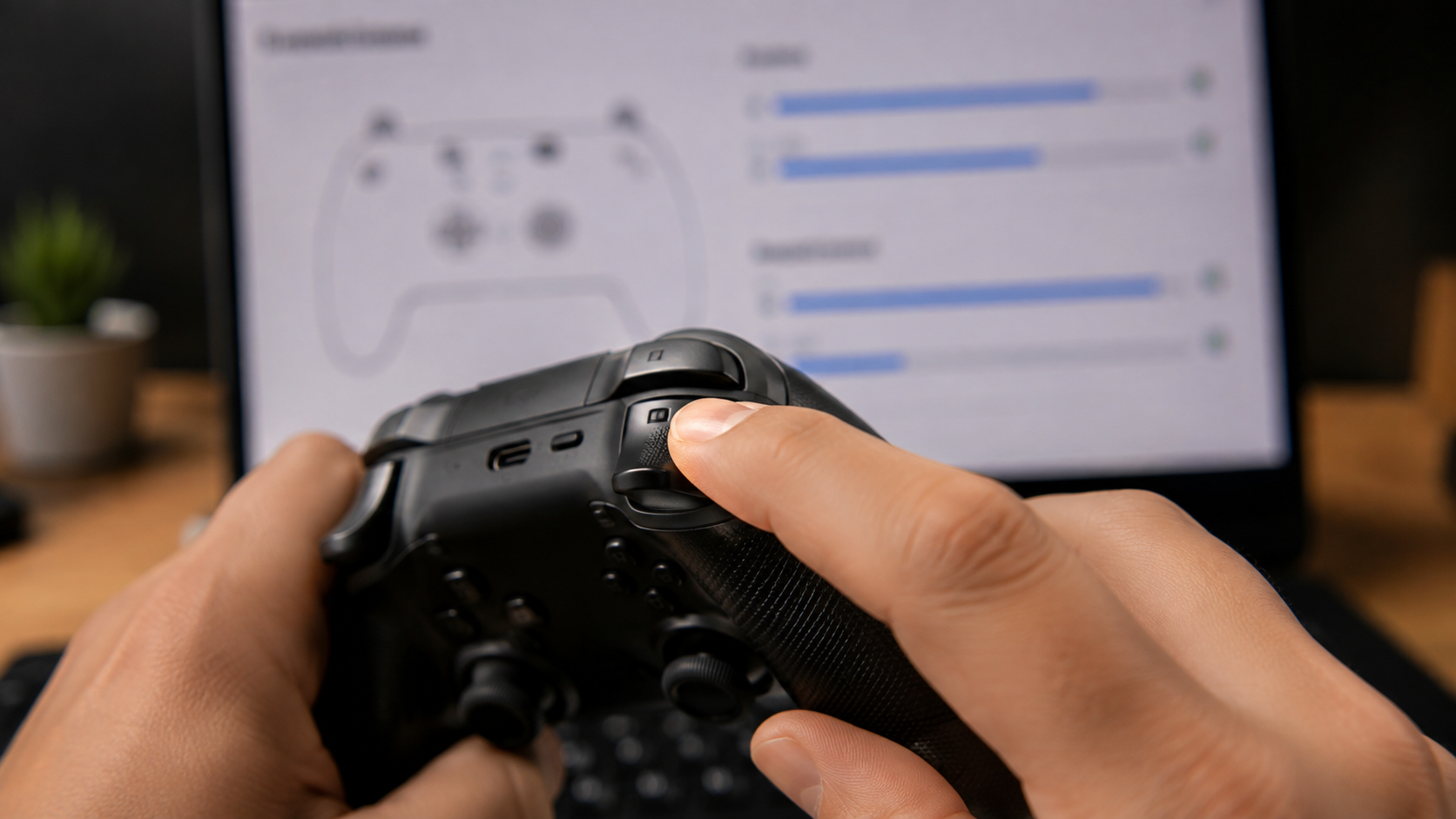
Key takeaways
- Analog triggers should produce a smooth progression from their resting position to full press.
- A repeatable ceiling below the expected maximum can point to calibration, mechanical wear, contamination, or software processing.
- Compare the left and right trigger under the same conditions instead of judging one reading in isolation.
- Watch for jitter and failure to return to the resting value, not only for a missing maximum.
- Testing wired and wireless modes can help isolate software and connection-specific behavior.
Trigger symptom troubleshooting guide
| Symptom | Check first | Possible direction |
|---|---|---|
| One trigger always stops well below the other | Raw tester, calibration, second device | Range configuration or hardware wear |
| Value jumps during a slow press | Repeat the test without remapping software | Unstable signal or mechanical issue |
| Input remains after release | Resting value, deadzone and physical return | Calibration, sticking mechanism or sensor offset |
| Only one game has the problem | Reset that game's controller settings | Game profile or input configuration |
| Behavior changes between USB and wireless | Driver, adapter and software path | Connection-specific configuration or software issue |
What a trigger percentage actually tells you
Physical travel and reported input are not exactly the same thing
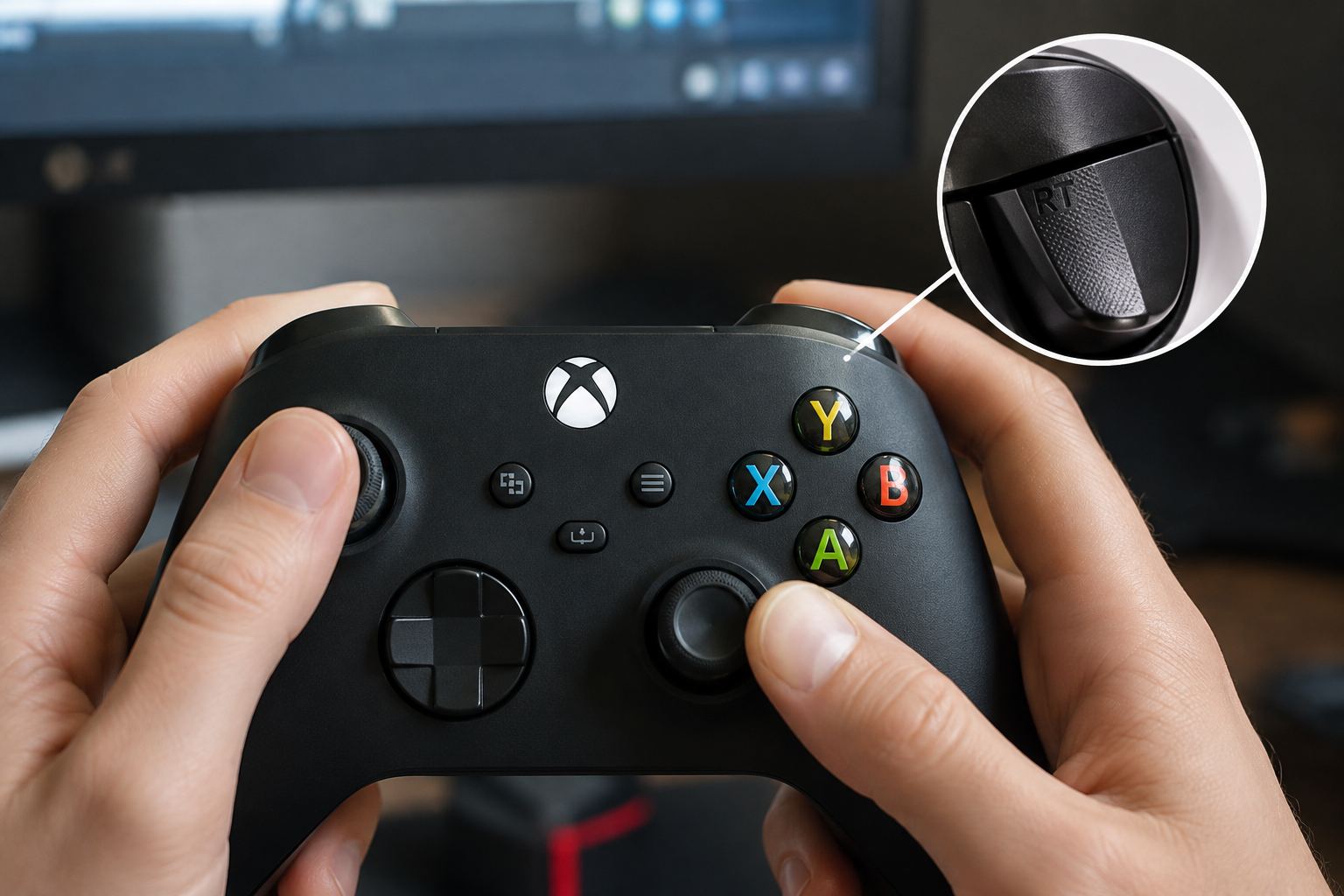
LT and RT on Xbox-style controllers and L2 and R2 on PlayStation controllers are commonly analog inputs. A normal face button mostly tells the system whether it is pressed, while an analog trigger can report how far it has moved. A controller tester may display that signal as a percentage, a bar, or a normalized value such as a scale from the resting point to the maximum. The presentation varies, but the diagnostic goal is the same: the value should follow the physical movement in a predictable way.
Seeing something other than a beautifully rounded 100% does not prove that a controller is broken. Drivers, APIs, firmware and testing tools can normalize ranges differently. What matters more is whether the trigger reaches a stable usable maximum, whether both sides behave similarly, and whether games can recognize full input. A trigger that repeatedly stops far below the other trigger is much more interesting diagnostically than a tiny display difference caused by rounding.
The effect also depends on the game. In a racing title, a reduced right-trigger range can behave like a throttle pedal that never reaches the floor. In another game, the same trigger might merely be interpreted as an on/off action after crossing a threshold, so the fault can remain hidden. For this reason, testing raw controller input is more useful than relying on a single game as the only diagnostic tool.
- Test left and right triggers separately.
- Record the resting value as well as the maximum.
- Look for smooth movement across the entire range.
- Repeat the press several times to check consistency.
How to run a reliable LT/RT or L2/R2 test
Use a repeatable sequence rather than squeezing the trigger once
Connect the controller and open a tester that exposes analog trigger values in real time. For the cleanest first test, temporarily close remapping software or disable custom profiles that alter trigger curves. Once the controller appears, leave it untouched for several seconds. Both triggers should remain stable in their resting state. A value that slowly rises or flickers while the trigger is untouched is already useful evidence, even if full press appears normal.
Next, press one trigger very slowly from the resting position to the physical end of its travel. Watch the bar or numerical value throughout the movement. It should generally climb continuously rather than jump forward, drop backward, or freeze for a large part of the travel. Hold the trigger fully pressed for a moment. A stable maximum is preferable to a value that constantly fluctuates while your finger and the trigger remain still.
Release the trigger just as slowly. The reported value should move back toward its resting state and settle there. Repeat the cycle several times, then perform a series of faster presses. This combination checks range, consistency, response and return behavior. Finally run the same sequence on the opposite trigger. A side-by-side comparison is particularly useful because the two inputs are being tested on the same controller, operating system and connection.
- Step 1: observe both triggers without touching them.
- Step 2: perform one slow full press.
- Step 3: hold the trigger fully pressed.
- Step 4: release it slowly and check the resting value.
- Step 5: repeat with rapid presses and compare both sides.
Five trigger symptoms worth paying attention to
A missing maximum is only one possible failure pattern
The most obvious symptom is a repeatable upper limit. You physically press the trigger all the way, yet the reported value stops at essentially the same lower point every time. If the opposite trigger reaches a much larger range, first check calibration and software configuration. If the discrepancy remains across different testers and devices, mechanical restriction, sensor wear or another hardware issue becomes increasingly plausible.
Jitter is another important pattern. During a steady slow press, the input may climb, suddenly fall, and then climb again. In a driving game this can feel like uneven throttle or braking. In other titles it can repeatedly cross an activation threshold and create inconsistent actions. If the same fluctuations are visible in a raw tester, changing sensitivity inside every game is unlikely to address the underlying cause.
The third symptom is failure to return cleanly to rest. A trigger can reach its maximum perfectly yet continue reporting a small amount of input after you release it. Depending on the game, that may produce light unintended throttle, braking or another analog action. Also watch for dead areas where physical movement produces almost no numerical change and for a maximum that differs dramatically from one press to the next.
- Consistently reduced maximum range.
- Jitter during an otherwise smooth press.
- Input remaining after release.
- A large physical dead section of trigger travel.
- Maximum value changing substantially between repeated presses.
Calibration and deadzones can look like broken hardware
Check the software path before opening the controller
Games and controller utilities can modify trigger behavior before the input reaches gameplay. A profile may change the response curve, add an inner or outer deadzone, or convert part of an analog range into a digital action. An outer deadzone can intentionally make a game consider the trigger fully pressed before the hardware itself reaches the end of its physical range. That can be useful for customization but confusing during troubleshooting.
When diagnosing a suspected fault, temporarily return trigger settings to their defaults. Disable custom mappings and compare the raw tester result with what happens in the game. If the raw signal travels smoothly across its usable range but only one title behaves incorrectly, the controller itself may not be the problem. Reset the game's controller profile and check whether another application is intercepting or remapping the input.
Do not use deadzone as the first solution to a severely unstable signal. A small adjustment can compensate for harmless variation at the edge of a range, but a large deadzone can merely hide a deteriorating input. A better order is to establish what the controller is actually reporting, identify whether the problem is consistent, and only then use sensitivity or deadzone settings to tune a healthy input to personal preference.
- Return trigger sensitivity to default during testing.
- Disable custom remapping profiles temporarily.
- Compare a raw tester with at least one game.
- Treat unusually large deadzones as a workaround, not a diagnosis.
Test the connection, driver and firmware separately
A layered test can reveal where the behavior changes
If your controller supports both USB and wireless operation, repeat the same trigger sequence in both modes. A reduced analog maximum is not automatically a wireless problem, but this comparison can reveal whether the behavior is specific to one driver path, adapter or connection method. Keep the tester and other settings identical between the two runs so the connection method is the main variable you are changing.
Also check whether the operating system is seeing the controller you expect. Remapping applications can create virtual controllers, and some games may read the virtual device while a browser tester reads the physical one. That can produce apparently contradictory results. Closing those applications temporarily is one of the fastest ways to reduce ambiguity. If the trigger is correct in raw input but changes after a remapper starts, the software path deserves attention.
Firmware is another layer, especially for modern controllers that receive official updates. If the manufacturer provides an official utility for your exact model, checking for an update is reasonable. Firmware should not be treated as a universal repair, however. A cracked component, worn mechanism, contaminated moving part or unstable sensor will not necessarily become healthy because the controller software was updated.
- Compare wired and wireless modes.
- Test on a second compatible computer or device when possible.
- Temporarily remove virtual-controller software from the test path.
- Use only the manufacturer's official firmware tools.
When the evidence points to a hardware problem
What to do before repair, replacement or a warranty claim
A hardware explanation becomes more convincing when the same abnormal pattern survives every software check. For example, the right trigger always tops out much earlier than the left trigger in multiple testers, on another computer, with default settings and through more than one connection method. Mechanical clues add weight: a trigger may feel rough, have unusual resistance, fail to spring back normally or make a new sound that was not present before.
Without opening the controller, inspect the area around the trigger for obvious debris and check whether the movement is physically unobstructed. Do not force the trigger beyond its normal stop and avoid pouring cleaning liquid into the housing. If the device is still under warranty, recording the tester result and describing the difference between the two triggers is usually more sensible than immediately disassembling it.
Out-of-warranty repair depends heavily on the controller design. Different models can use different sensors, magnets, springs and mechanical assemblies, so the same symptom does not imply the same replacement part. Identify the exact model and hardware revision before attempting repairs. If opening small electronics, soldering or replacing internal components is outside your experience, professional service is safer than replacing parts based only on a generic trigger symptom.
- Document several repeatable test runs.
- Compare both triggers in the same tester.
- Check warranty conditions before opening the housing.
- Match repair parts to the exact controller model and revision.
A trigger that does not appear to reach 100% is not automatically defective. The useful diagnosis comes from comparing LT with RT or L2 with R2, checking the entire input curve, watching the resting value and repeating the test outside the game. If one trigger repeatedly has a reduced range, jitters or stays active after release across multiple devices and default configurations, the case for a genuine controller fault becomes much stronger.
FAQ
Does a controller trigger have to show exactly 100%?
Not necessarily. Different tools and input layers can normalize or display the range differently. A repeatable full usable range and similar behavior between the two triggers matter more than a perfectly rounded number.
Why does my trigger still show input after I release it?
Possible causes include calibration offset, deadzone configuration, mechanical sticking or sensor variation. Repeat the test outside the game and compare it on another device before deciding that the hardware is faulty.
Can I test L2 and R2 without launching a game?
Yes. A controller input tester is usually more useful for diagnosis because it exposes the analog value directly without game-specific sensitivity and activation thresholds.
Could Bluetooth cause the trigger to stop before maximum?
Do not assume that automatically, but comparing wired and wireless operation is useful. If the result changes only with the connection method, investigate the driver, adapter and software configuration.
When should I consider repair or warranty service?
When the abnormal behavior is repeatable outside a specific game, persists with default settings, appears on another device and clearly affects one trigger differently from the other.
ACC64 editorial article prepared from the cited materials and approved before publication.