
Mouse Not Working on Every Surface? Why Tracking Fails and Which Mouse Pad Works Best
A mouse that feels perfectly accurate on one desk can become erratic on another, with the pointer skipping, freezing or refusing to move. That does not automatically mean the mouse is defective: optical tracking depends heavily on what the sensor can see beneath it.
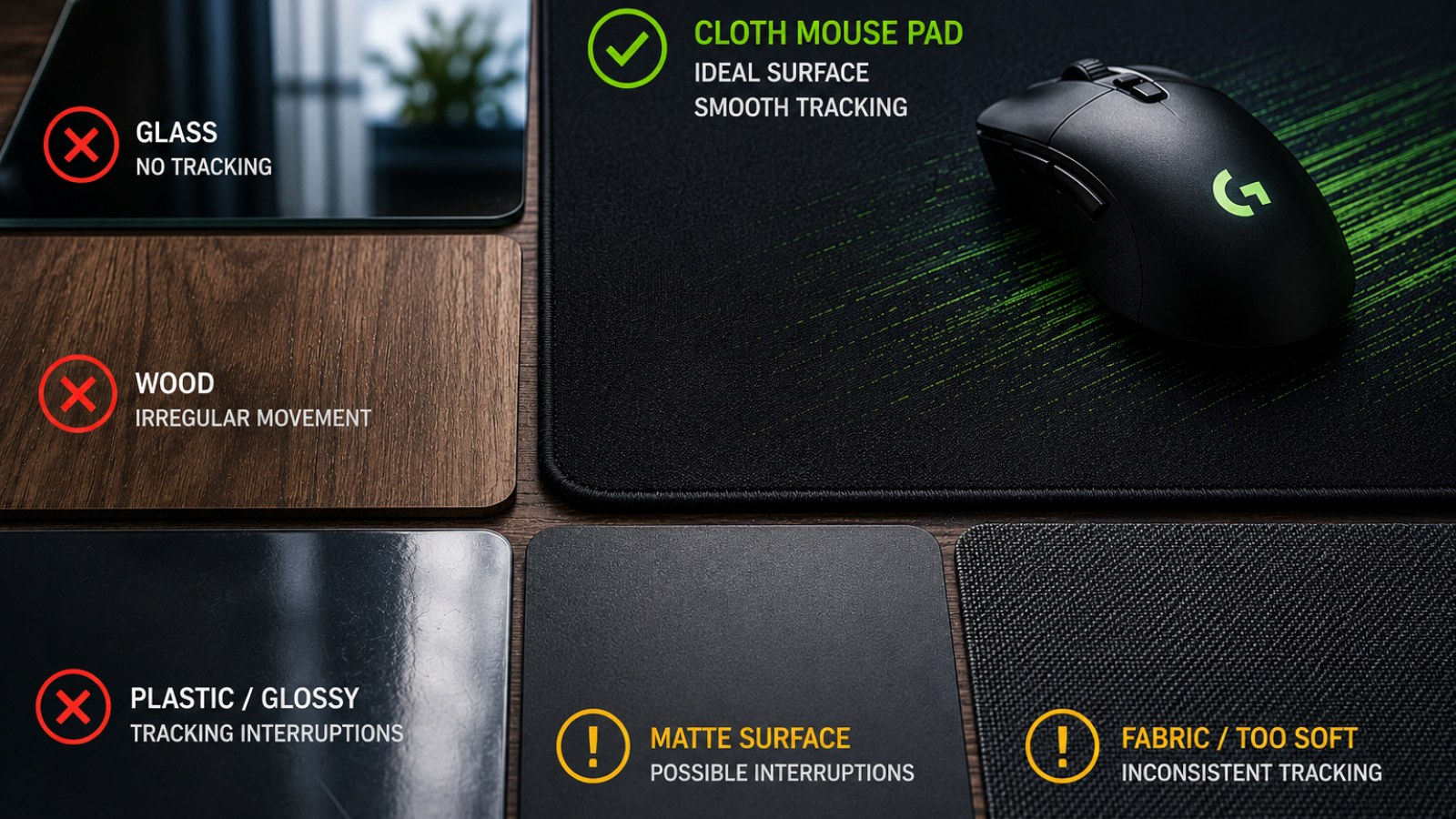
Key takeaways
- Mouse sensors need a surface with enough visible detail to calculate movement reliably.
- Glass, glossy desks and unusual textures can cause inconsistent tracking.
- A clean cloth mouse pad is a dependable starting point for most modern mice.
- Testing the same mouse on several surfaces can quickly separate a surface problem from a hardware fault.
- Pad size and glide should also match your sensitivity and preferred level of control.
Common mouse surfaces compared
| Surface | Typical behavior | Best use |
|---|---|---|
| Cloth mouse pad | Consistent, predictable tracking | General use and gaming |
| Hard mouse pad | Smooth movement with low friction | Users who prefer faster glide |
| Glass | Highly dependent on sensor capability | Not universally suitable |
| Glossy desk | May cause skipping or tracking loss | Test before relying on it |
| Dirty or uneven surface | Potentially inconsistent tracking | Best avoided |
Why mouse sensors behave differently on different surfaces
Tracking depends on usable surface detail
An optical mouse observes a tiny area directly beneath its sensor and compares successive views to calculate direction and distance. For that process to work reliably, the surface must provide information the sensor can consistently recognize. A normal cloth pad usually provides plenty of fine texture, while transparent, highly reflective or visually unusual materials can be much harder to interpret.
Glass is the classic example. Depending on the sensor design and the glass itself, light may pass through or reflect in ways that make tracking unreliable. Highly polished desks, strong repeating patterns and irregular surfaces can also cause trouble. Typical symptoms include a pointer that pauses, jumps, moves in the wrong direction for an instant or stops responding in certain areas.
- Compare the problem surface with a clean cloth mouse pad.
- Test both slow movements and fast swipes.
- If the issue appears only on one surface, the mouse itself may be working normally.
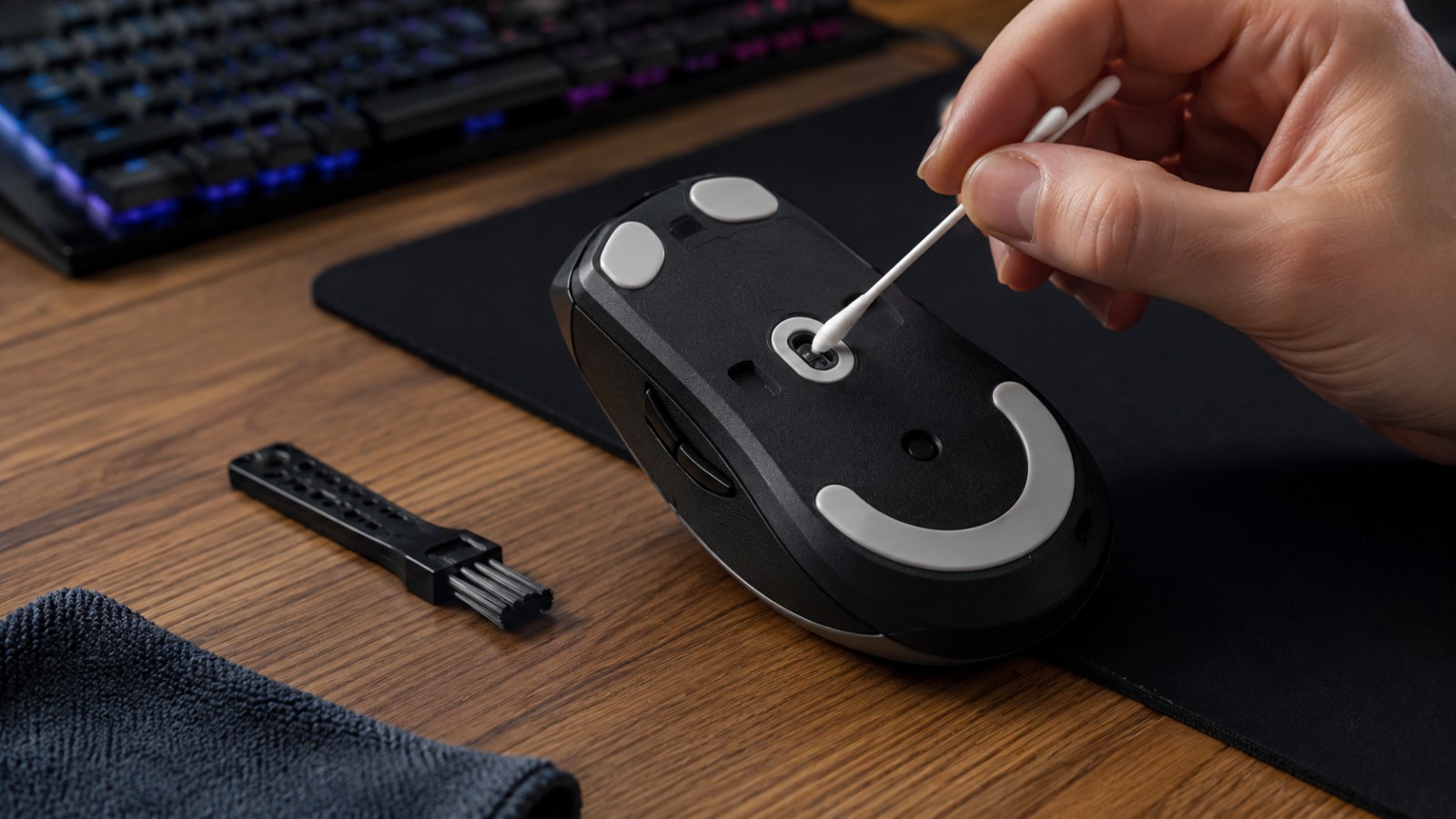
Before buying anything, inspect the sensor and pad
Dust can look like a hardware failure
Surface compatibility is only part of the story. A hair, fiber or small piece of debris around the sensor opening can interfere with tracking. Turn the mouse off or disconnect it, inspect the underside under good lighting and carefully remove visible contamination. Avoid pushing objects into the sensor opening.
The mouse pad deserves the same attention. Skin oils, dust and worn areas can create sections with a noticeably different texture. Move the mouse across the entire pad and watch whether tracking errors repeatedly occur in the same location. If they do, cleaning the pad according to its manufacturer's instructions or trying another pad is a useful diagnostic step.
- Remove visible dust and fibers near the sensor.
- Check the mouse feet for dirt or damage.
- Test the edges of the pad as well as its center.
- Try a known clean and uniform surface.
Cloth vs hard mouse pads: which one should you choose?
Consistency matters more than marketing labels
A conventional cloth pad is the easiest recommendation for general use. Its textured surface usually gives optical sensors a consistent reference, while the slight resistance can make controlled movements comfortable. Cloth pads are also available in sizes ranging from compact office models to desk mats large enough for low-sensitivity gaming.
Hard pads feel different rather than universally better. Their smoother surface can produce a faster glide and a more direct sensation, which some users prefer. The best choice therefore depends on sensor compatibility, desired friction and available space. If you play at low sensitivity and use large arm movements, pad dimensions can be just as important as its material.
- Cloth: versatile, comfortable and control-oriented.
- Hard: typically faster-feeling with lower perceived friction.
- Large pads: useful for low sensitivity and broad movements.
- Whichever type you choose, keep the surface clean and even.
A quick test to find the real cause of tracking problems
Change one variable at a time
Start with a clean cloth pad. Draw slow horizontal and vertical lines with the pointer, make circles, then perform several faster swipes. Repeat exactly the same movements on the desk or surface where the problem normally occurs. If the mouse is stable on the pad but fails on the desk, you have strong evidence that surface compatibility is the issue.
If tracking fails everywhere, continue beyond the surface. For a wired mouse, inspect the cable and try another USB port. For a wireless model, check battery or charge level, receiver placement and the connection itself. Testing the mouse on another computer is particularly useful: repeated failures on multiple clean surfaces and systems make a mouse-side fault more likely.
- Test on a clean cloth pad.
- Repeat on the troublesome surface.
- Try another USB port or reconnect the wireless mouse.
- Use another computer if available.
- Include both slow precision movements and rapid swipes.
If your mouse tracks correctly on a proper pad but becomes unreliable on a particular desk, replacing the mouse is rarely the first step. Give the sensor a clean, uniform surface and test again. A cloth pad is the most straightforward all-round choice, while gamers can refine the decision based on glide, control and size. Tracking problems that remain on several good surfaces deserve further investigation of the connection, power and mouse hardware.
FAQ
Why doesn't my mouse work properly on glass?
Transparent and reflective glass can make it difficult for some sensors to obtain the surface information needed for reliable movement detection. Sensor designs differ, so performance on glass varies between mice.
Can a mouse pad fix cursor skipping?
It can if the original surface is responsible. A clean, consistent pad gives the sensor a more predictable area to track.
What is the best mouse pad for an optical mouse?
There is no universal winner, but a clean cloth pad is a safe all-purpose option. Gaming users should also consider size, friction and their preferred sensitivity.
Why does my mouse still skip on a mouse pad?
Check for dirt around the sensor and worn or contaminated areas on the pad. USB, wireless, power or hardware problems can also produce similar symptoms.
ACC64 editorial article prepared from the cited materials and approved before publication.