
Keyboard Typing Multiple Letters From One Press? What Causes Key Chatter and How to Fix It
You tap a key once and get “aa”, two spaces, or another unwanted repeat. That behavior is commonly called key chatter, and a failing switch is only one possible cause. A few controlled tests can tell you whether the problem is inside the keyboard or elsewhere in the setup.
Key takeaways
- Key chatter is an unintended second or additional registration from a single physical key press.
- Testing the same key repeatedly and then trying the keyboard on another computer helps separate hardware from software issues.
- Switch wear, contamination, hot-swap socket problems, firmware and connectivity can produce similar symptoms.
- On a hot-swappable keyboard, moving the suspect switch to another position is one of the most useful diagnostic tests.
Symptom and the most useful next test
| Symptom | Next test |
|---|---|
| One key produces duplicates | Repeated tap test and hot-swap switch swap if supported |
| Many keys suddenly chatter | Second computer, default profile and firmware check |
| Problem appears only wirelessly | Compare with wired mode and check receiver conditions |
| Characters repeat only when held | Check OS repeat delay and repeat rate |
What key chatter actually looks like
Unwanted duplicates are not the same as normal key repeat
A keyboard has to translate a physical movement into a clean electrical event. When you press a key, its switch changes state and the keyboard controller reports that event to the computer. Mechanical contacts do not always transition perfectly, so keyboards use debounce logic to ignore tiny, rapid changes that should still count as a single press. If a switch becomes unstable or the filtering is no longer sufficient for its behavior, one tap can be interpreted as two or more presses.
The result is easy to recognize while typing: “keyboard” might become “keybooard”, a single Space press can create a double space, or Backspace may unexpectedly erase two characters. However, normal operating-system key repeat should not be confused with chatter. Holding a key is supposed to produce repeated characters after a delay. Chatter happens when a quick press and release generates an extra input without you intentionally holding the key.
- One short tap occasionally produces two or more inputs.
- The fault often concentrates on one or a few keys.
- The duplicate may be intermittent rather than appearing on every press.
Why keyboards start registering extra presses
The switch is common, but it is not the only suspect
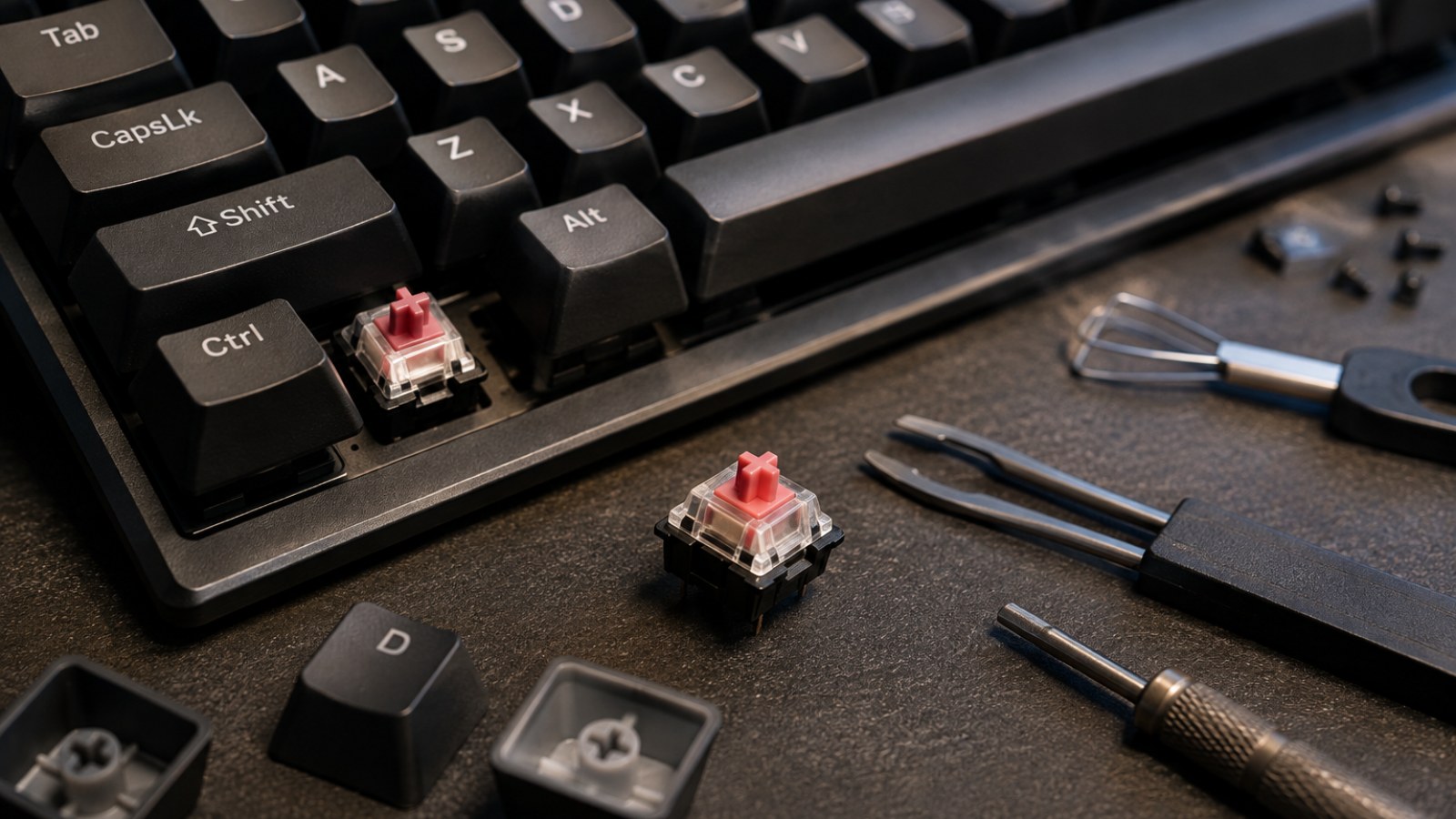
On a mechanical keyboard, an aging or contaminated switch is an obvious place to investigate. Dust and other debris can get around the key mechanism, while repeated use can gradually change the behavior of the electrical contacts. A hot-swap board adds a few more possibilities: the switch may not be seated correctly, one of its pins may be bent, or the socket itself may have a poor connection. A fault on the PCB can also create symptoms that look like a bad switch.
Software and communication should remain on the checklist. Keyboard utilities can store macros, remap keys or switch profiles, while firmware controls how the device interprets and reports input. Wireless models introduce the receiver, radio connection and battery state as additional variables. If several unrelated keys suddenly develop the same issue at once, investigate shared causes before assuming multiple switches failed simultaneously.
- Worn, contaminated or faulty key switch.
- Poorly seated hot-swap switch or damaged pin.
- Hot-swap socket or PCB fault.
- Macro, remapping profile or firmware issue.
- Cable, USB connection or wireless communication problem.
How to diagnose key chatter before opening the keyboard
Build evidence with repeatable tests
Start with a keyboard tester or a plain text editor. Give the suspect key a series of deliberate, short taps, fully releasing it each time. Compare the result with nearby keys. Do not hold the key down, because normal repeat behavior will make the test meaningless. An intermittent fault may require many presses before it appears, so a clean result after only two or three taps proves very little.
Next, simplify the connection. Reconnect the keyboard, try another USB port and avoid a hub during testing. If the cable is detachable, test with another compatible data cable. Temporarily close keyboard utilities, macro applications and remapping software. If the device has multiple onboard profiles, use a default profile where possible. These steps remove several variables without requiring any physical modification.
Finally, test the keyboard on another computer. Reproducing the same double input on a second system is valuable evidence that the keyboard itself is responsible. For a wireless model that can also operate over USB, compare wireless and wired modes. A keyboard that works perfectly over cable but misbehaves only wirelessly deserves connectivity troubleshooting before any switches are replaced.
- Test short taps instead of holding the key.
- Compare the suspect key with known-good keys.
- Use a direct USB connection.
- Disable macros and custom remapping temporarily.
- Repeat the test on a second computer.
Fixes that make sense, from simple cleaning to switch replacement
Use the least invasive solution first
If one key is clearly responsible, disconnect the keyboard before doing physical work. Remove loose dust and debris around the keycap and switch without flooding the mechanism with an unsuitable cleaner. Liquids and random contact products can create a larger problem than the one you started with. For a keyboard still covered by warranty, check the manufacturer's service terms before disassembling anything beyond normal user maintenance.
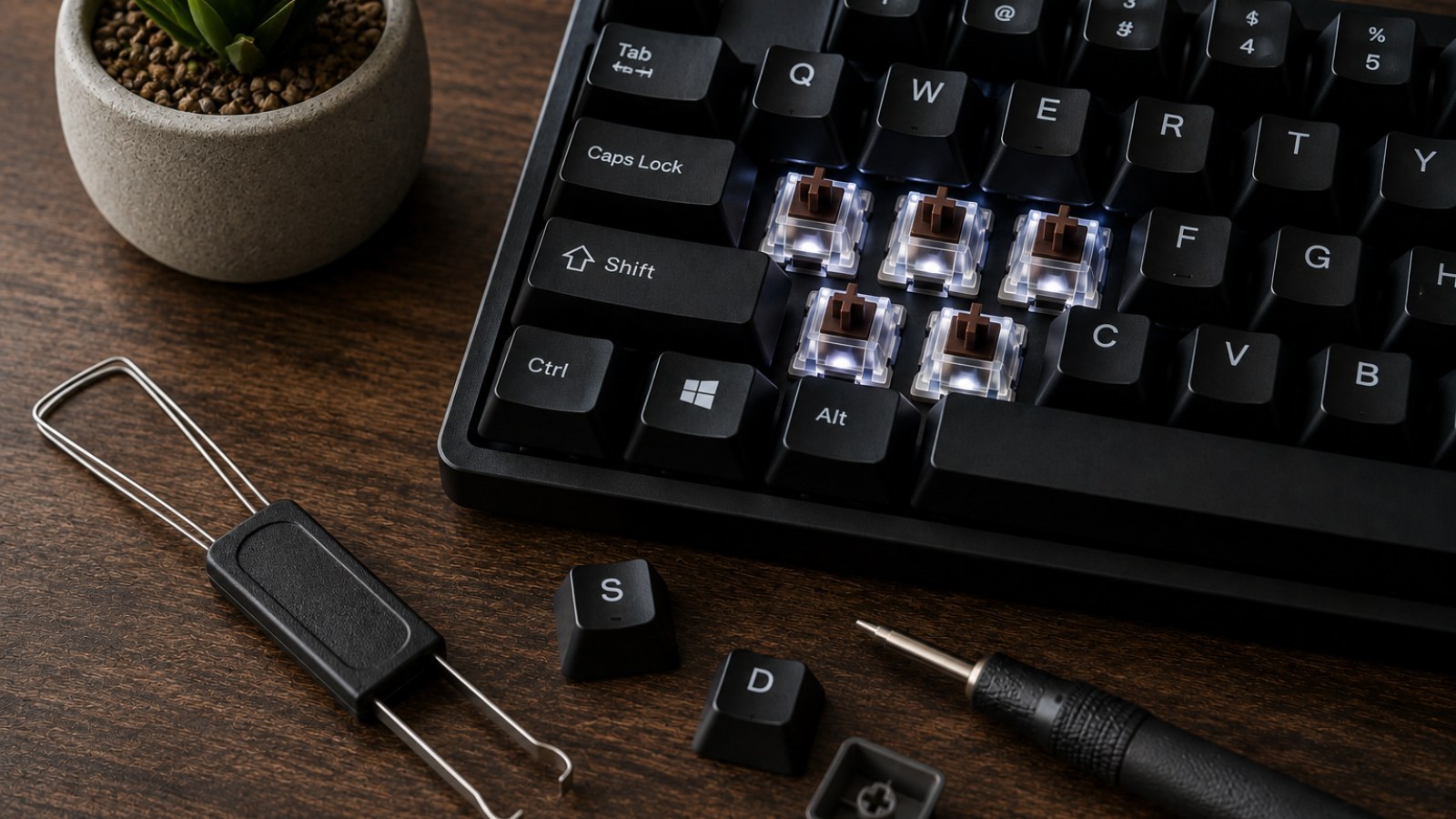
Hot-swappable keyboards provide an excellent diagnostic advantage. With the keyboard disconnected, remove the suspect switch using the correct switch puller and inspect its pins. Swap it with a known-good compatible switch from another position. Reconnect the keyboard and repeat the test. If the chatter moves to the new key position with the switch, the switch is the likely culprit. If the original position continues to chatter with a different switch installed, investigate the socket or PCB instead.
Soldered keyboards are more complicated. Replacing a switch requires opening the board and desoldering components, which is not a sensible first repair for everyone. A warranty claim or repair service may be preferable. Firmware updates can also be worth checking when the keyboard maker specifically provides an applicable update, but use the correct official firmware for the exact model and avoid interrupting the update process.
- Disconnect power before removing keycaps or switches for deeper inspection.
- On hot-swap boards, swap the suspect switch with a known-good one.
- If the fault stays at the same key position, the switch may not be the cause.
- Consider warranty service before soldering or extensive disassembly.
When repeated characters are not key chatter
Check operating-system repeat settings and keyboard profiles
If characters repeat only while a key is being held, look at the operating system's repeat delay and repeat rate. A very short delay can make normal behavior feel unusually sensitive, but that is different from two registrations caused by a quick tap. Accessibility features and third-party keyboard tools can also alter input behavior, so testing with a clean, default configuration is useful.
Look beyond an individual switch when the keyboard has broader symptoms. Random disconnects, an entire cluster of keys failing together, lighting resets or widespread duplicate inputs point toward a connection, firmware, controller or PCB issue. Replacing a single switch in that situation may change nothing. Good troubleshooting is less about guessing the most common failure and more about finding the test that separates one possible cause from another.
- Held-key repetition can be normal system behavior.
- Macros can intentionally generate multiple inputs.
- Several keys failing together may indicate a shared hardware or software problem.
Do not replace switches based on one accidental duplicate. Confirm that a short physical press is being registered more than once, isolate the affected keys, remove software and connection variables, and test the keyboard on another computer. On a hot-swap board, moving the suspect switch provides especially strong evidence: if the fault follows it, replacement is straightforward. If the fault stays with the key position, the socket or PCB deserves attention instead.
FAQ
Does key chatter always mean the switch is failing?
No. A switch is a common cause, but socket faults, firmware, macros, PCB problems and connectivity issues can produce similar symptoms.
How can I test keyboard chatter?
Use a keyboard tester or text editor and perform many short, individual taps. If one physical tap produces multiple events, repeat the test on another computer to help rule out software.
Can key chatter be fixed without replacing a switch?
Sometimes. Cleaning loose contamination, reseating a hot-swap switch, correcting a profile or resolving a connection problem may help. A physically worn switch may still need replacement.
Will changing the key repeat rate fix chatter?
It does not repair genuine switch chatter. Repeat-rate settings mainly control what happens when a key is intentionally held down.
ACC64 editorial article prepared from the cited materials and approved before publication.